
Browse Guides
5 guides
3 guides
2 guides
13 guides
1 guide
9 guides
12 guides
2 guides
18 guides
1 guide
1 guide
1 guide
2 guides
1 guide
1 guide
1 guide
1 guide
1 guide
1 guide
1 guide
2 guides
2 guides
1 guide
Connect Zira to Claude
Connect a site to Claude and ask about your operation in plain language — Claude reads your live Zira data, and can open tasks and post updates when you let it.
Connect a site to Claude and you can ask about your operation the way you would ask a supervisor. Claude looks the answer up in your live Zira data — you do not copy readings into a chat window or paste answers back out.
In beta. This is new and we are still refining it. It works, and we would like to hear how it goes for you.
Before you start
- You need to be signed in to Zira, and you need access to the site you want to connect.
- You need Claude — the desktop app, Claude Code, or another assistant that accepts a connection address.
- One connection covers one site. If you look after several sites, connect each one you want Claude to reach.
Connect a site
- Click your profile picture in the top right and choose Connect to Claude.
- Under Which site?, search for and pick the site.
- Under What can Claude do?, choose Look only or Look and act.
- Click Connect to Claude.
- Pick your assistant from the tabs — Claude Code, Claude Desktop, or Something else — then click Copy and paste what you copied where the page tells you.
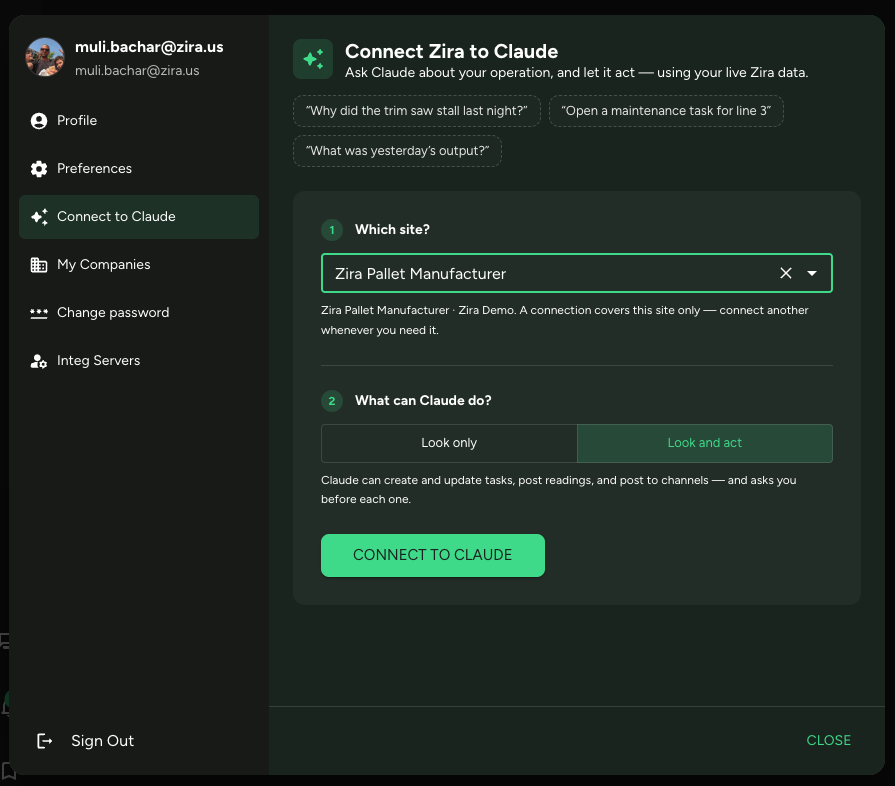
That is the whole setup. Claude Code picks the connection up in your next session; Claude Desktop reads it when it starts, so restart it.
Choose what Claude may do
| Choice | What it means |
|---|---|
| Look only | Claude can read your data and nothing else. It cannot create, change, or post anything. |
| Look and act | Claude can create and update tasks, post readings, and post to channels — and asks you before each one. |
Look only is a good way to start. You can come back and connect again with Look and act once you are comfortable.
Copy the connection line before you close the page
The connection line is shown once. Copy it straight away — if you lose it, come back and connect again.
Treat it like a password. Anyone who has it can reach that site. If you stop using a connection, or you think the line has leaked, remove it from that site's Applications tab.
Ask about your operation
Once connected, ask the kind of question you would ask on the floor:
- "Why did the trim saw stall last night? Check its readings around 22:00."
- "What was yesterday's output on line 3?"
- "Show me the open tasks for the Rehovot plant."
Claude finds the right data source by name and looks the readings up itself. You do not need to know which metric or device to point it at.
Let Claude do the work
With Look and act, Claude can open and update tasks, record readings, set a device's status, and post an update to a channel.
Claude asks you before each one. Treat that as a real confirmation — creating a task notifies the person it is assigned to, and posting to a channel is visible to everyone following it.
Tips
- Ask for names, not IDs. "The bandsaw in Plant 2" is enough — Claude searches for it.
- Keep time ranges narrow. "Last night between 21:00 and 23:00" gets a fast, precise answer; "this year" returns more than Claude can read at once.
- It cannot see everything. A connection covers data sources, readings, tasks and files. Dashboards, forms and vision models are not reachable this way.
Let Claude read the guides too
There is a second, separate connection that gives Claude the Zira help center — the product guides, the API reference, and the release notes. It is public and read-only, so it needs no setup beyond the address. Teams that add both get answers grounded in how Zira actually works.