
Browse Guides
What Is Zira
Account Access
5 guides
Profile Preferences
3 guides
Navigation
2 guides
AI Vision
13 guides
AI Agents
1 guide
AI Assistance
9 guides
Data Sources
12 guides
Forms
2 guides
Dashboards
18 guides
Install the Zira App
Chat
1 guide
Feed
1 guide
Tasks
1 guide
People
2 guides
Documents
1 guide
Applications
1 guide
Support
1 guide
Scheduler
1 guide
Triggers
1 guide
Inventory
1 guide
TVs
1 guide
Operations App
2 guides
TV App
2 guides
Channels
1 guide
1 min read
Updated June 21, 2026
Data Sources Tabs
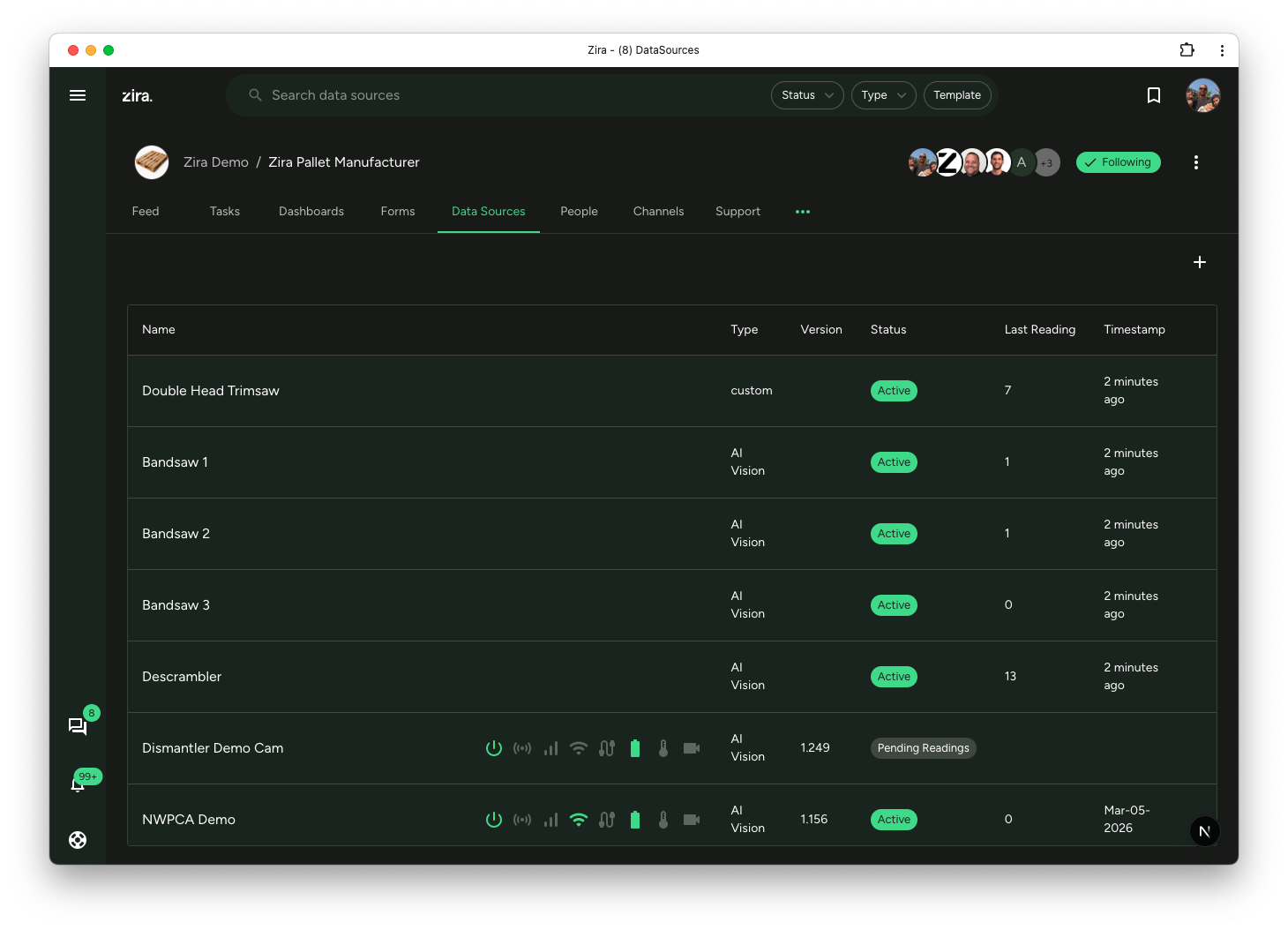
Use the Data Sources tab to review data sources connected to a site or channel, open one for detail, or add a new one.
Use the Data Sources tab when you want to review data sources connected to the current site or channel.
Data sources open their own detail pages for readings, images, videos, remote control, models, routing, and device-specific settings.
Open the Data Sources tab
- Open a site or channel.
- Click the Data Sources tab.
Open a data source
- Browse or search for the data source you need.
- Select the data source row.
- Continue your work on the data source page.
What the table shows
The table can show:
- the data-source name
- type
- status
- last reading
- timestamp
- version or monitoring details when available
- row actions for editing, sharing, or other device-specific tasks
Use the chart icon when you want a quick preview. Open the row itself when you want the full data-source page.
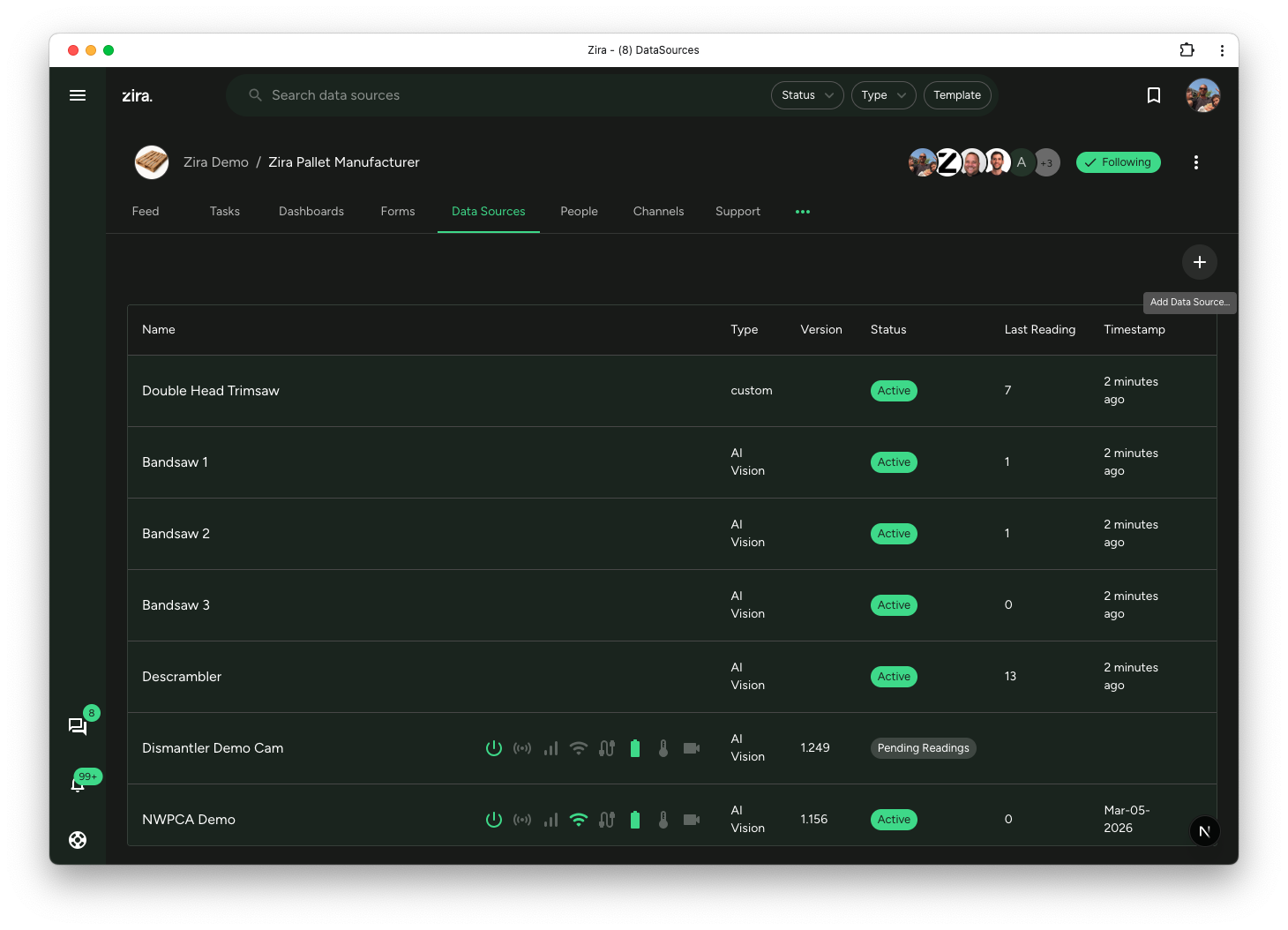
Create a data source
- Click Add Data Source.
- Review the create dialog and choose the type that fits the workflow you want to start.
- Continue through the setup path for that type.
Use the AI-focused options when you want to start from a template-driven inspection setup.
When to use it
- Use this tab when the work starts from a site or channel but continues on a data source page.
- Open the data source page when you need readings, images, videos, remote control, models, routing, or device-specific settings.
- Start the create flow when you want to add a new data source to the current site or channel.