
Browse Guides
5 guides
3 guides
2 guides
13 guides
1 guide
9 guides
12 guides
2 guides
18 guides
1 guide
1 guide
1 guide
2 guides
1 guide
1 guide
1 guide
1 guide
1 guide
1 guide
1 guide
2 guides
2 guides
1 guide
Dashboard AI Assistant
Use Dashboard AI Assistant to ask questions about dashboard data, generate dashboard changes, review the draft, and apply the result when it looks right.
Use Dashboard AI Assistant when you want help understanding a dashboard or changing the dashboard itself.
The assistant opens from the dashboard toolbar and has two modes:
- Ask answers questions about the current dashboard data.
- Build makes dashboard changes from your request.
Open Dashboard AI Assistant
- Open a dashboard outside edit mode.
- Click the AI Assistant icon in the dashboard toolbar.
- Choose Ask or Build in the assistant panel.
The assistant opens as a panel on the right side of the dashboard, so you can keep the current widgets in view while you work.
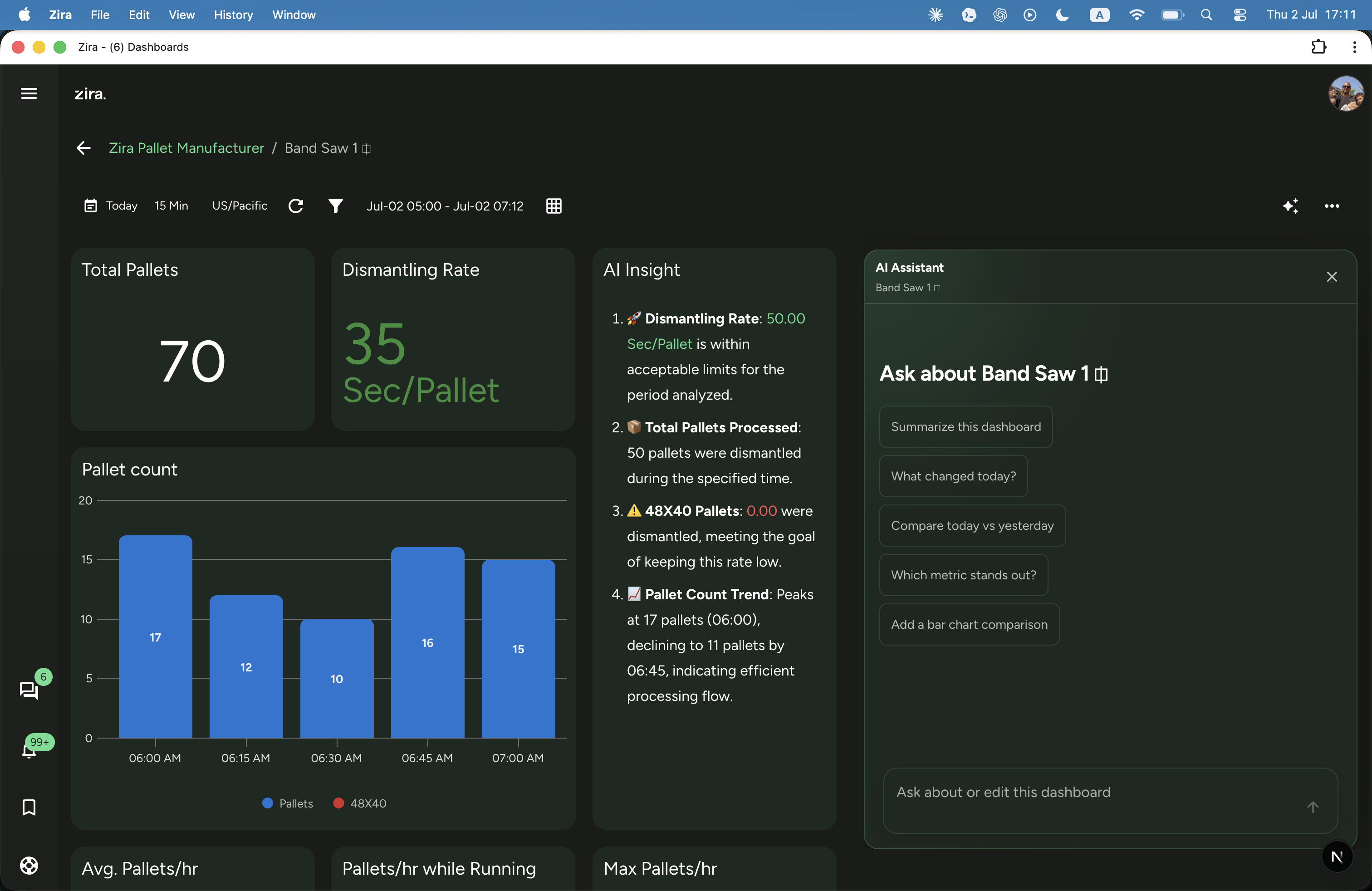
Ask about the dashboard
Use Ask when you want a plain-language answer based on the dashboard widgets and the selected time range.
You can ask about anything visible on the dashboard, for example:
- what stands out right now
- what changed in this time range
- where performance is strongest or weakest
- which line is falling behind
- what deserves attention first
Good questions usually work best when they focus on one clear job:
- summarize this dashboard
- explain what changed in this time range
- identify unusual spikes or drops
- compare performance between groups
- call out the most important risks
The assistant also shows suggestion chips you can use as a starting point. Select one when you want to move quickly, then refine the wording if needed.
If the answer is too broad, ask again with a narrower outcome or a more specific comparison.
Build or revise the dashboard
Use Build when you want AI to create or revise the dashboard structure from a plain-language request.
You can ask for:
- a KPI overview
- a comparison dashboard
- a mobile-friendly layout
- a dashboard based on available data
- changes to the current dashboard widgets and layout
- one new widget
- a reorganization of the current page
- a change to widget order or screen layout
The panel suggests example build prompts, so you do not need to start from a blank input.
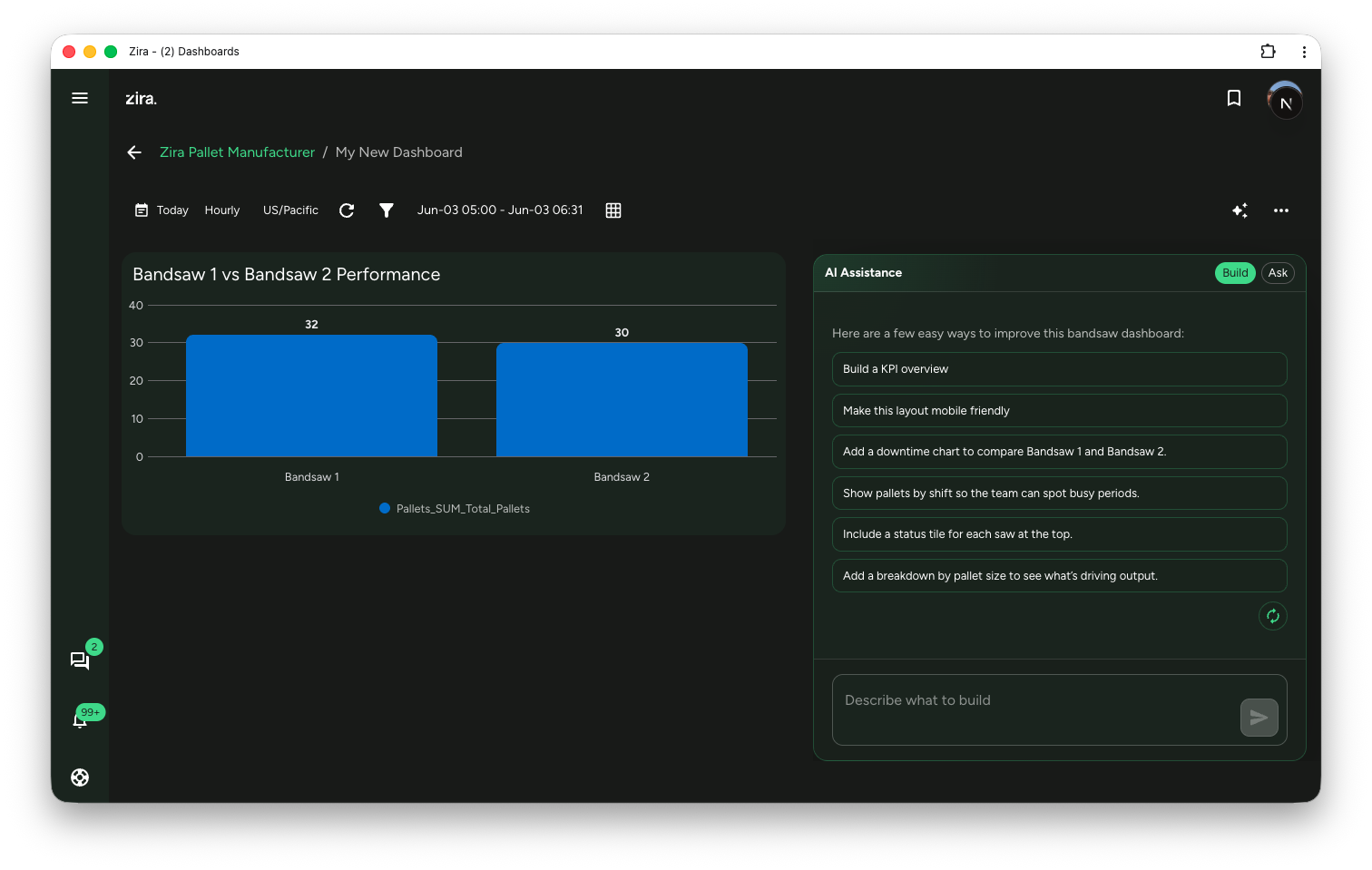
Send a build request
- Switch to Build.
- Type what you want to create or change, or choose one of the suggested prompts.
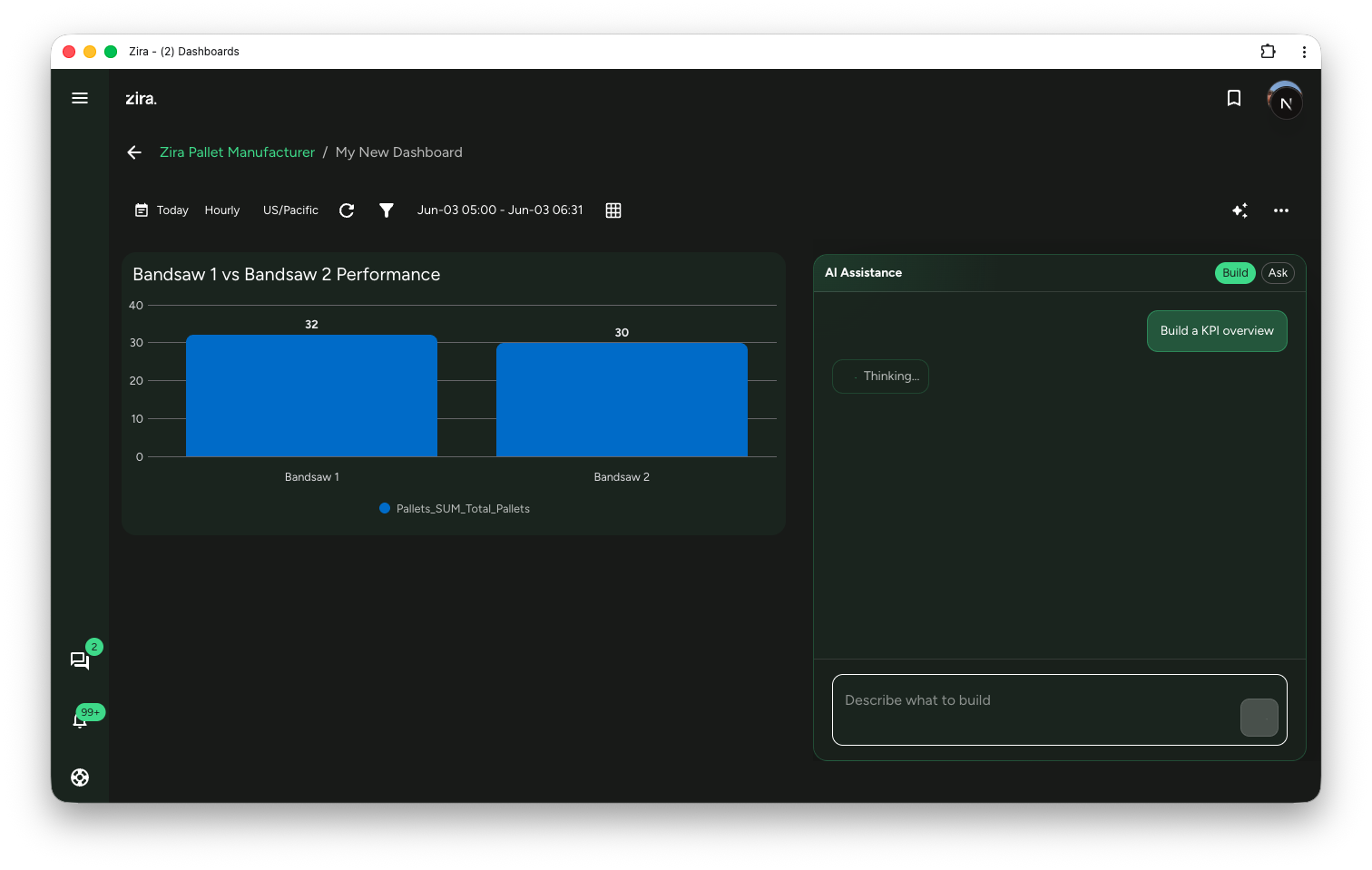
- Send the request and wait while the assistant prepares the draft.
The assistant keeps your request visible in the conversation so it is easy to compare the result with what you asked for.
Review the change before saving
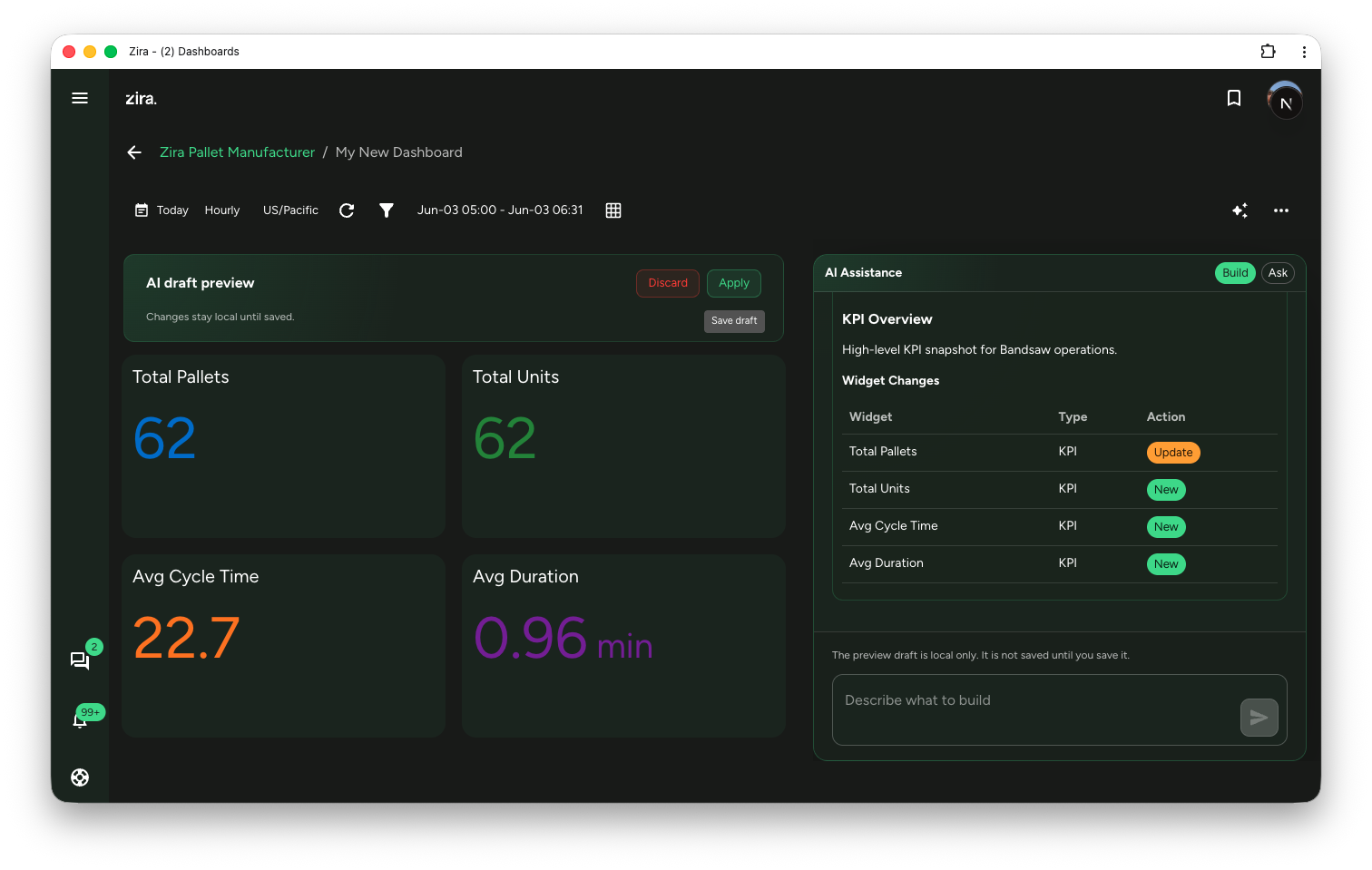
When the draft is ready, the dashboard shows an AI draft preview and the panel explains what changed.
Review these parts carefully:
- the dashboard title and description
- the widgets that will be created, updated, or removed
- the order of the dashboard story
- whether the result matches your request
The preview stays local until you decide what to do next.
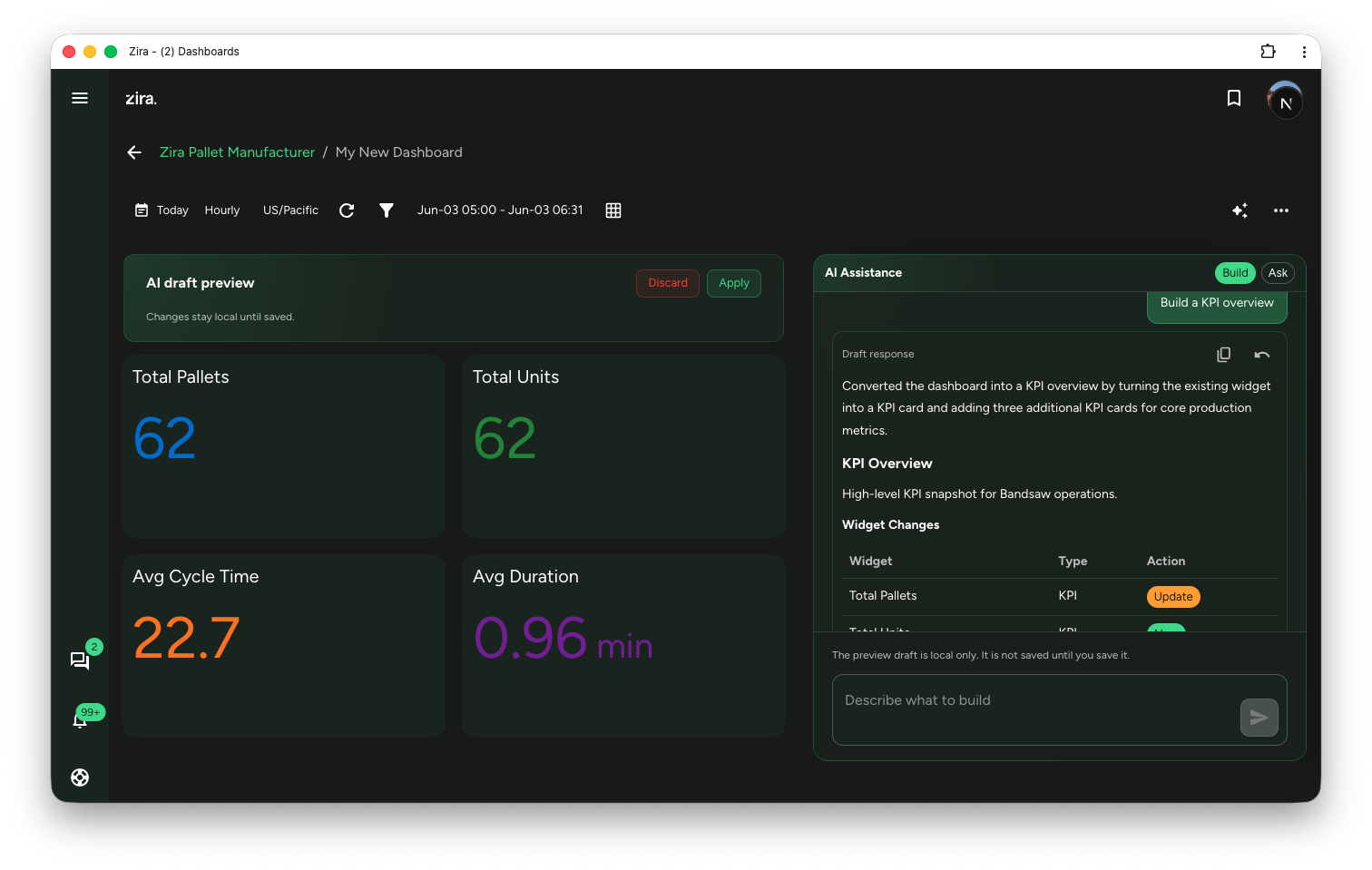
The panel also lists the widget changes, such as which widgets are new and which existing widgets are being updated.
Apply the draft
When the draft looks right:
- Click Apply in the draft preview.
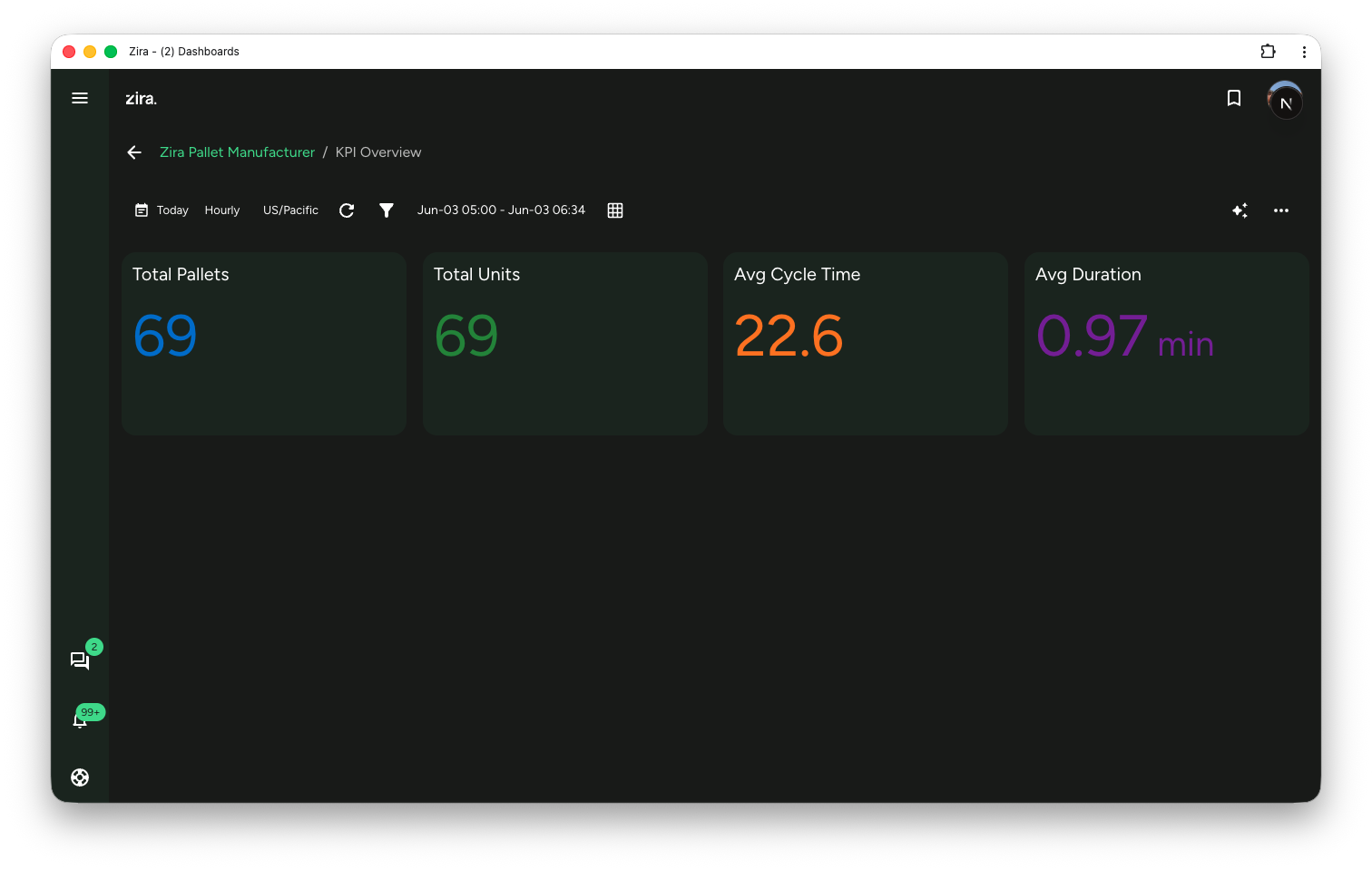
- Review the updated dashboard.
- Save the dashboard if you want to keep the change.
If the result is not right, discard the draft and send a more specific request.
Ask follow-up questions after building
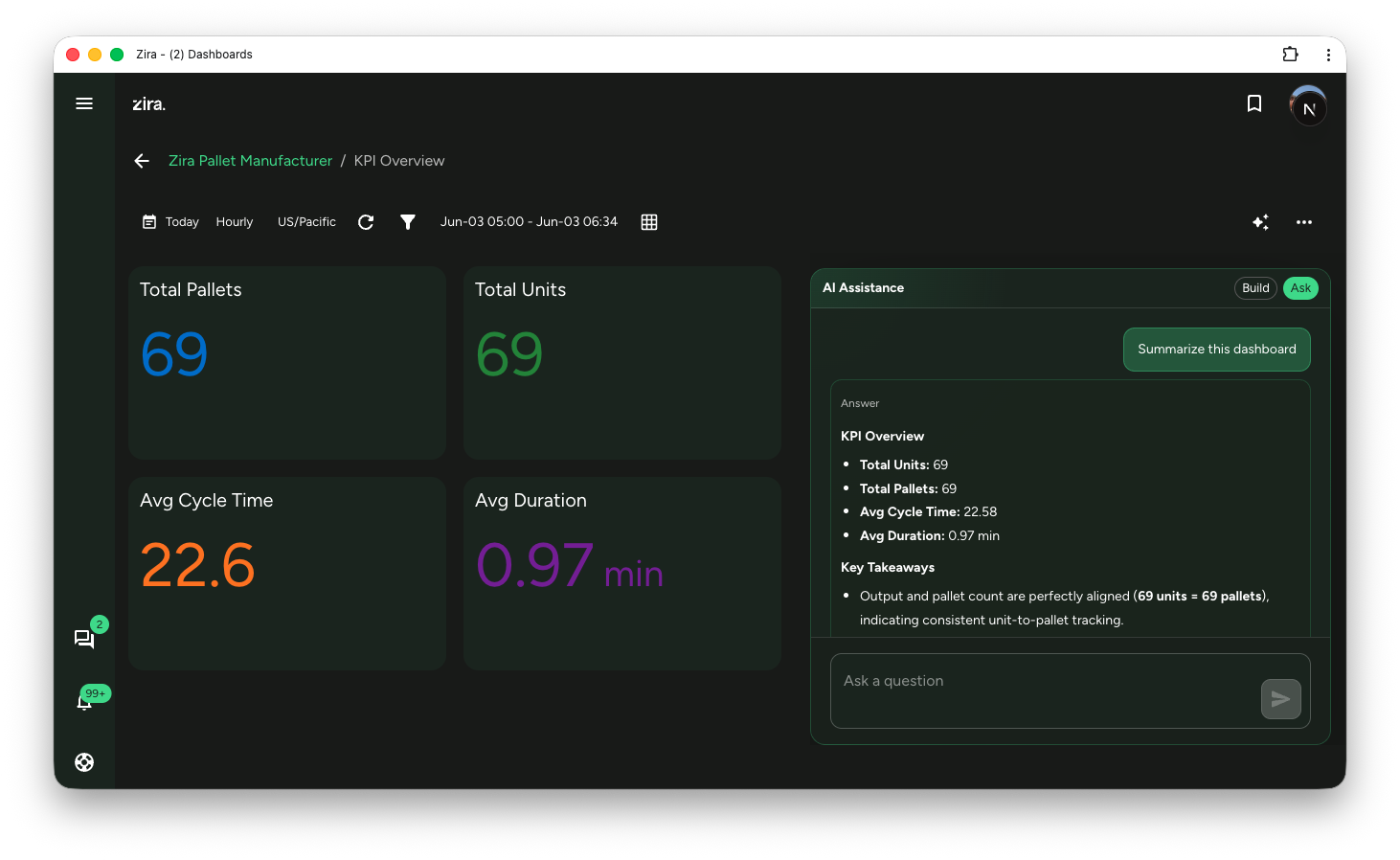
After you apply the draft, switch back to Ask when you want the assistant to explain the updated dashboard.
This is a good way to validate the result, summarize the new dashboard for other users, or check whether the new layout answers the question you had in mind.
Tips
- Use Ask when you want an explanation or summary.
- Use Build when you want dashboard edits.
- Start with one clear change, then refine with another request if needed.
- Mention the business goal, not only the widget type.
- Keep each request focused on one question or one dashboard change.
- Review the draft before you apply it.
- Save the dashboard after applying the result you want to keep.
Read next
- AI Insights - Ask questions about one data research widget.
- AI Agents - Save a repeatable AI reporting workflow.
- Data Research Widgets - Refine or replace widgets after the AI draft is applied.