
Browse Guides
5 guides
3 guides
2 guides
13 guides
1 guide
9 guides
12 guides
2 guides
18 guides
1 guide
1 guide
1 guide
2 guides
1 guide
1 guide
1 guide
1 guide
1 guide
1 guide
1 guide
2 guides
2 guides
1 guide
AI Insights
Use AI Insights inside a data research widget to ask questions about the current preview, choose an answer style, and generate a plain-language explanation.
Use AI Insights when you want a widget to explain its current data in plain language.
This is different from the dashboard-level assistant. Dashboard AI Assistant works across the whole dashboard. AI Insights stays focused on the widget you are editing.
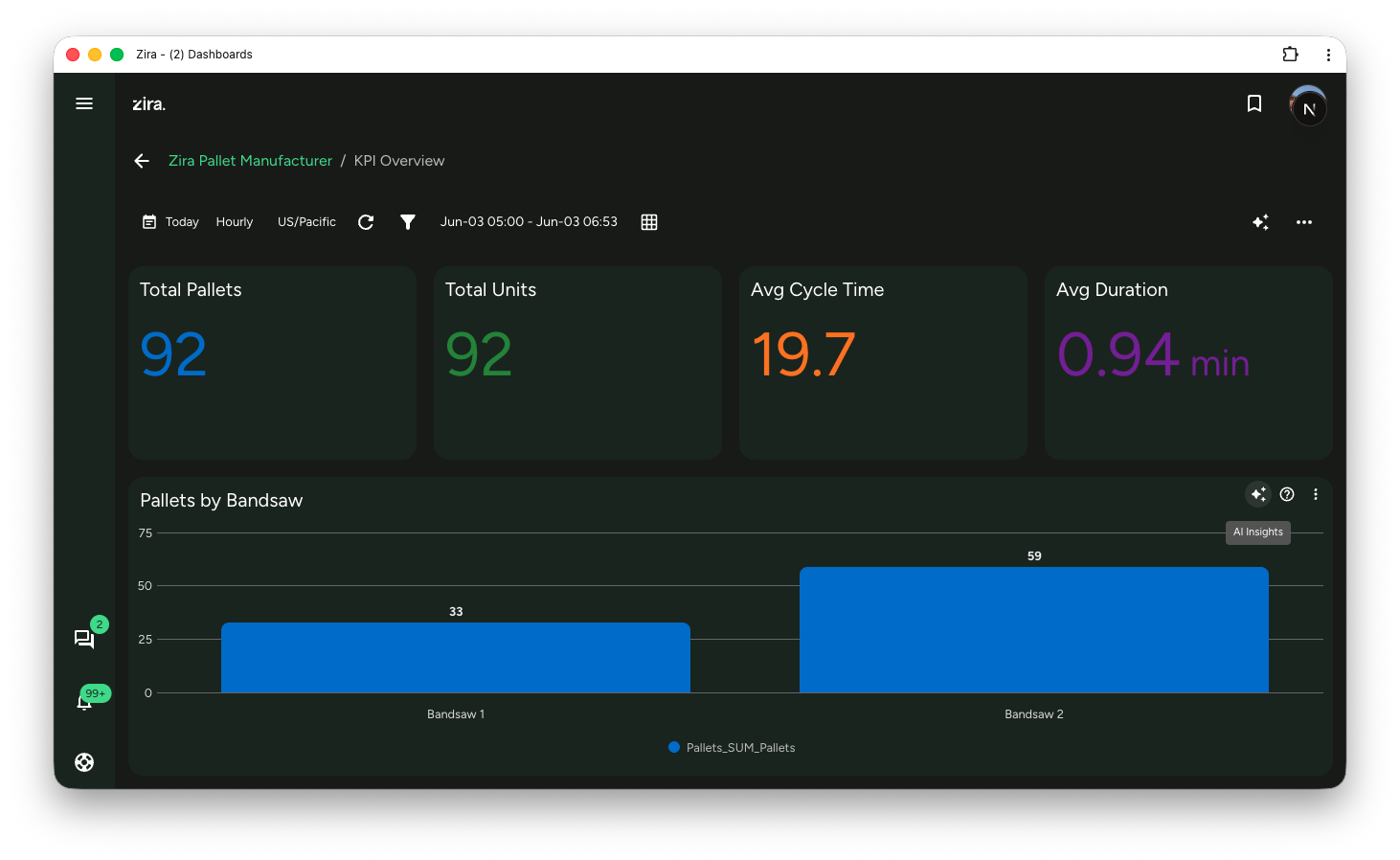
Open AI Insights
- Open a dashboard.
- Open or create a Data Research widget.
- Click the widget's AI Insights icon.
This opens AI Insights for that widget, using the current widget preview as the context for the answer.
What AI Insights does
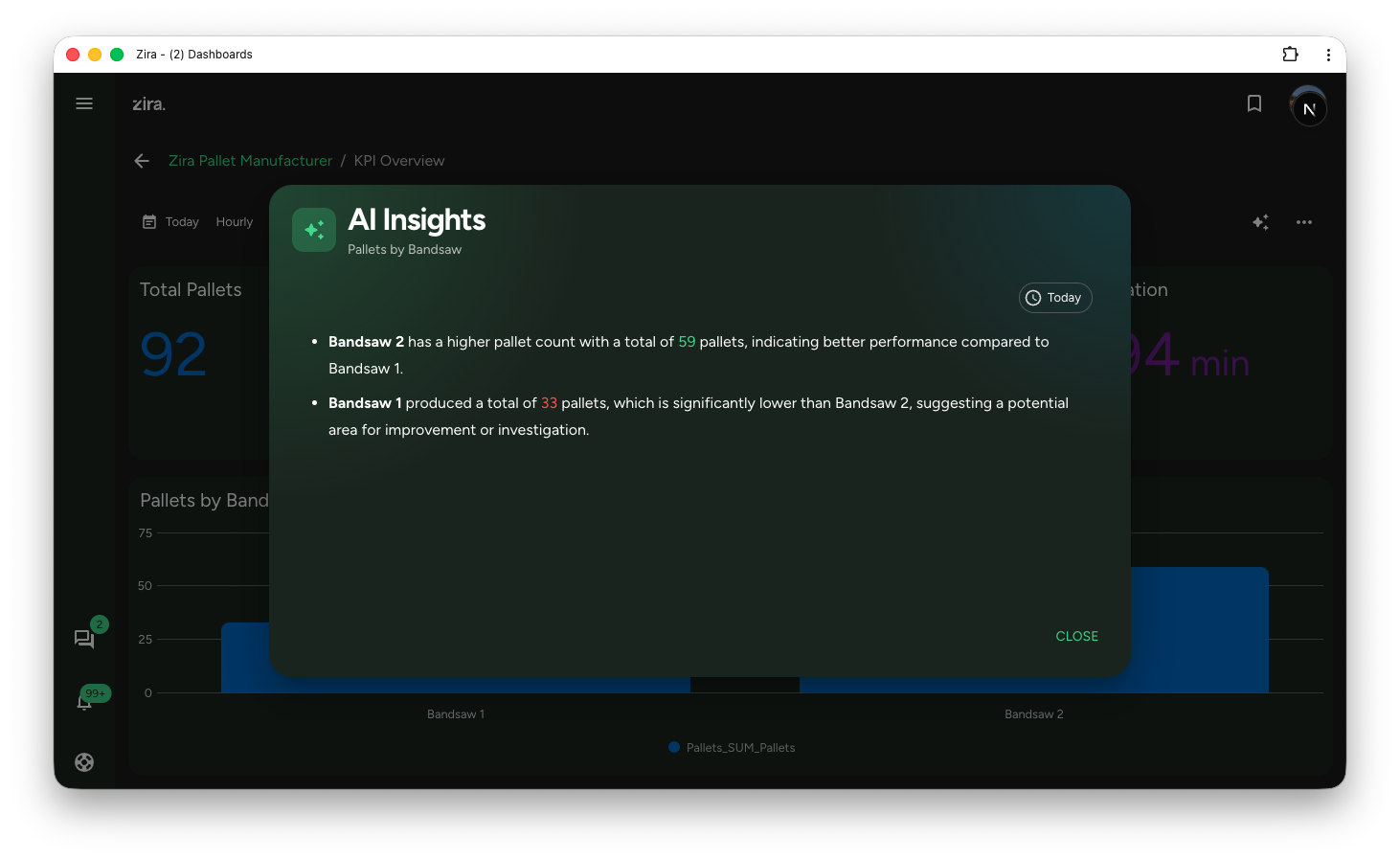
AI Insights uses the current widget preview as context and helps you:
- summarize what the widget is showing
- identify trends
- call out anomalies
- compare visible values
- explain the result in a format that is easier to share
Because it works from the current widget preview, the answer stays tied to that widget instead of the whole dashboard.
View AI Insights
Configure the question and answer style
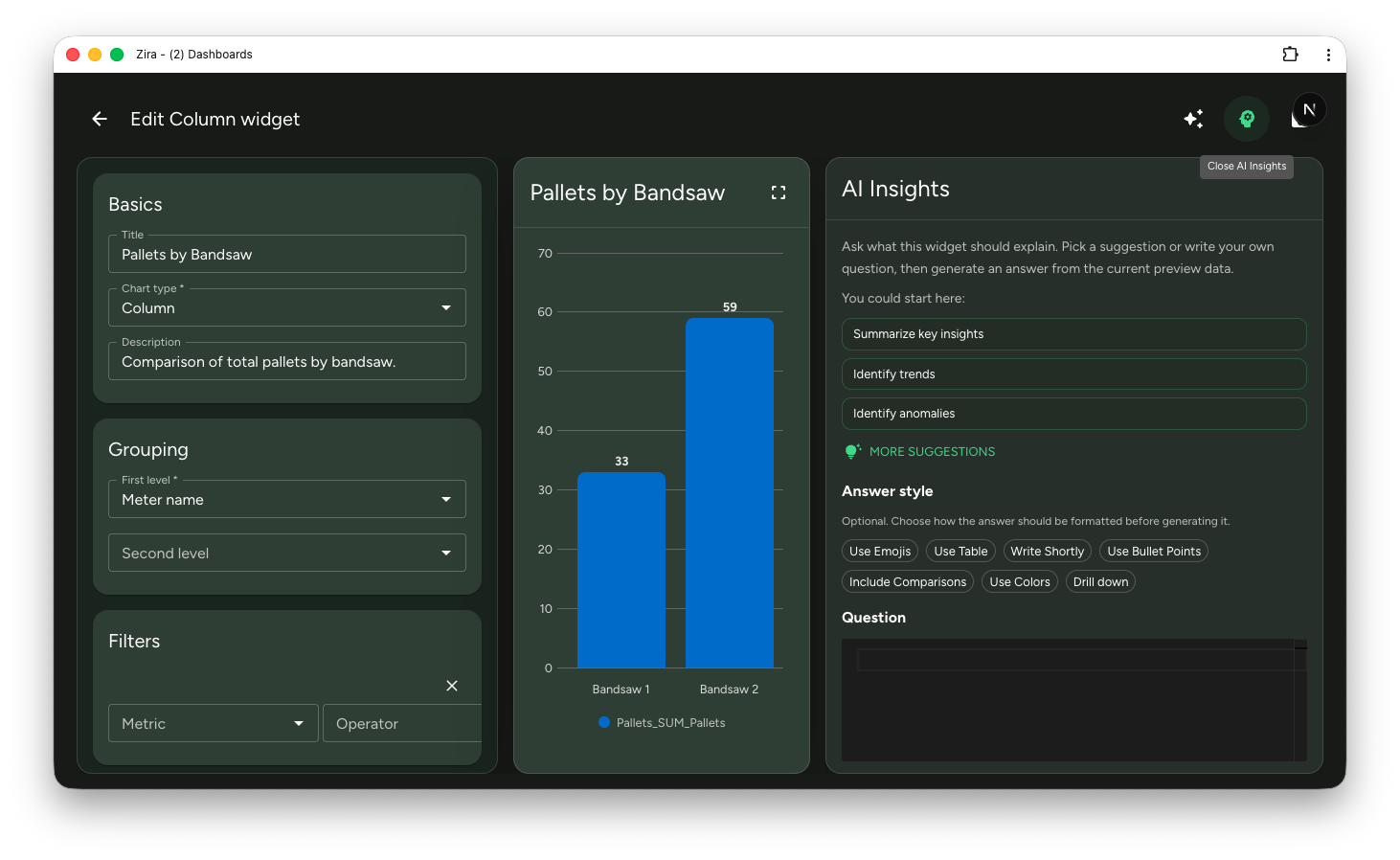
Use the question and style settings to shape how the answer should read before you generate it.
Choose a starting prompt
The panel suggests useful starting prompts such as:
- summarize key insights
- identify trends
- identify anomalies
Use one of these when you want a quick starting point, or write your own question when you need a more specific result.
Pick an answer style
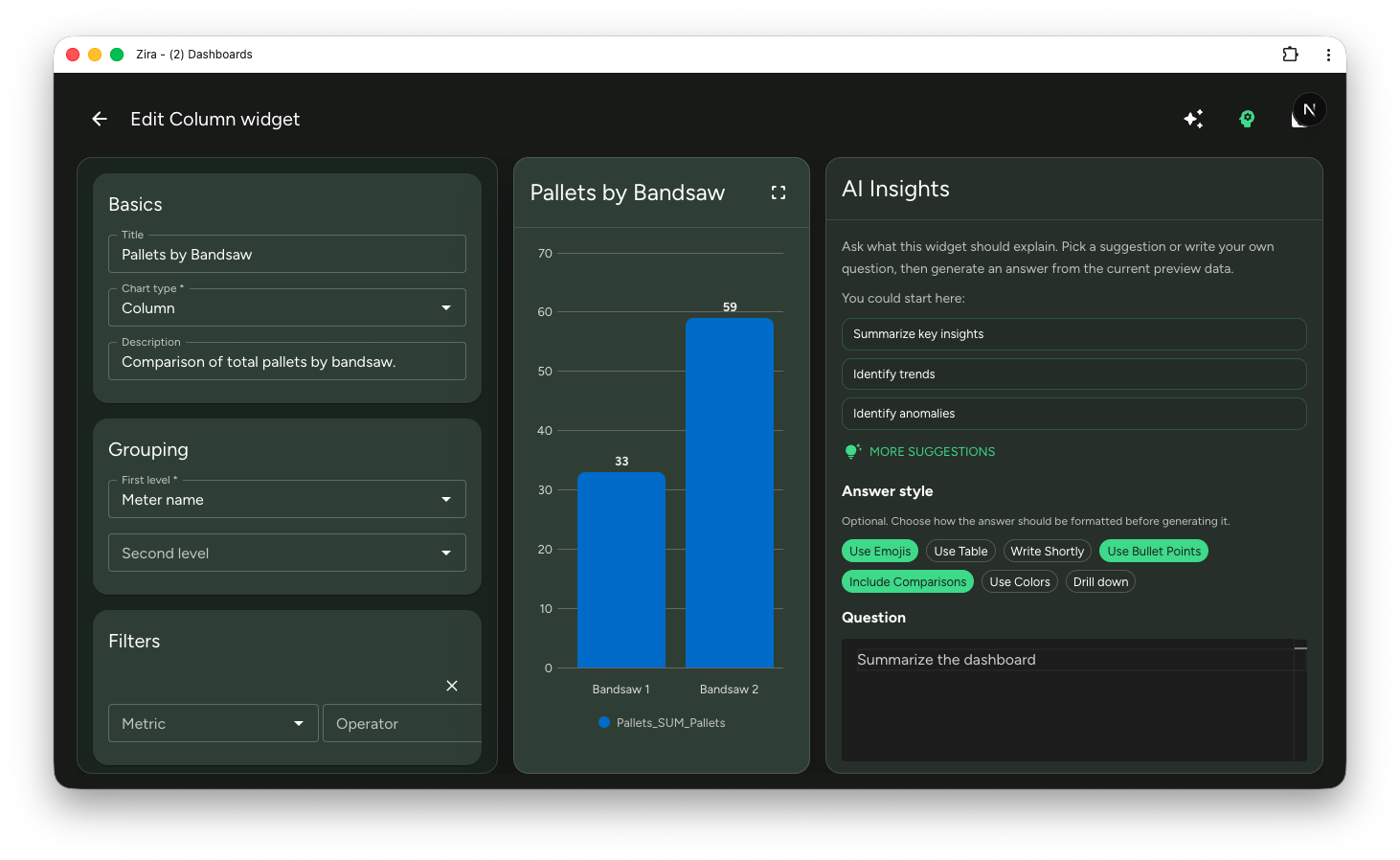
Before you generate the answer, you can choose how the result should be presented.
Depending on what you need, you can turn on options such as:
- emojis
- table output
- shorter wording
- bullet points
- comparisons
- color references
- drill down
These options change how the answer is written. They do not change the widget data itself.
Ask a focused question
Good questions stay close to what the widget is showing.
For example:
- summarize this widget
- compare the top values
- explain the largest difference
- identify anything unusual
- highlight the most important takeaway
If the answer is too broad, ask again with a narrower comparison or a clearer outcome.
Tips
- Use AI Insights after the widget preview looks close to final.
- Ask about one result, trend, or comparison at a time.
- Use answer style chips when the response needs to be easier to scan.
- Adjust the widget setup first if the preview does not show the data you want explained.
Read next
- Dashboard AI Assistant - Ask about or revise the whole dashboard.
- Data Research Widgets - Full widget setup guide.