
Browse Guides
5 guides
3 guides
2 guides
13 guides
1 guide
9 guides
12 guides
2 guides
18 guides
1 guide
1 guide
1 guide
2 guides
1 guide
1 guide
1 guide
1 guide
1 guide
1 guide
1 guide
2 guides
2 guides
1 guide
Forms
Use the Forms tab to open forms that belong to the current channel and start new form work in the right place.
Use the Forms tab when you want to open forms that belong to the current channel.
This tab keeps form work tied to the right channel, so it is easier to review existing forms, open one quickly, or start a new one.
Navigation
Open a channel first, then click the Forms tab.
Use this tab when forms are part of the channel's day-to-day work and you want to stay in the same channel while moving between related items.
What you can do here
- Use the Forms tab to review forms for the current channel.
- Open a form when you want to read it, fill it in, or update it.
Open the Forms tab
- Open a channel.
- Click Forms.
- Review the forms shown for that channel.
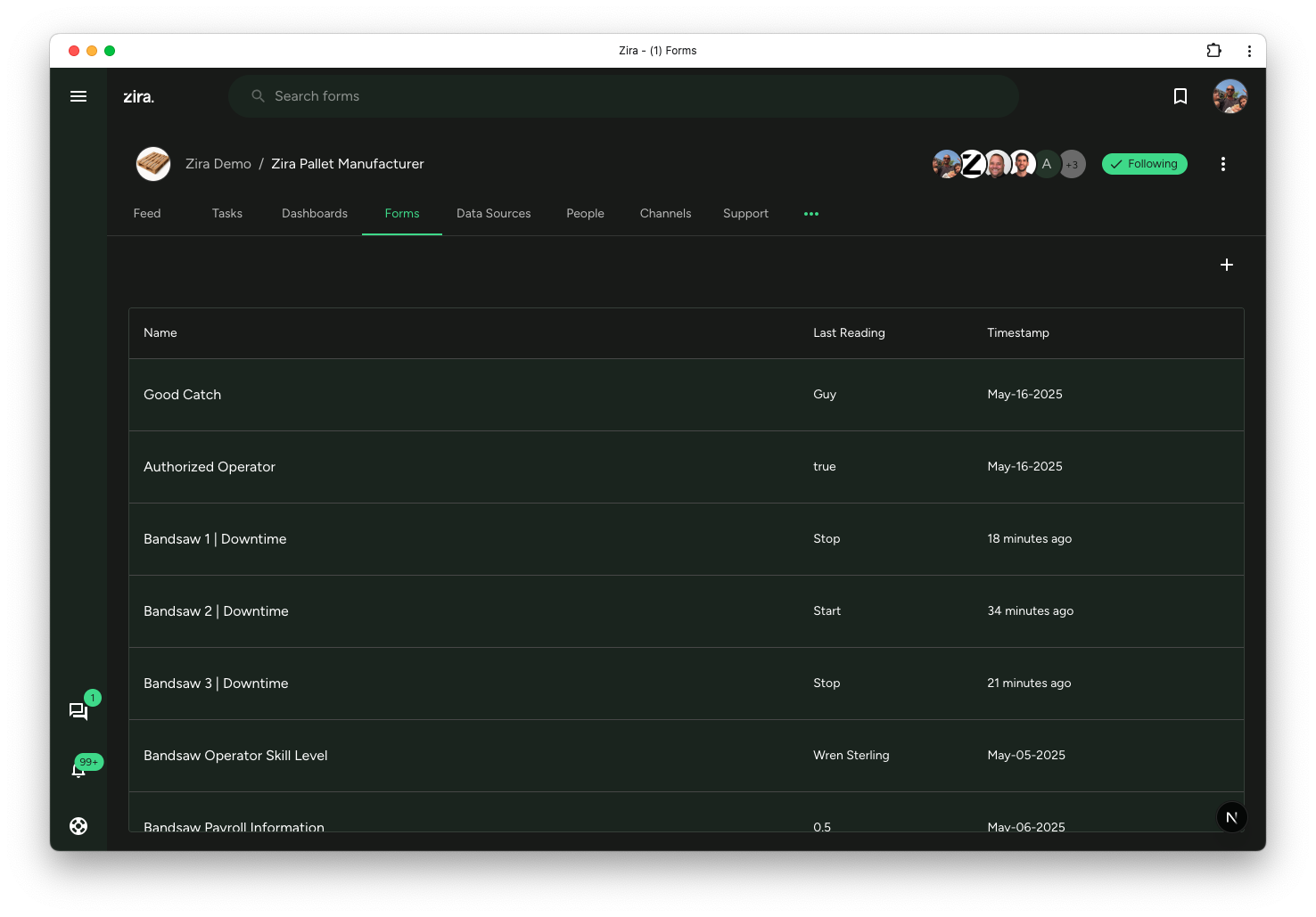
Open a form or start a new one
From this tab, you can:
- open a form you already use
- start a new blank form
- use AI to build a form
- create a task form when that matches the work you need
If you are not sure which form to open, start in this tab and review the list first.
To create a new form, click the + button in the top-right area of the tab.
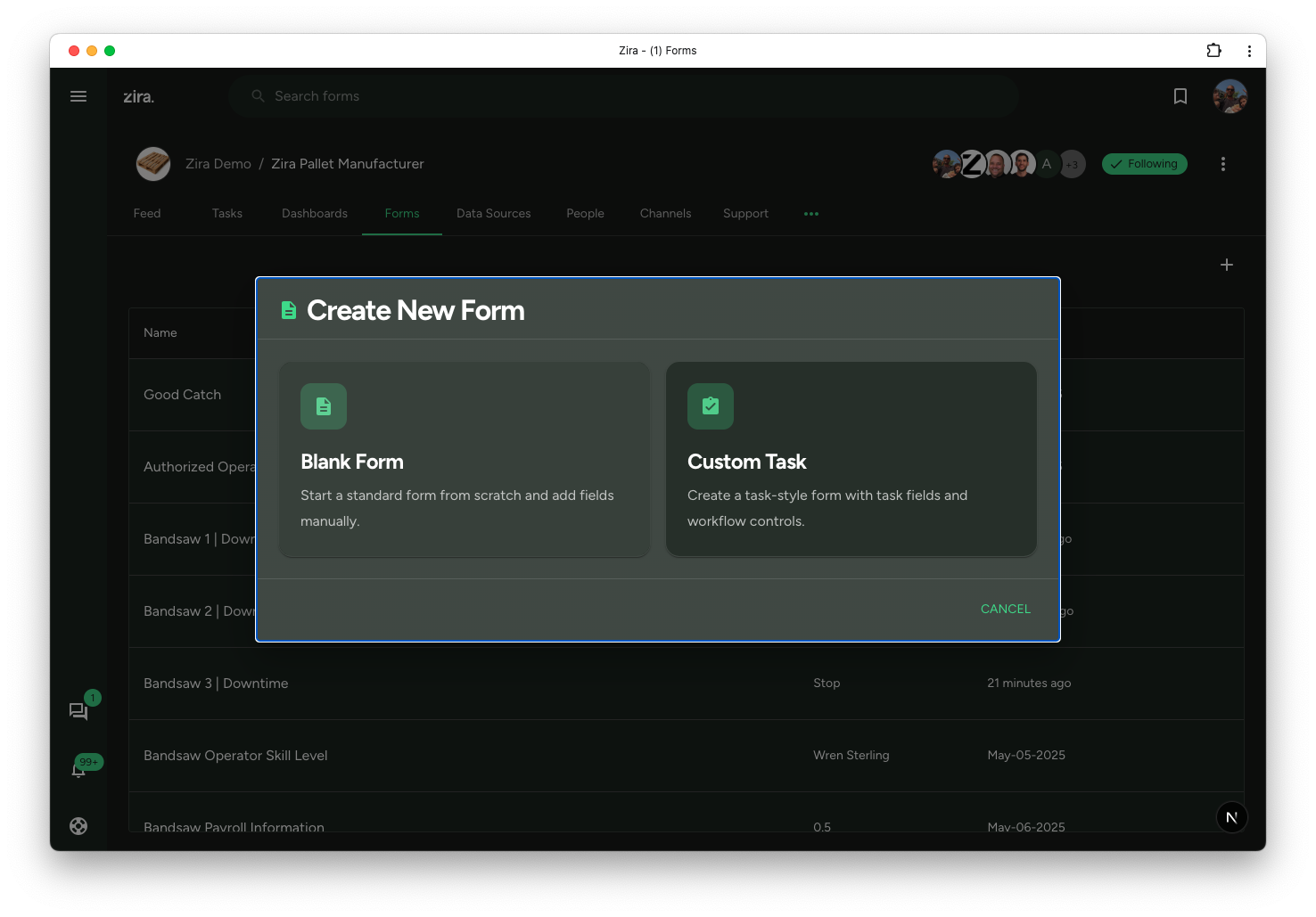
Start a blank form
Choose Blank Form when you want to build a standard form from scratch.
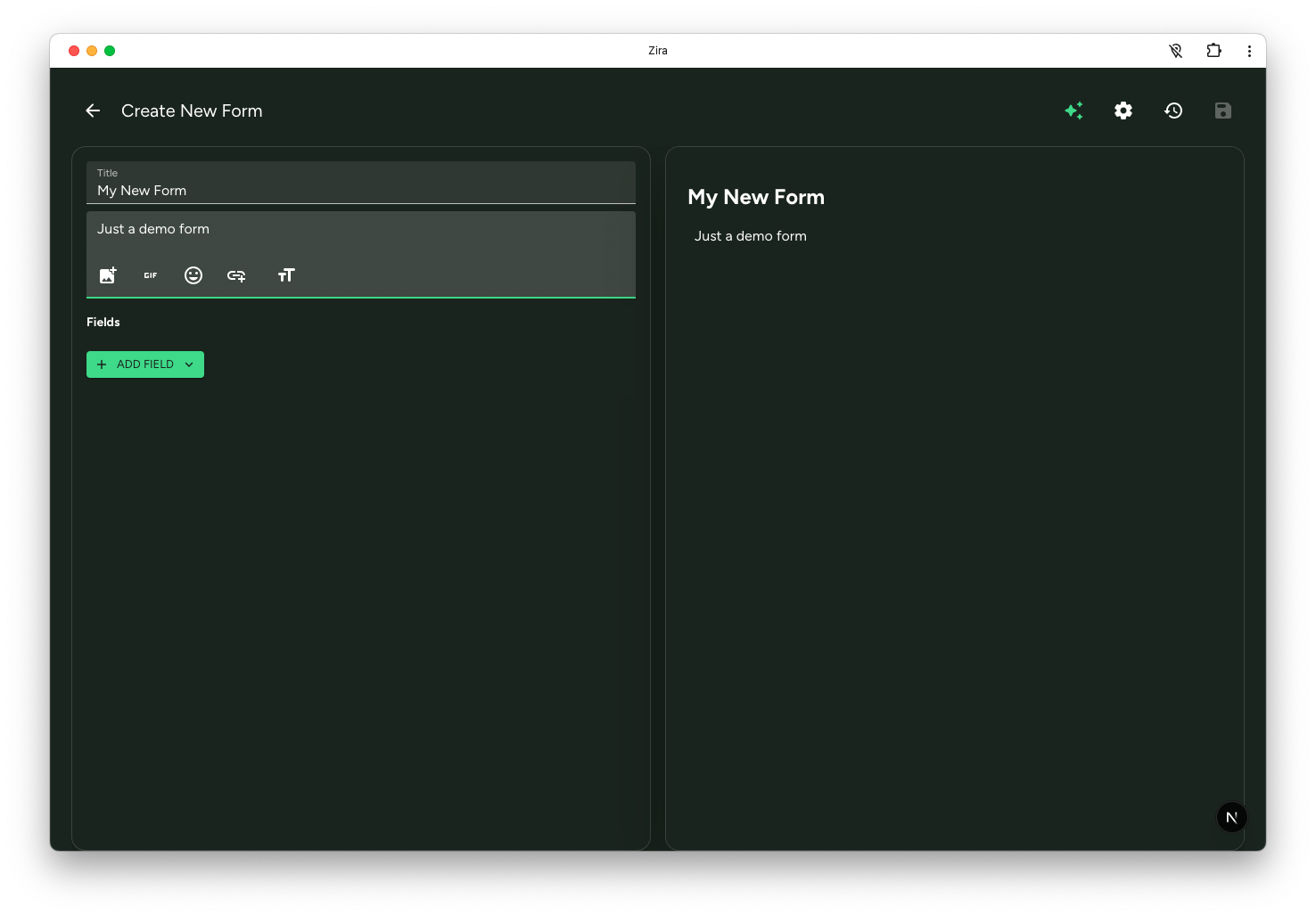
After the editor opens, you can:
- enter the form title
- add a short description
- use Add Field to build the form structure
- review the live preview on the right while you work
What this tab is good for
Use the Forms tab when you want to:
- keep form work connected to the right channel
- find forms without searching the whole app
- move from one form to another without leaving the channel
Tips
- Start here when a form belongs to one specific channel.
- Open the full form page when you need more space to review or complete the form.
- If you need to create something new, use the + button in this tab.
- Choose Blank Form for a standard form or Custom Task when the work should follow a task-style workflow.
Read next
- Build Forms with AI - Let AI build the form structure for you.
- AI Form Fill - Fill an existing form from text or an image.