
Browse Guides
5 guides
3 guides
2 guides
13 guides
1 guide
9 guides
12 guides
2 guides
18 guides
1 guide
1 guide
1 guide
2 guides
1 guide
1 guide
1 guide
1 guide
1 guide
1 guide
1 guide
2 guides
2 guides
1 guide
Build Forms with AI
Turn a rough idea into a working form with AI-generated fields, options, validation, and calculated fields.
Use Build Forms with AI when you want to go from “I know what I need to track” to a working form much faster.
Instead of building every field one by one, you can describe the workflow, the values people should enter, and any validation or calculations you need. AI adds the structure directly into the form editor.
This uses the same AI builder workflow available inside the form editor.
See the flow first
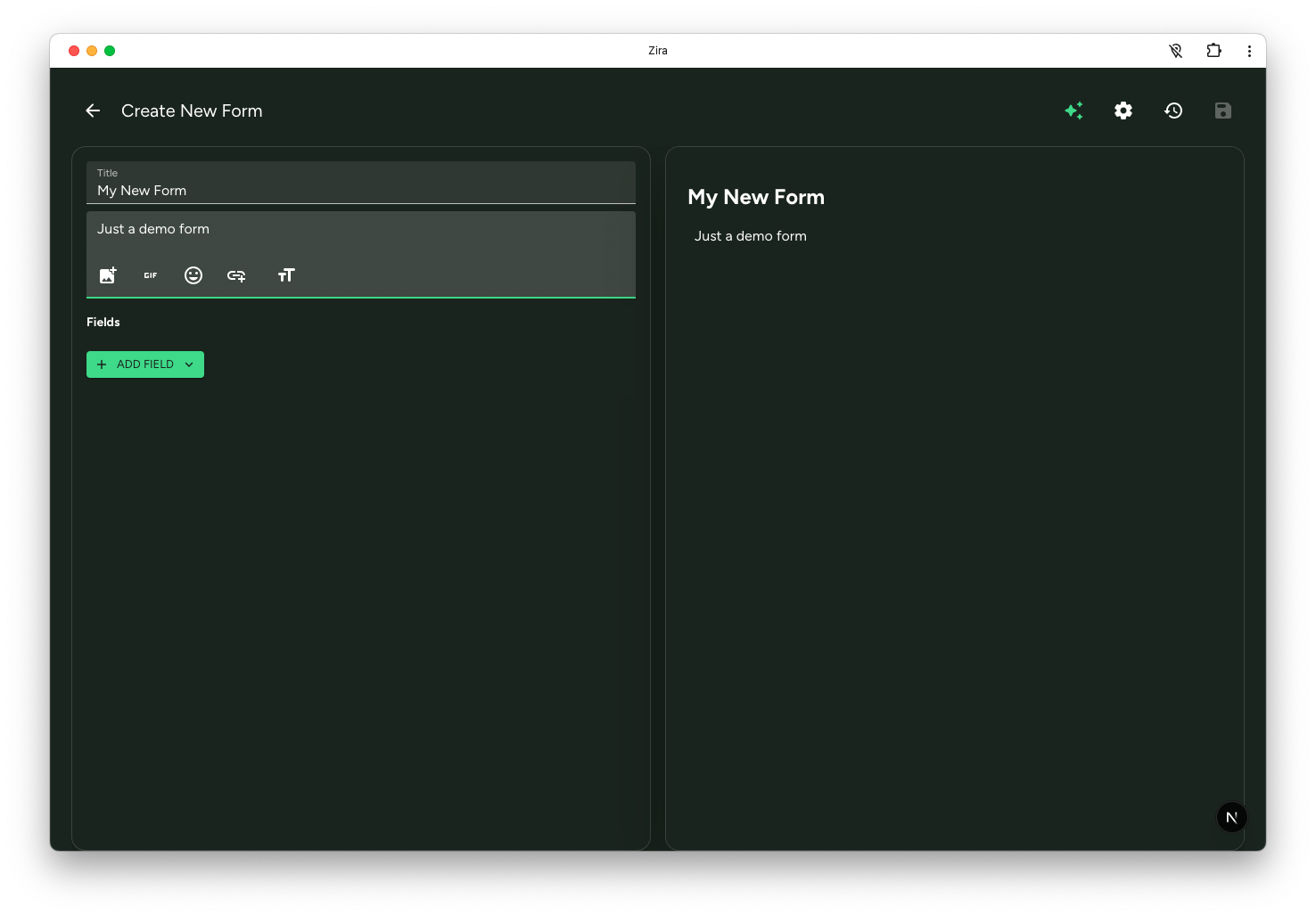
Start with a blank form in the editor.
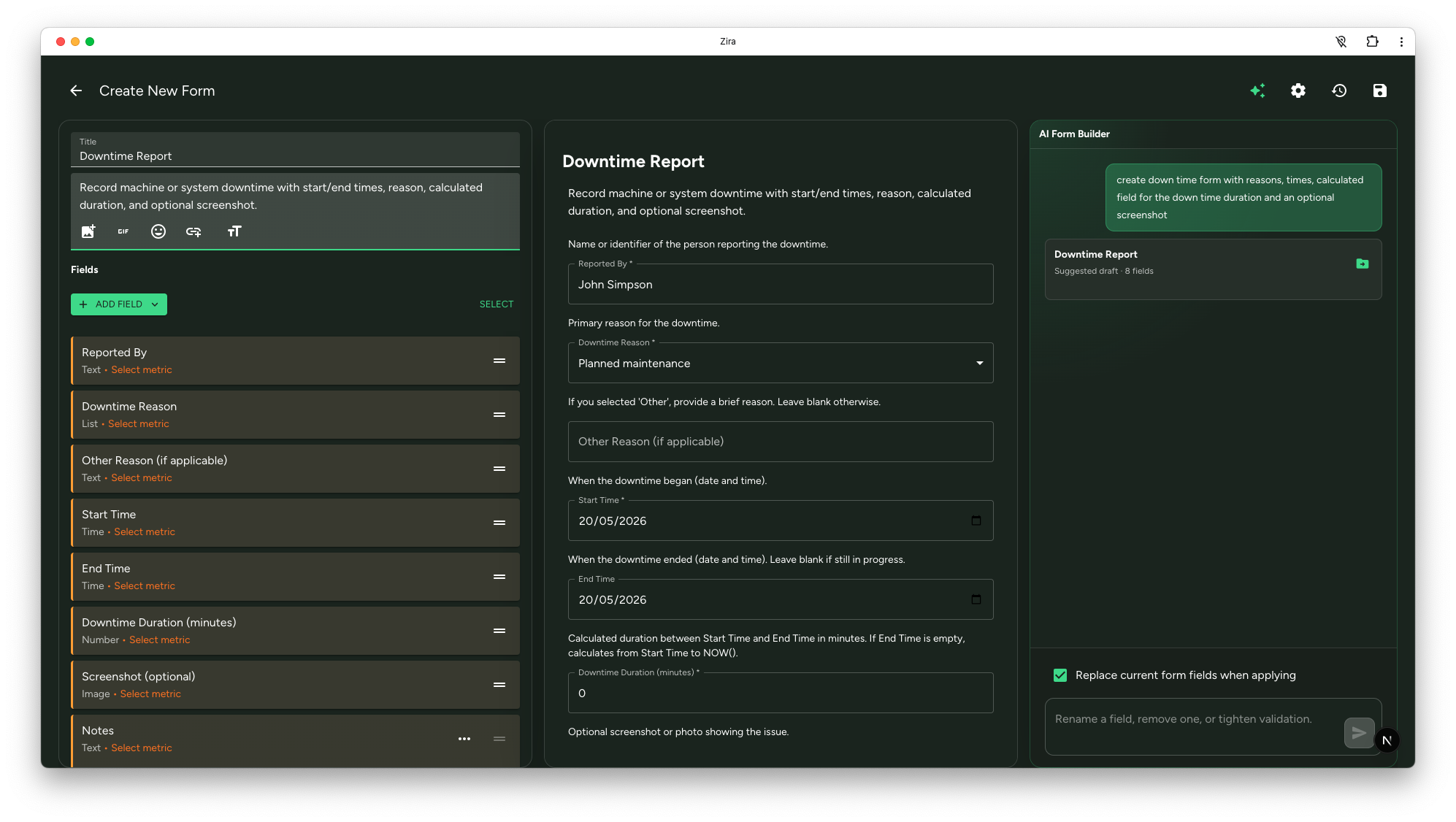
Add or review fields in the editor before you refine the structure further.
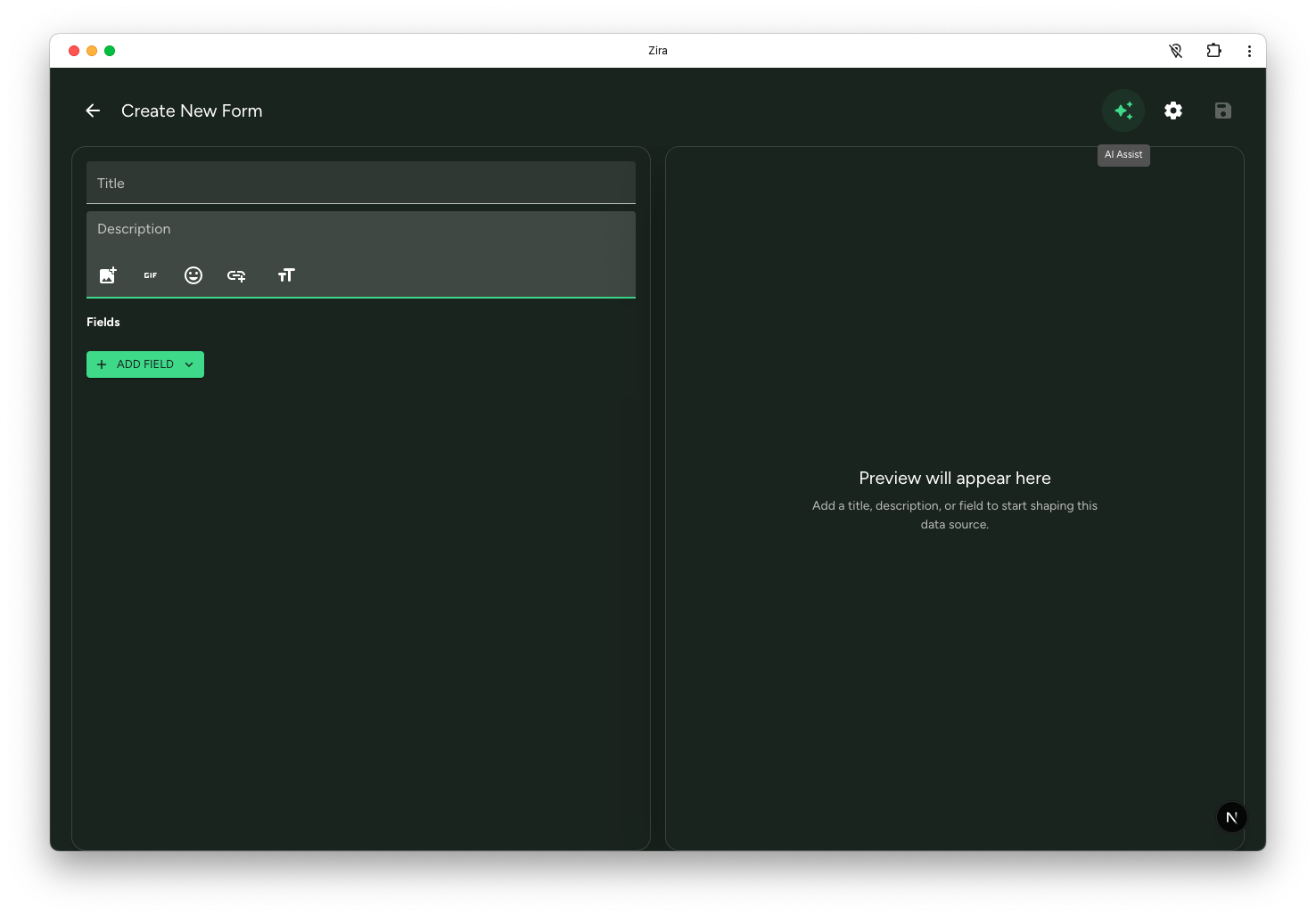
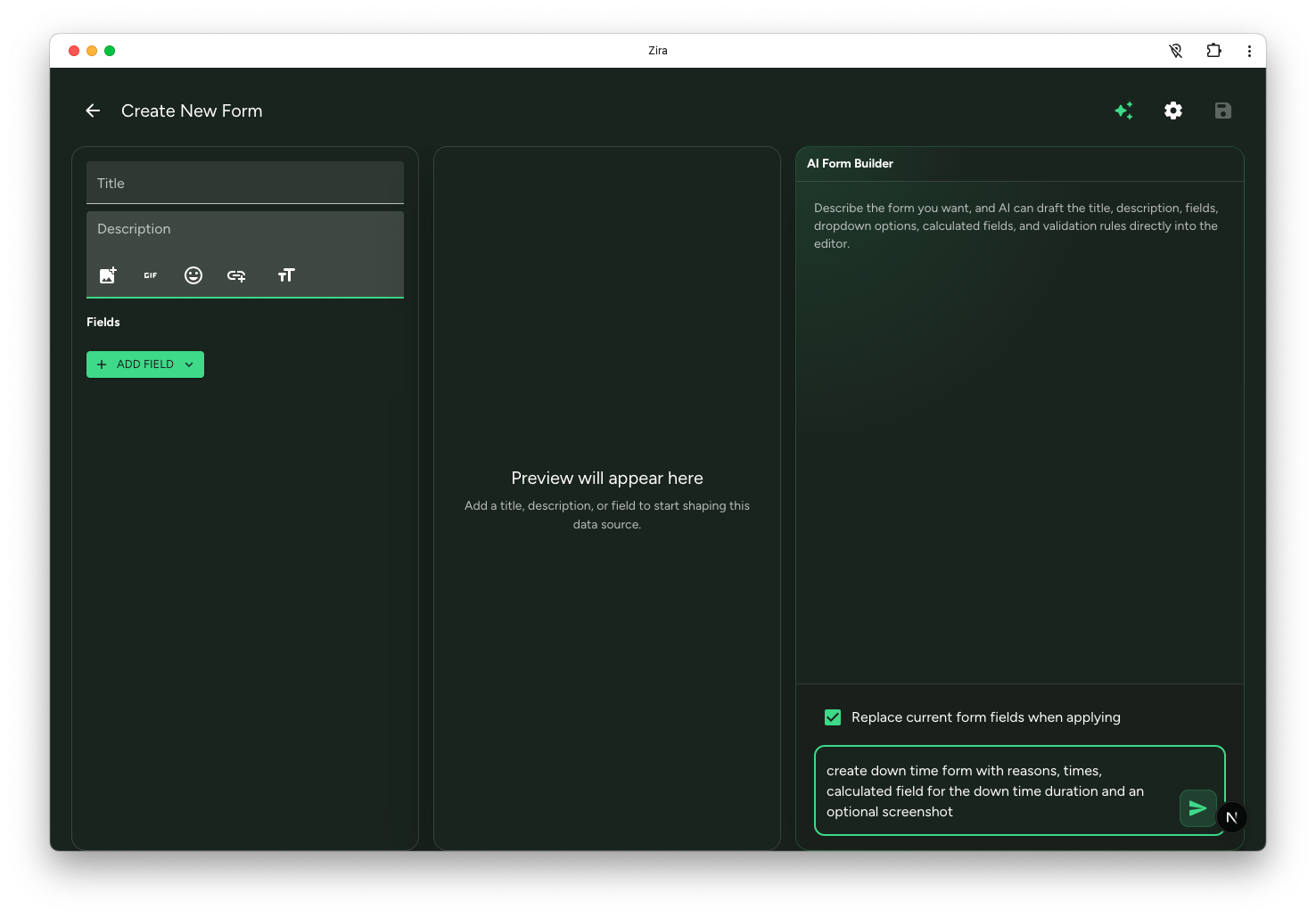
Open AI Assist, describe the form you want, then apply the generated structure to the editor.
Open the builder from Forms
- Open a channel.
- Click the Forms tab.
- Click the + button.
- Choose Blank Form.
- In the form editor, click AI Assist.
You can also open AI Assist while editing an existing form.
What AI can build for you
The builder can create:
- a title and description
- the main field structure
- clearer labels and sections
- dropdown options
- required fields
- validation rules
- calculated fields and expressions
This works best when you describe the real workflow instead of listing only a few field names.
Ask for a form with confidence
Good requests often explain:
- what the form is used for
- who will fill it out
- which values must be captured
- which values should be calculated
- what should be required or validated
For example, you can ask for:
- an inspection checklist
- a work-order intake form
- a downtime tracking form
- a quality record with pass or fail logic
- a production entry form with totals and calculated fields
Review the structure
Before you apply the result, review:
- the suggested title
- the description
- each field
- metric matching
- options for list fields
- validation details
- any expression that was suggested
The preview helps you confirm that the form matches the workflow before you add it to the editor.
Apply the form and keep improving it
Before applying, choose whether to:
- replace the current fields
- or append the new fields to what you already have
After the form is applied:
- review the metric for each field
- refine field names and labels
- adjust options or validation
- test calculated fields carefully before saving
You can run the same builder again later if you want AI to add more fields, reorganize the form, or improve what is already there.
Read next
- Forms - Start from the Forms tab and create a new form.
- AI Form Fill - Fill an existing form from text or an image.
- AI Form and Data Source Builder - Open the broader guide for forms and custom data sources.