
Browse Guides
5 guides
3 guides
2 guides
13 guides
1 guide
9 guides
12 guides
2 guides
18 guides
1 guide
1 guide
1 guide
2 guides
1 guide
1 guide
1 guide
1 guide
1 guide
1 guide
1 guide
2 guides
2 guides
1 guide
Zira in Claude and Codex (Beta)
Install the Zira plugin and run Zira from your AI chat — ask about your production data, check your device fleet, build and schedule reports, manage tasks and set up devices, all in plain words.
With the Zira plugin, your AI chat becomes a control room for Zira. Ask Claude or Codex anything about your plant and it answers from your live Zira data. It can show you how a machine performed last week, which devices need attention, or what tasks are open. And when you want something done, such as a report, a task or a new device set up, just say so.
You stay in charge: the plugin signs in as you, sees only what you can see in Zira, and asks before it creates or changes anything.
Beta. The Zira plugin is in beta, and we are adding to it often. To try it with your team, request access at sales@zira.us and we will set you up.
What you can ask
| Ask about | For example |
|---|---|
| Your production data | "Show me the performance of Trimsaw 1 over the past week." |
| Reports | "Send me a weekly report for my saws every Monday at 7:00." |
| Vision model accuracy | "How accurate is the newest model on Bandsaw 1?" |
| Device health | "Show me the health of my device fleet." |
| Device status | "Which cameras have a low battery?" |
| Tasks | "Show my open tasks" or "Create a task for Bandsaw 3." |
| Sites, machines and dashboards | "What data sources do we have at this site?" |
| Dashboards, forms and data sources | "Start a dashboard comparing my three bandsaws." |
| AI reports by email | "Email me a summary of the KPI Overview dashboard every weekday." |
| Vision devices, datasets and models | "Help me set up the new camera on Bandsaw 2." |
| Zira itself | "How do I add a widget to a dashboard?" |
Install Zira from the marketplace
The Zira plugin is available in the plugin marketplace of both assistants. While it is in beta, request access at sales@zira.us first, and we will make Zira available to your team.
In Claude (Claude Code, or the Code tab in the Claude desktop app):
- Type
/pluginin the chat and press Enter. - Open the Discover tab and select Zira.
- Click Install.
- Start a new chat.
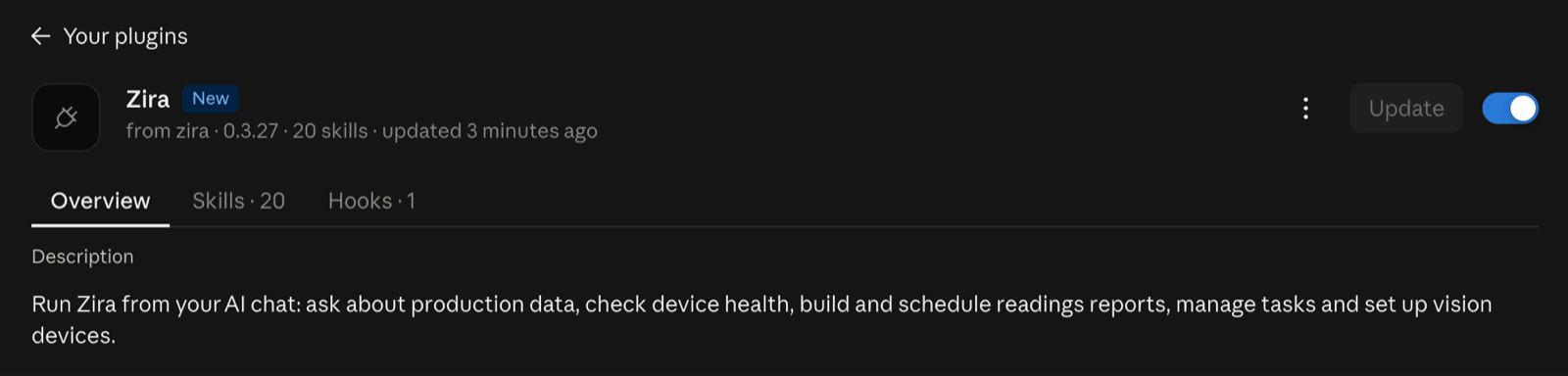
Zira then appears in your plugins, with its 20 skills ready to use.
In Codex (OpenAI's coding agent that comes with ChatGPT):
-
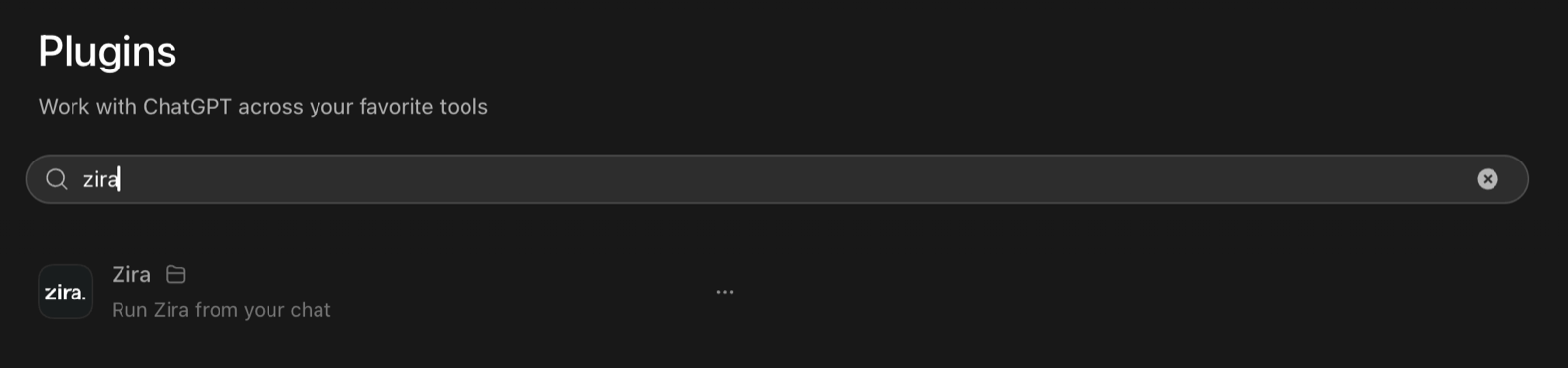
Open Plugins from the left sidebar.
-
Type zira in the search box and select Zira.
-
Click Install.
-
Click Try now, or pick one of the starter questions, such as Help me get started with Zira.
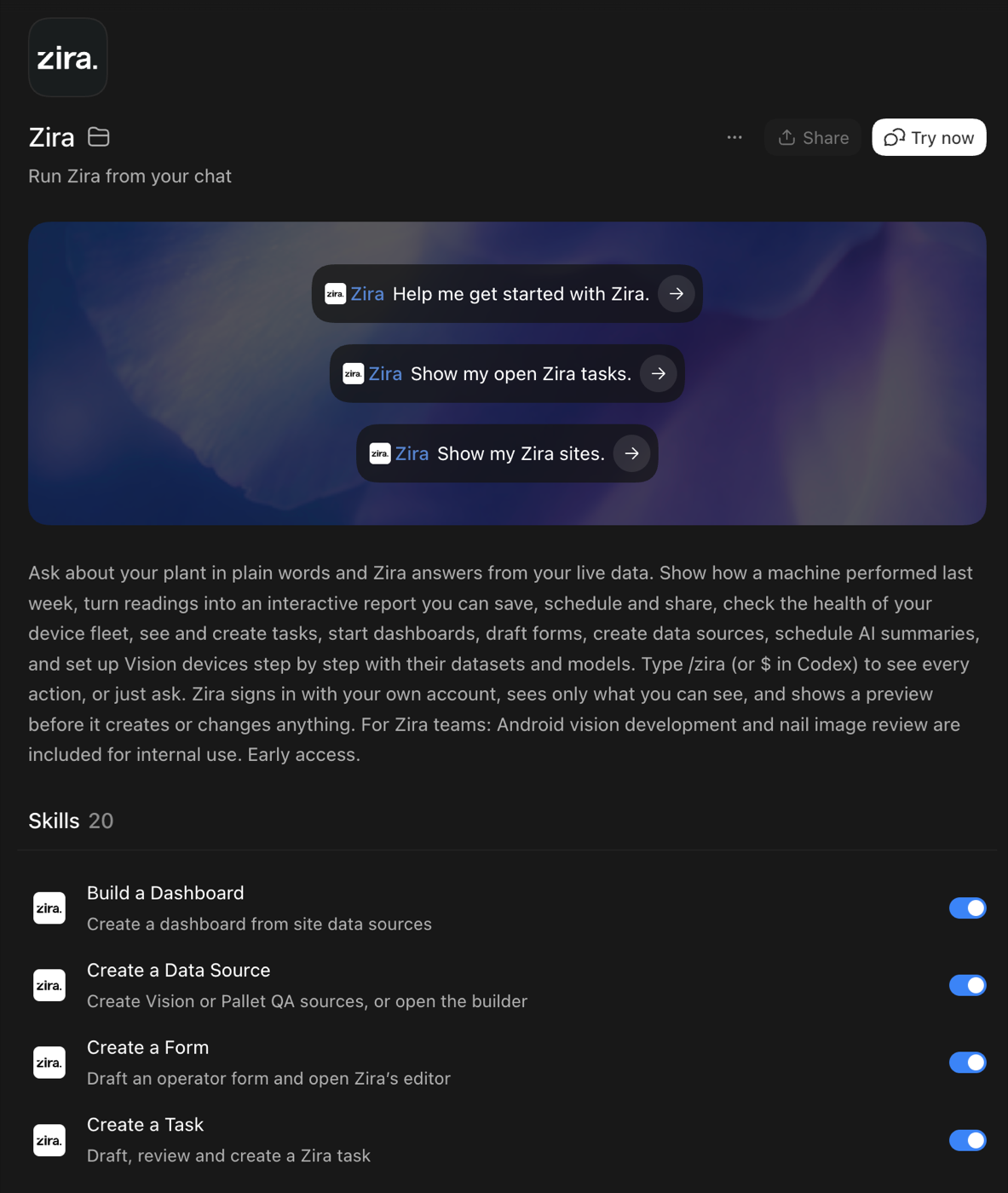
The first time you use Zira, a browser window opens. Sign in with your Zira account as you normally do. Then pick your company and the site you work with most. Zira remembers them, so you do not have to name them in every question.
See everything Zira can do: type /zira
Type /zira in the chat box. A list opens with every Zira action. Pick one to start it, or keep
typing to filter the list.
In Claude, the actions appear as short commands such as zira:show-tasks and zira:health-report. Point at one to see what it does.
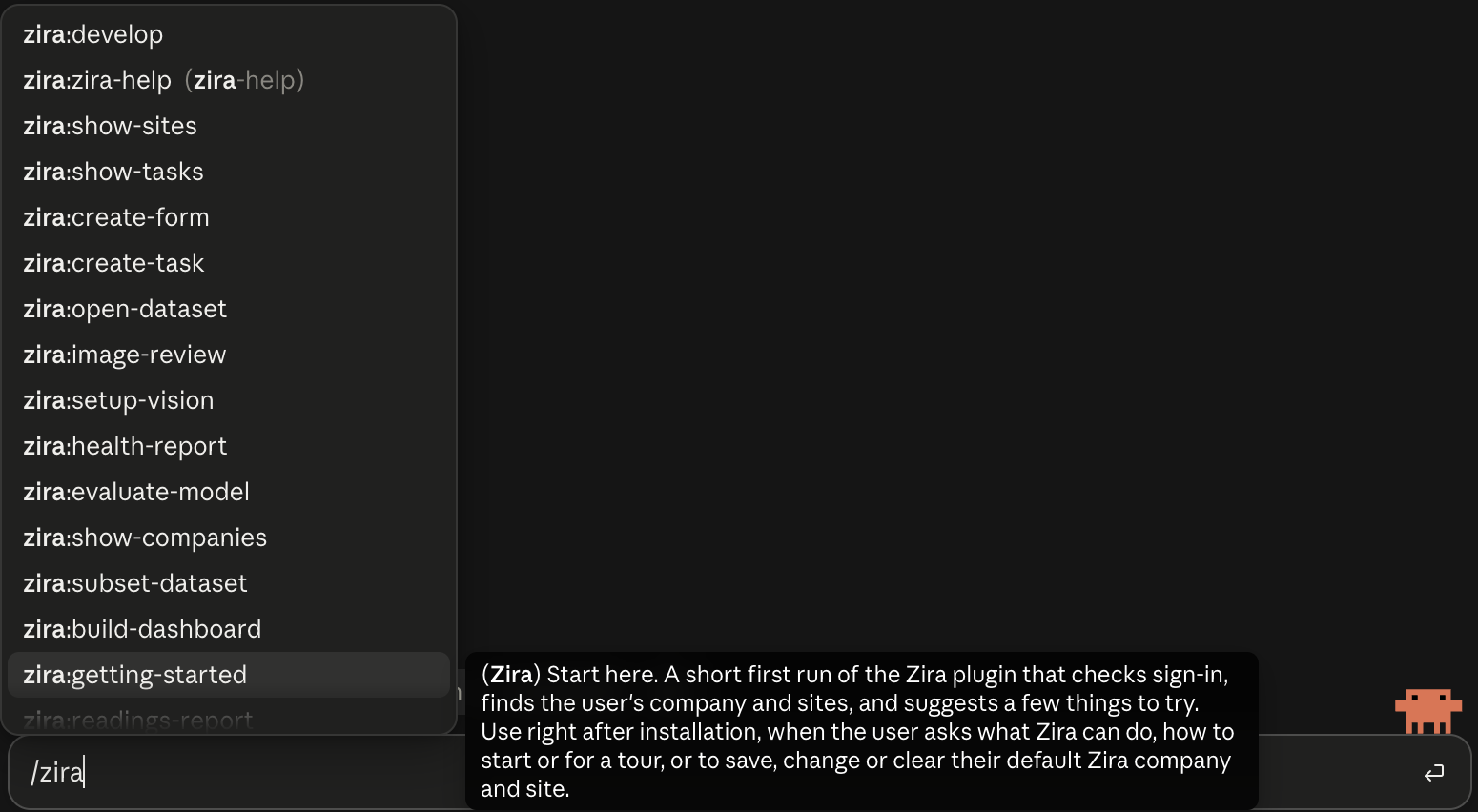
In Codex, the same actions appear by name, such as Get Started with Zira, Show My Open Tasks and Health Report, each with a one-line description.
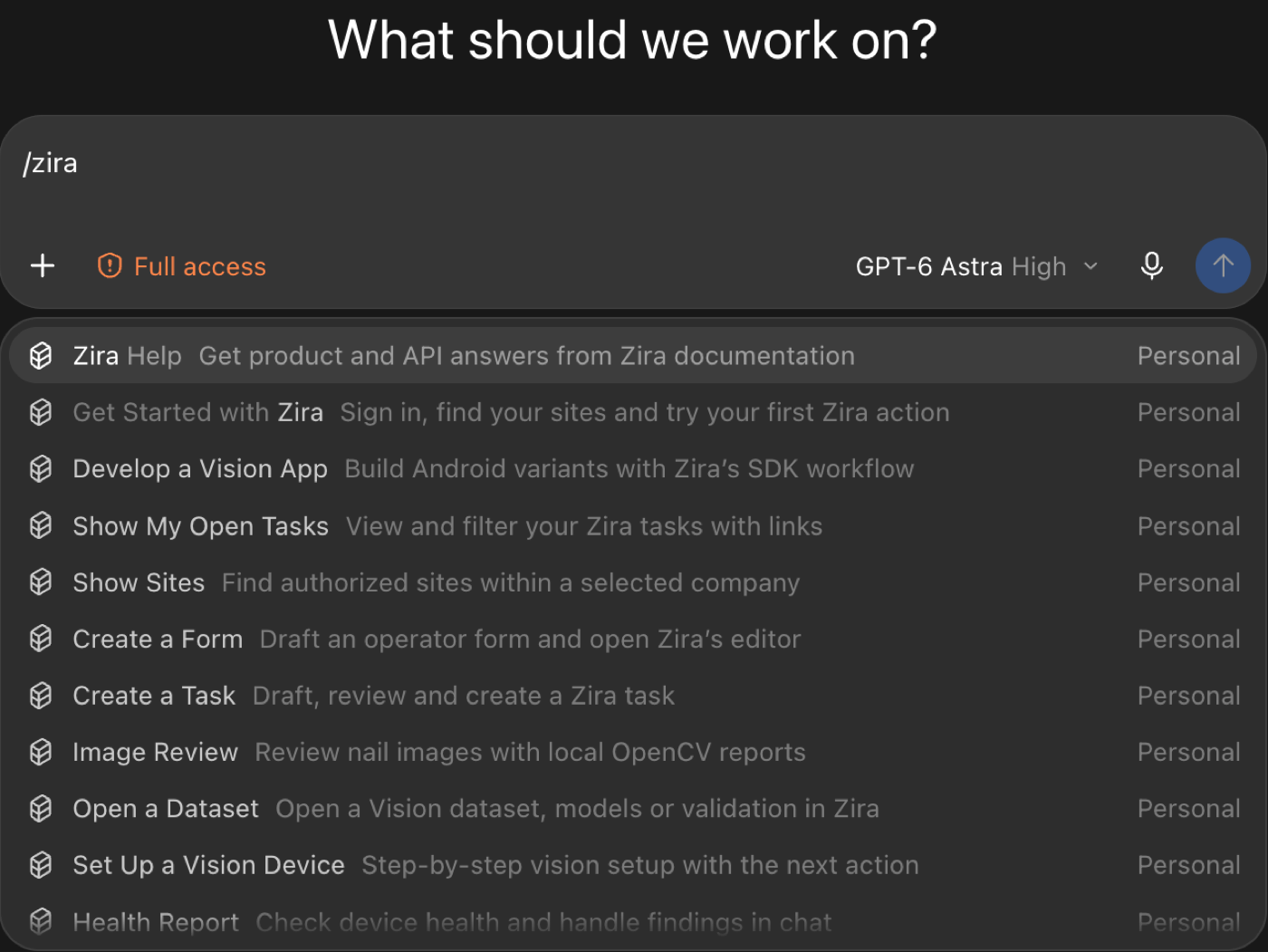
You never have to use the list: asking in your own words works just as well. The list is a quick way to discover what is possible.
Ask about your production data
Ask about a machine the way you would ask a colleague:
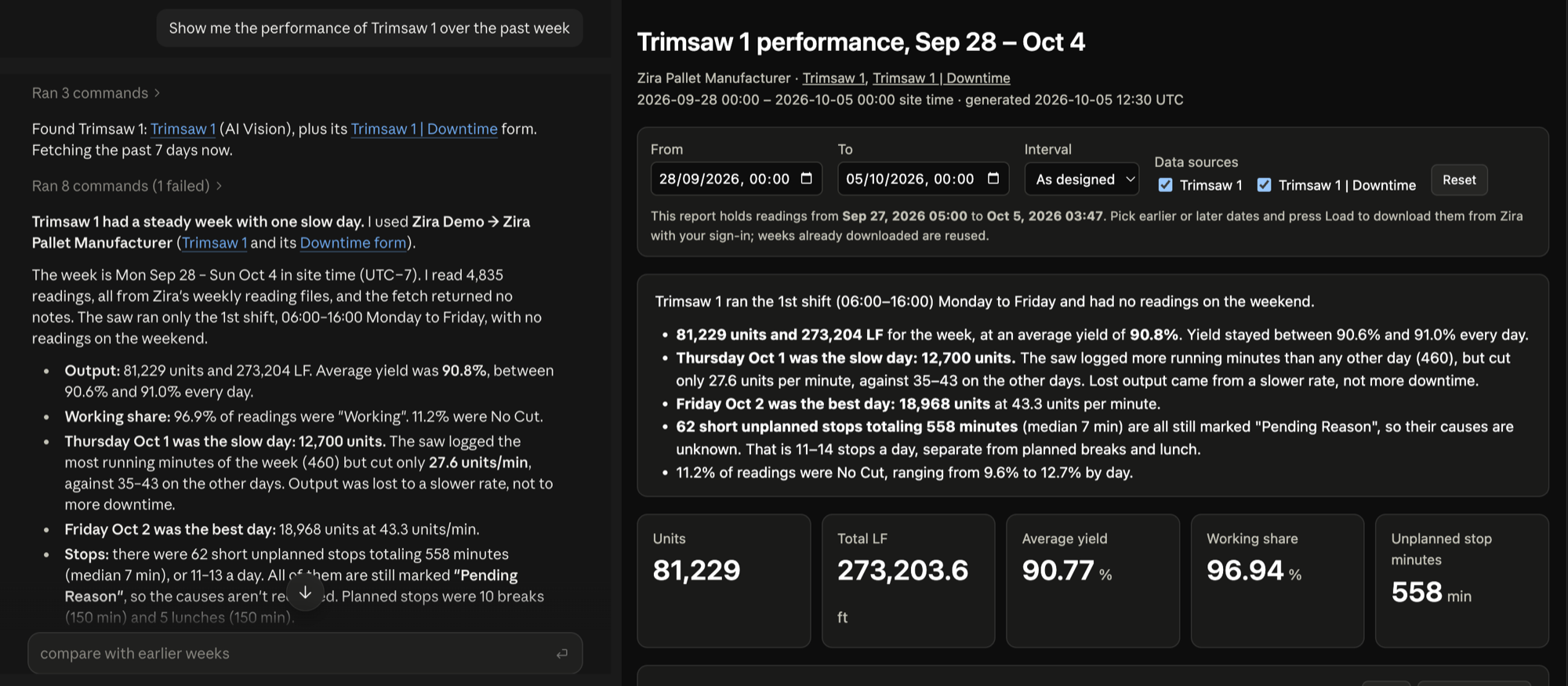
"Show me the performance of Trimsaw 1 over the past week."
Zira finds Trimsaw 1 and its downtime records, downloads the week's readings and answers in the chat: the units it made, its yield, its best and slowest days, and why it stopped. At the same time it opens an interactive report next to the chat:
- A short written summary of what happened and anything unusual.
- Key numbers, such as units, yield, working share and unplanned stop minutes.
- Charts by hour, day or shift.
- Controls to change the dates, interval and machines. Pick earlier dates and click Load to bring in more weeks from Zira.
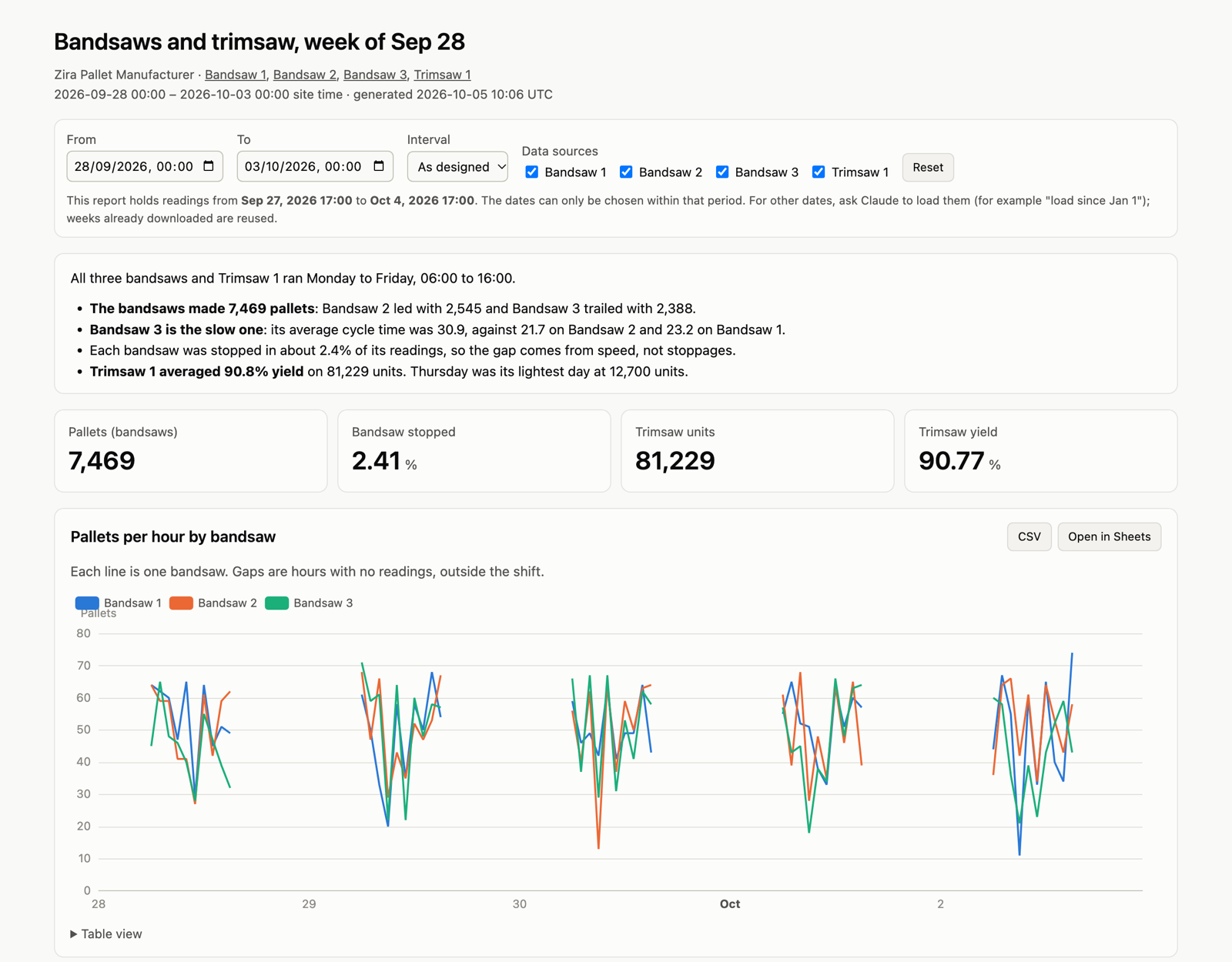
Keep the conversation going to dig deeper:
- "Add a chart by shift."
- "Compare it with Bandsaw 1, 2 and 3."
- "Now show me September."
Save, schedule and share a report
Once a report looks right, keep it working for you:
| Say | What happens |
|---|---|
| "Save this report as Trimsaw weekly." | The report is saved, ready to rerun with fresh data any time. |
| "Run Trimsaw weekly." | Zira downloads the latest readings and rebuilds the report with a new summary. |
| "Run Trimsaw weekly every Monday at 7:00." | Your assistant schedules it, and a fresh report is ready every week. |
| "Share this report with my team." | You choose how: send the report file, or publish a private link and pick who can open it. |
Every chart and table also has CSV and Open in Sheets, so you can take the numbers straight into a spreadsheet.
Set up a recurring report in a few questions
"Send me a weekly report for my saws."
Pick the machines and Zira recognizes each one. Trimsaws, bandsaws, Pallet QA cameras and forms each get a ready-made report with the numbers that matter for them. Choose what each report covers (a day, a week or four weeks), the day and the time. Every report compares its period with the one before:
- Key numbers, such as output, yield, fail rate and running time, each marked better or worse.
- Days worth a look, such as a high fail rate or long stops with no reason entered.
- Machines that went quiet, and since when.
You can add or remove parts of the report, change what counts as a bad day, or ask for a different schedule at any time. In Claude, Zira can also keep a private page updated with the latest report, so you open the same link every week.
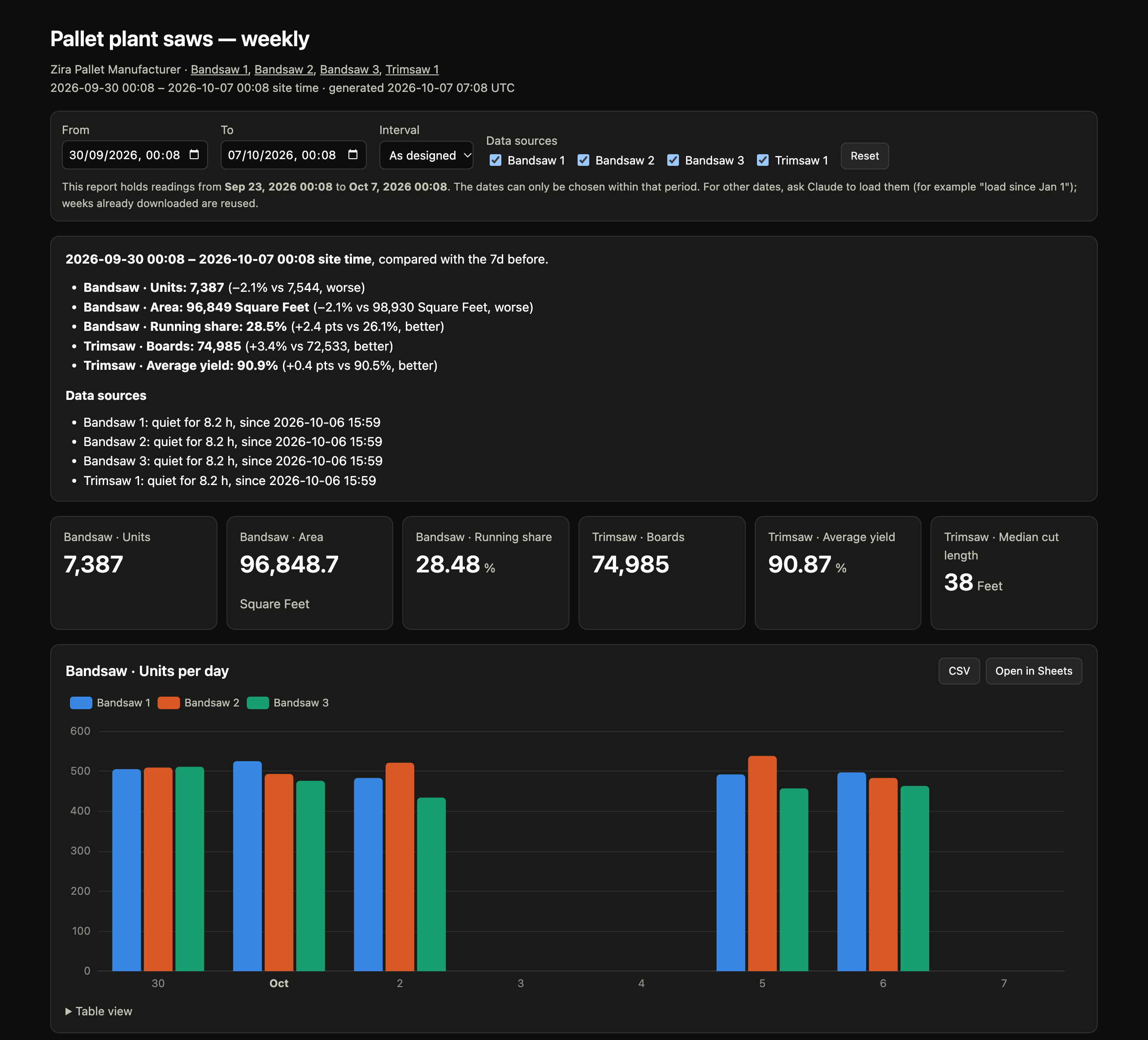
Reports are saved on your computer. Nothing is shared until you decide to share it.
Evaluate a Vision model
"How accurate is the newest model on Bandsaw 1?"
Before you put a Vision model to work, find out how well it really does. Zira finds the camera, lets you pick the dataset, version and model, downloads them, and runs the model on your computer. It is fast, and nothing is uploaded or changed in Zira. You can also use a model or dataset file you already have on your computer.
You get an evaluation report that opens in your browser:
- Headline scores: precision (of everything the model found, how much was right), recall (of everything that was there, how much it found), and an overall score.
- A score for every class, such as each defect or nail type, so you see where the model is strong and where it struggles.
- Every image, marked up: correct finds in green, misses in red and extra finds in orange, with the class and confidence. The images it gets wrong come first, and With errors, Misses and Extras narrow the list.
- Live tuning: change a class's confidence threshold in the report and the scores and images update straight away. The page address keeps your settings, so reopening it shows the same view.
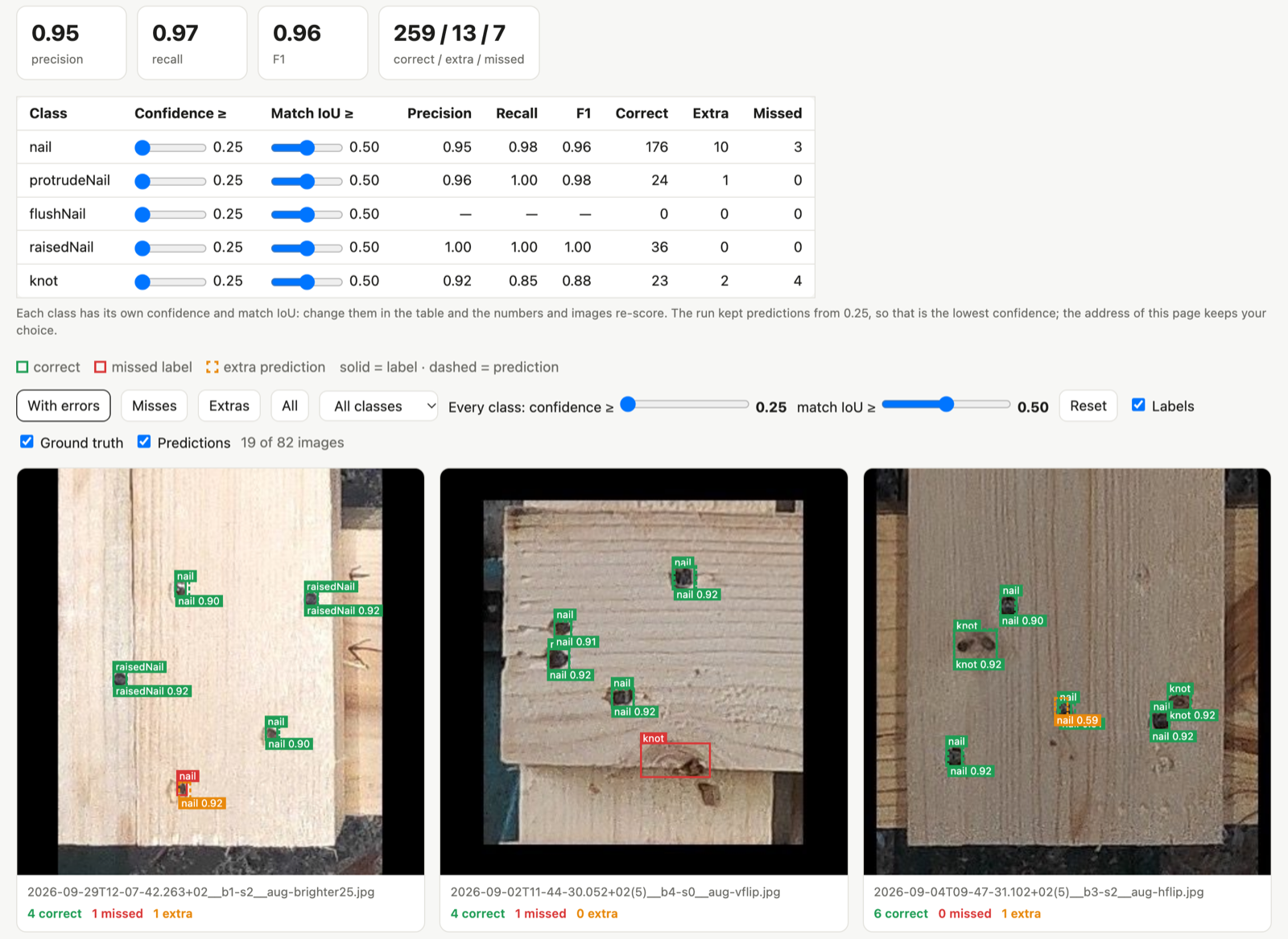
Zira also sums up the results in the chat and suggests what to try next: another split, all images, or another model to compare.
- "Now try the previous model on the same dataset."
- "Run it on all images, not only the validation set."
Check the health of your device fleet
"Show me the health of my device fleet."
Zira checks every trimsaw, bandsaw and pallet QA device at your site and opens a health dashboard. The devices that need attention come first: a camera that stopped sending data, a device that is too hot, a low battery. Devices that have been quiet for a long time are listed separately, so they do not bury today's problems.
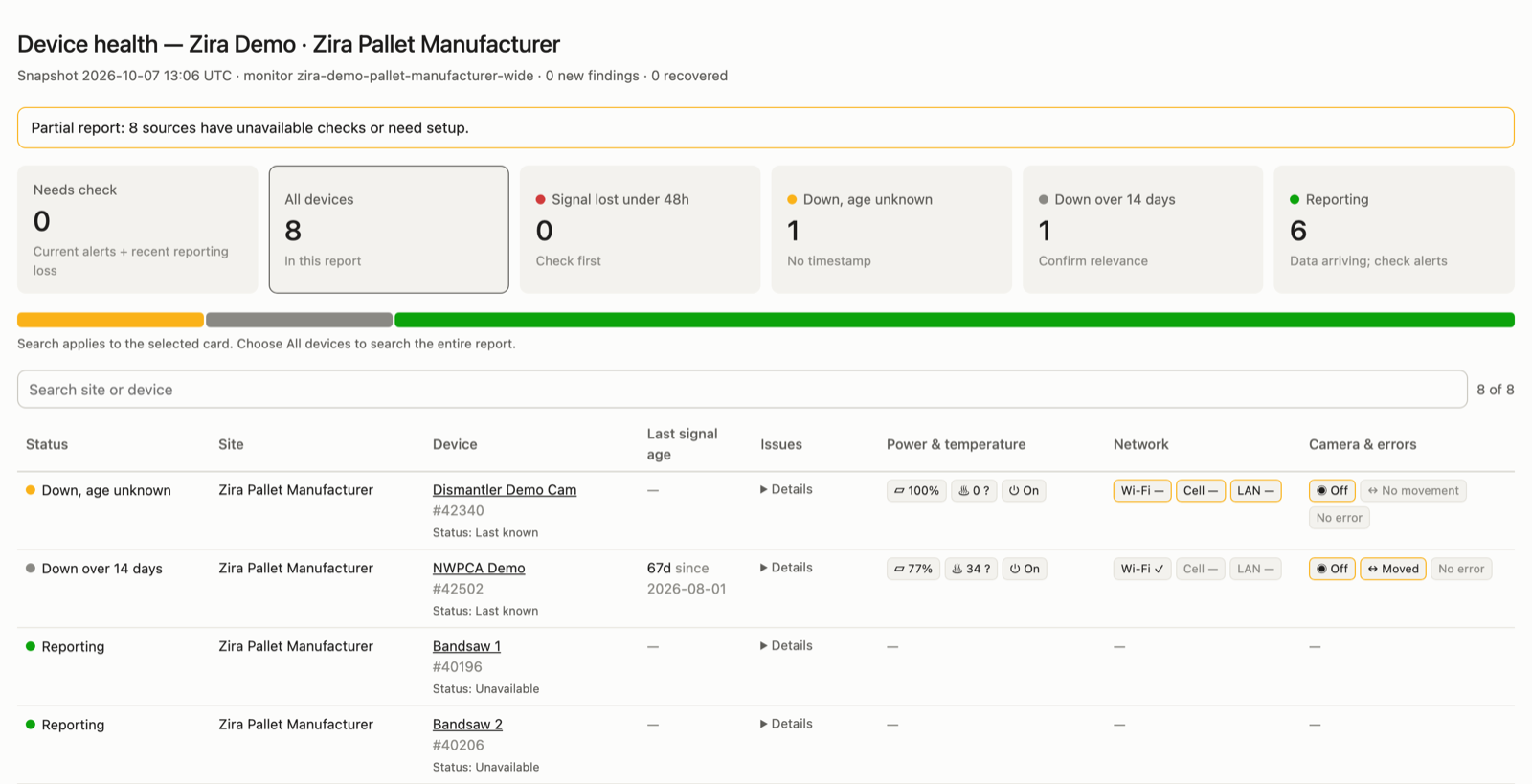
From there:
- "Create tasks for the devices that need attention." Zira prepares one task for each problem and shows you the list before anything is created.
- "Why did Bandsaw 2 stop sending data?" Zira looks into a finding and tells you what it found and what needs a person on site.
- "Share this dashboard with my maintenance team." Publish it as a link and choose who can open it.
- "Run this check every working day at 7:00 and only tell me when something changes."
To check every site each morning, say "Check my Ohio sites' devices every morning." Zira asks a few questions and sets it up. When nothing changed, the daily message is one line.
Keep an eye on the fleet while you work
In Claude, Zira also keeps a small fleet status above the chat box for your saved site. It shows which devices are online and how long any have been offline, and refreshes every 10 minutes.
- Type
/zira-fleetto open the full fleet panel with every device and its status. - When a device goes offline or comes back, a short notice appears in the chat.
Check device status
"Are my cameras OK?" or "Which cameras moved?"
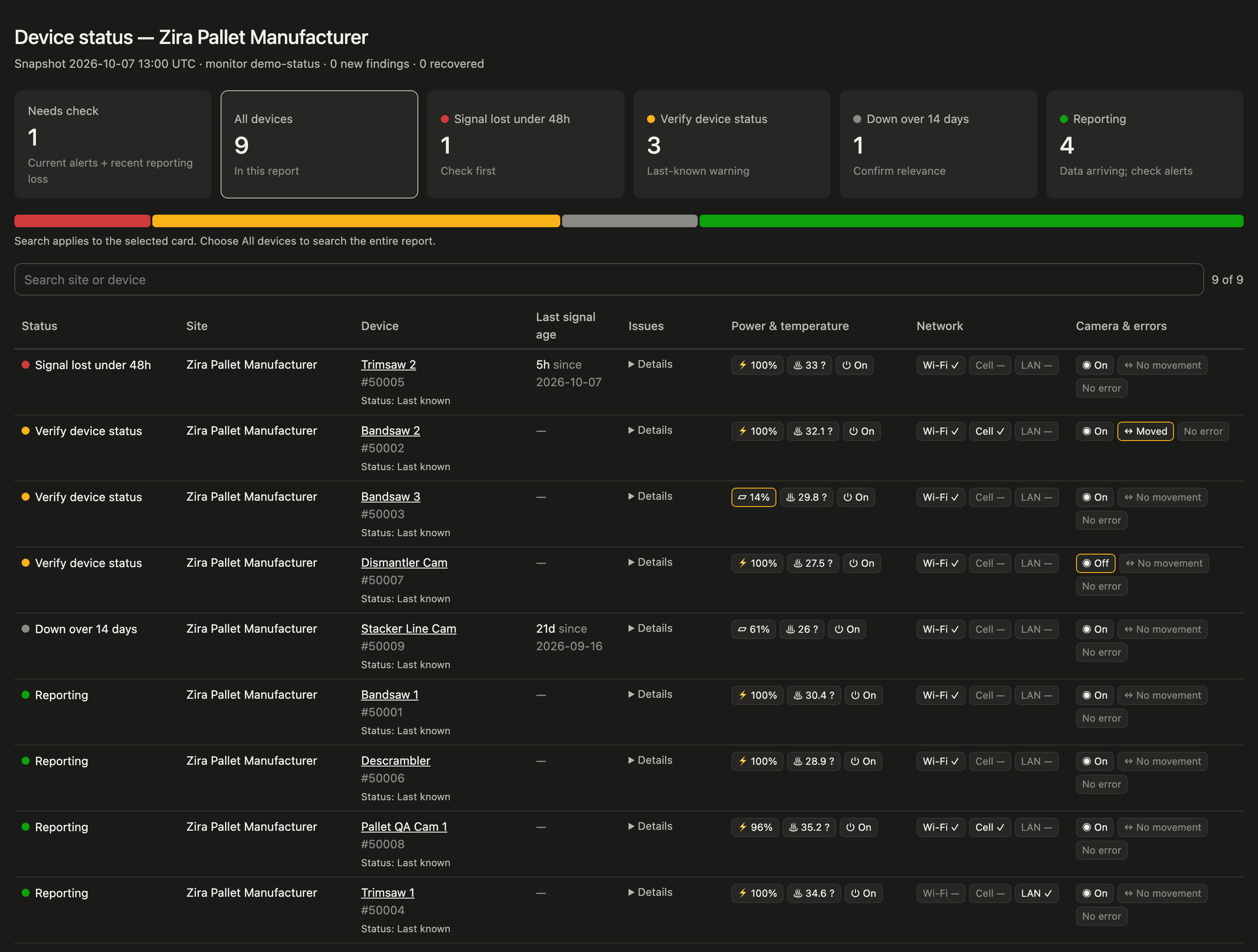
For a quick look at your cameras, without setting up production counts or targets first, Zira checks every camera at the sites you choose, including cameras on any kind of line. The page shows:
- Online or offline, with how long a camera has been quiet. Cameras that stopped recently come first; cameras that have been off for weeks are listed lower down.
- Power and temperature: battery level, whether it is charging, temperature and power. A battery below 20% that is not charging is flagged. You can ask for another limit.
- Network: Wi-Fi, cellular and network cable.
- Camera and errors: camera on or off, camera moved, and device errors.
Grey labels are normal and amber ones need a look. Most cameras report these values without a time, so Zira shows them as the last values it received and asks you to check on site rather than treating them as confirmed problems. Hover a label to see its full value.
Ask again later and Zira tells you what changed since your last check. Or say "Check device status every weekday at 6:30", and Zira checks each morning and tells you only when a camera goes offline, comes back, or reports something new.
For production counts, trim targets and follow-up tasks, use the health check earlier on this page.
Show and create tasks
"Show my open tasks."
You get your open tasks from every site you work with, each with its status, priority and a link to open it in Zira. Narrow it down with "only high priority" or "just Zira Pallet Manufacturer".
"Create a task for Bandsaw 3: check the blade and feed. Its cycle time is a third slower than the other bandsaws."
Zira writes the task, links it to Bandsaw 3 and shows you a preview: the title, description, priority and who it is assigned to. It also tells you if a similar task is already open. Say yes and the task is created. The person it is assigned to is notified, and you get the link.
Explore your sites, machines and dashboards
Ask Zira to find things for you. Every answer includes links that open the right page in Zira.
- "Which companies can I see?" and "Show the sites for Zira Demo."
- "What data sources do we have at Zira Pallet Manufacturer?" lists every machine, camera and form at the site.
- "Which dashboards cover the bandsaws?" finds your dashboards.
- "How did the plant do yesterday?" reads your dashboards and sums up production, quality and performance in a few lines.
Build dashboards, forms and data sources
Describe what you need. Zira prepares it, shows you a preview, and creates it only when you say yes.
- Dashboards: "Start a dashboard comparing Bandsaw 1, 2 and 3 over the last 7 days." Zira creates the dashboard with those data sources, then opens it in Zira, where the AI builder adds the charts.
- Forms: "Draft a blade-change inspection form." Zira writes the questions with you and opens the form editor with the draft ready for you to review and save.
- Data sources: "Add a Pallet QA data source for the new repair line." Zira creates it from the right template at your site, or opens the data source builder for a custom one.
Get AI reports by email
"Email me and the shift supervisors a summary of the KPI Overview dashboard every weekday at 7:00."
Zira picks the dashboard charts to read, the schedule, and the people to send it to, and shows you the plan. Once you confirm, a written summary arrives by email, notification and post on the schedule you chose.
- See a sample first. Before anything is saved, Zira writes a sample report in the chat, so you know what your team will receive. It writes a new one after every change.
- Fine-tune it in Zira. Ask Zira to open the draft in Zira's agent editor. Change it there or in the chat, and schedule it when it reads right.
- End-of-day reports. Ask for "every day at 18:00 with today's data" and the report covers the day that is ending. Morning reports cover yesterday.
Set up and improve Vision
If you work with Zira Vision or Pallet Vision, Zira guides you through the whole journey.
- Set up a device: "Help me set up the new camera on Bandsaw 2." Zira tells you the next step, from pairing and mounting to recording, datasets, training and validation, and gives you the right Zira page for each one.
- Open a dataset: "Open the Bandsaw 1 dataset for annotation." Zira finds the camera and dataset by name and opens it in Zira, or its versions, models, training or validation.
- Check a model: see Evaluate a Vision model earlier on this page.
- Make a smaller dataset: "Make a subset with at least 100 images of each class." Zira builds a balanced dataset and adds it to Zira for you.
- Find more rare defects: "Find more raised nails for Cam 1 Quality." For Pallet Vision cameras, Zira searches recent production images for likely examples and opens a review page. You accept or reject each one, and Zira builds a dataset from the accepted images, ready for you to add to the camera in Zira. It can also check an existing dataset for labels that look wrong.
- Test a model on fresh images: "How does the newest model do on yesterday's production?" Zira scores the model on a Pallet Vision camera's recent production images, which it has never trained on.
Learn Zira as you go
- Ask any how-to question, such as "How do I add a widget to a dashboard?", and get the answer from the Zira help center.
- Say "Help me get started with Zira" at any time for a short tour.
- Say "Change my default Zira site" to switch the company and site Zira uses when you do not name one.
Every Zira action
You can start any of these by asking in your own words, or pick it from the /zira list.
| In Claude | In Codex | What it does |
|---|---|---|
zira:getting-started | Get Started with Zira | Sign in, choose your company and site, and try a first question. |
zira:show-companies | Show Companies | Lists the companies you can access. |
zira:show-sites | Show Sites | Lists the sites of a company, with links. |
zira:show-data-sources | Show Data Sources | Lists the machines, cameras and forms at a site. |
zira:show-dashboards | Show Dashboards | Finds dashboards and sums up what they show. |
zira:readings-report | Readings Report | Answers questions from your readings and builds reports you can save, schedule and share. |
zira:evaluate-model | Evaluate a Model | Scores a Vision model on a dataset, class by class, with every image marked up. |
zira:health-report | Health Report | Checks device health, suggests follow-up tasks and repeats the check on a schedule. |
zira:device-status | Device Status | Shows battery, temperature, camera and network status for every camera, now or on a schedule. |
zira:schedule-health-report | Schedule a Health Report | Sets up a daily health check for chosen sites that stays quiet when nothing changed. |
zira:schedule-readings-report | Schedule a Readings Report | Sets up a recurring report for chosen machines, compared with the period before. |
/zira-fleet | — | Opens the fleet panel for your saved site (Claude only). |
zira:show-tasks | Show My Open Tasks | Shows your tasks across sites, with filters and links. |
zira:create-task | Create a Task | Writes, previews and creates a task. |
zira:build-dashboard | Build a Dashboard | Starts a dashboard from your data sources. |
zira:create-form | Create a Form | Drafts a form and opens the Zira form editor. |
zira:create-data-source | Create a Data Source | Creates a Vision or Pallet QA data source, or opens the builder. |
zira:schedule-ai-report | Schedule an AI Report | Emails a written summary of your dashboards on a schedule. |
zira:setup-vision | Set Up a Vision Device | Guides Vision setup one step at a time. |
zira:open-dataset | Open a Dataset | Opens a Vision dataset, its versions or models in Zira. |
zira:subset-dataset | Create a Dataset Subset | Builds a smaller dataset with enough images of each class. |
zira:find-defects | Find Rare Defects | Finds more examples of a rare defect for you to review and turn into a dataset. |
zira:zira-help | Zira Help | Answers how-to questions from the Zira help center. |
Zira team members also see two tools for internal use, Develop a Vision App and Image Review.
You are always in control
- It asks before it acts. Anything that creates or changes something in Zira is shown to you first, and happens only after you say yes.
- Your account, your access. Zira signs in as you and follows your Zira permissions.
- Your reports stay with you. Readings and reports are saved on your computer until you choose to share them.
Tips
- Use names. "Trimsaw 1" or "the bandsaws at Zira Pallet Manufacturer" is enough.
- Say the period. "Past week", "yesterday's second shift" or "since September 1" gets a focused answer.
- Stay in the same chat. Follow-up questions build on what Zira already found.
Handy details
- Every answer links into Zira, so machines, dashboards, tasks and datasets open on the right page with one click.
- Times use your site's time zone, so "yesterday's second shift" means what you expect.
- Reports reuse what they already downloaded, so loading more weeks stays fast.
- Reports work offline. Open a saved report any time, even without a connection.
- Scheduled checks stay quiet when nothing has changed.
- Weekly reports compare with the week before, so you see at a glance what got better or worse.
- Long-quiet devices are listed separately in the health dashboard, so today's problems stay on top.
- The same actions work in Claude and Codex, so your team can use whichever assistant they prefer.
Read next
- Connect to Claude - Link a single site to Claude without installing a plugin.
- AI Dashboard Builder - Finish the dashboards Zira starts for you.
- Datasets - Review and annotate the Vision datasets Zira opens for you.
- Home AI Assistant - Ask, find and create from the Zira home page.