
Browse Guides
5 guides
3 guides
2 guides
13 guides
1 guide
9 guides
12 guides
2 guides
18 guides
1 guide
1 guide
1 guide
2 guides
1 guide
1 guide
1 guide
1 guide
1 guide
1 guide
1 guide
2 guides
2 guides
1 guide
Image Annotation
Open one dataset image to add and update labels in one place.
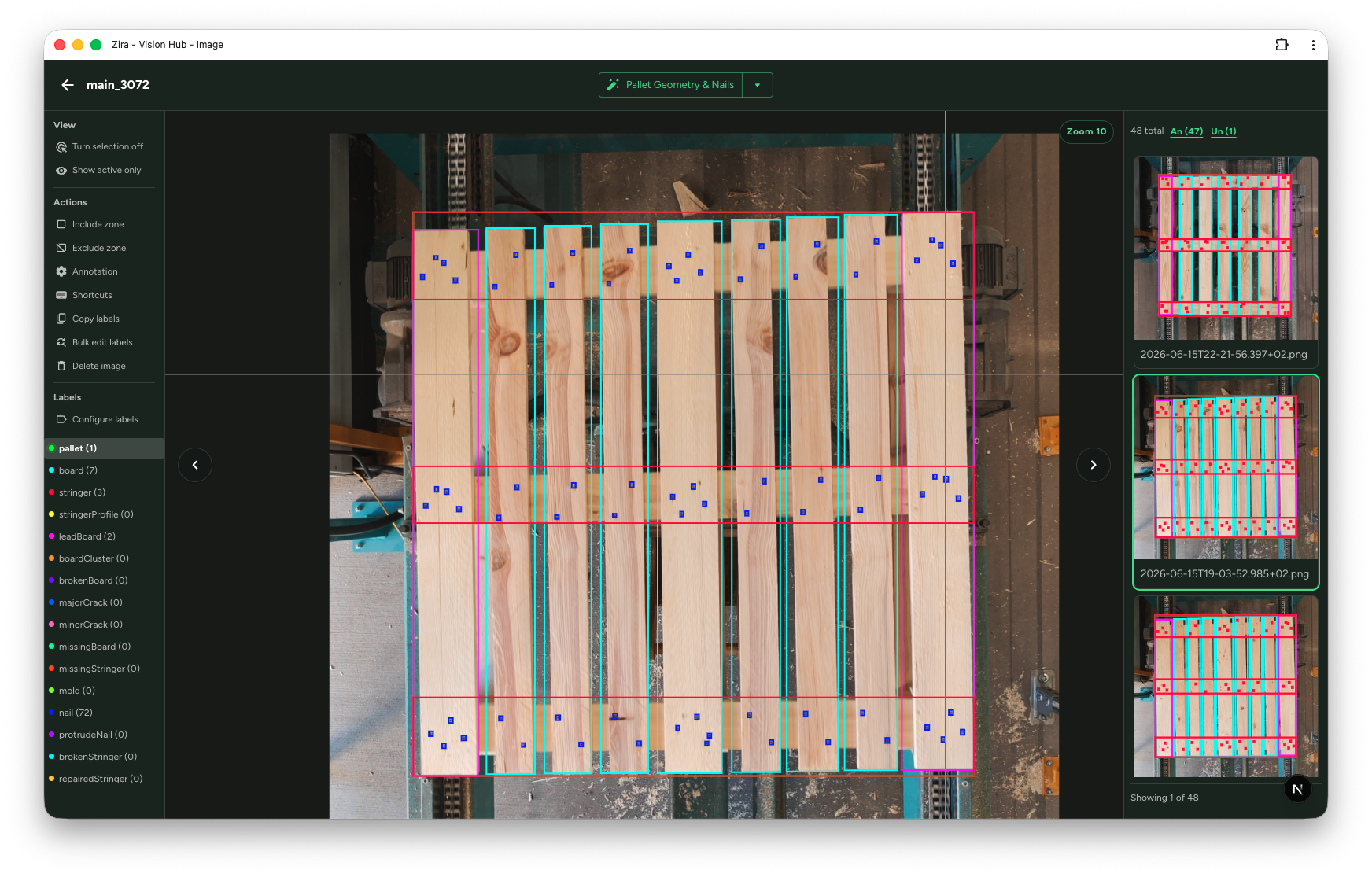
Open a dataset, then click an image to open this page.
This page is where you review one image, work on labels, and move between images without going back.
Auto annotation
Use the button at the top when you want the system to help with labels.
- Generic Model runs the general auto annotation option
- Custom Model runs the custom auto annotation option
- Batch Custom Model runs the custom option on more images
- Pallet Geometry & Nails helps with pallet structure and nail labels
The main button uses the option that is currently selected.
Auto detection options
Open Annotation on the left when you want to change how auto annotation works.
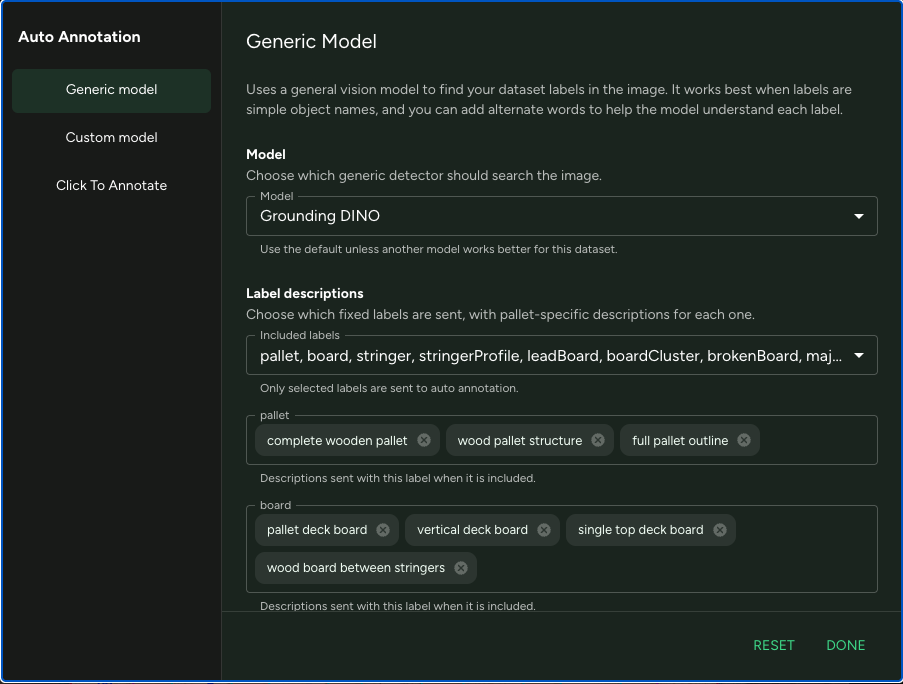
Generic model
Use Generic model when you want the system to find common objects from your label list.
- choose the detection model
- choose which labels to include
- add simple label descriptions if needed
- adjust how strict the results should be
This is usually the easiest place to start.
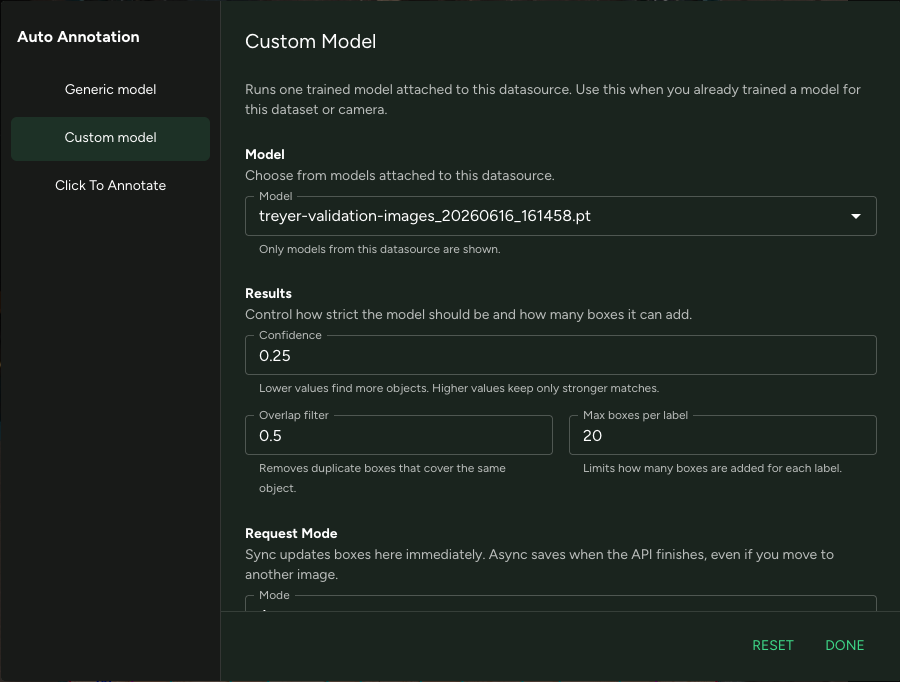
Custom model
Use Custom model when you already trained a model for this data source.
- pick the trained model
- adjust confidence
- adjust overlap filter
- set how many boxes can be added for each label
This is usually better when the generic option is not accurate enough.
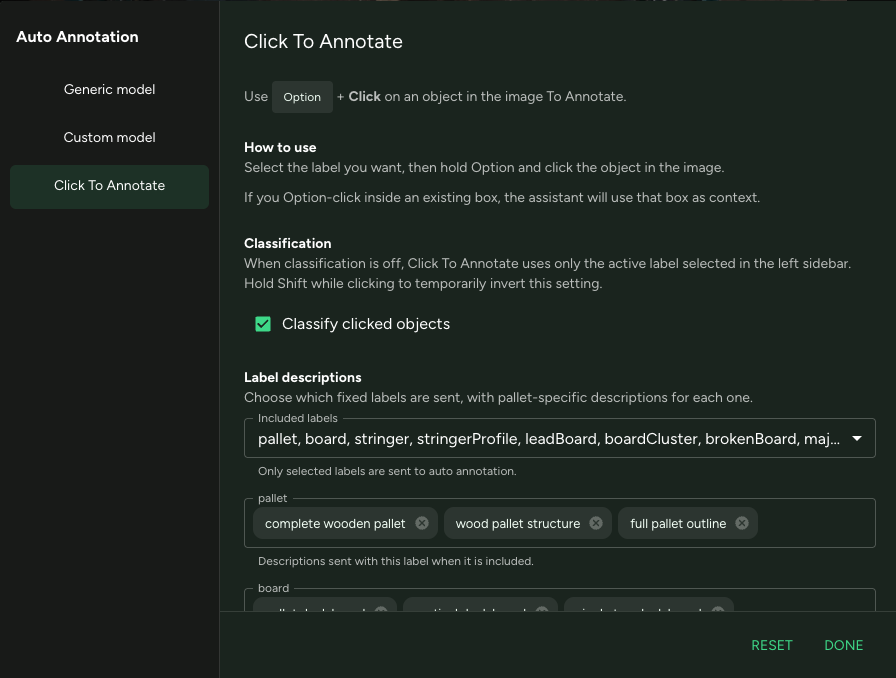
Click To Annotate
Use Click To Annotate when you want help on one object at a time.
- choose the label on the left
- hold Option
- click the object in the image
If Classify clicked objects is on, the system tries to decide the label for you. If it is off, it uses the label you selected on the left.
Included labels
Use Included labels to choose which labels the system should work with.
If you do not need every label, keep only the ones you want. This usually gives cleaner results.
Label descriptions
You can add short words or phrases for each label.
This helps the system understand what each label means.
Results
You can make the result more loose or more strict.
- Confidence: lower finds more objects, higher keeps only stronger matches
- Overlap filter: removes duplicate boxes
- Max boxes per label: limits how many boxes are added
Request mode
You can choose how the result is returned.
- Sync shows the result here right away
- Async finishes in the background and saves when ready
View
Use the View section on the left to change how you look at the image.
- Turn selection off/on changes whether you are selecting labels
- Show active only shows only the label you are working on
Actions
Use the Actions section on the left for common image work.
- Include zone adds an area to include
- Exclude zone adds an area to ignore
- Annotation opens annotation options
- Shortcuts shows keyboard shortcuts
- Copy labels copies labels to other images
- Bulk edit labels updates labels in bulk
- Delete image removes the image
Labels
Use the Labels section on the left to work with your label list.
- click a label to make it active
- the number next to each label shows how many of that label are in the image
- Configure labels opens the dataset label list
Image list
The images on the right help you move through the dataset.
- click another image to open it
- the highlighted image is the one you are working on now
- the count at the top shows how many images are in the list