
Browse Guides
5 guides
3 guides
2 guides
13 guides
1 guide
9 guides
12 guides
2 guides
18 guides
1 guide
1 guide
1 guide
2 guides
1 guide
1 guide
1 guide
1 guide
1 guide
1 guide
1 guide
2 guides
2 guides
1 guide
Models
See every model for this data source, send one to a camera, build a camera file, and fine-tune a better version.
A model is what lets a camera recognise something — a defect, a part, a label. The Models tab lists every model belonging to this data source and is where you send one to a camera.
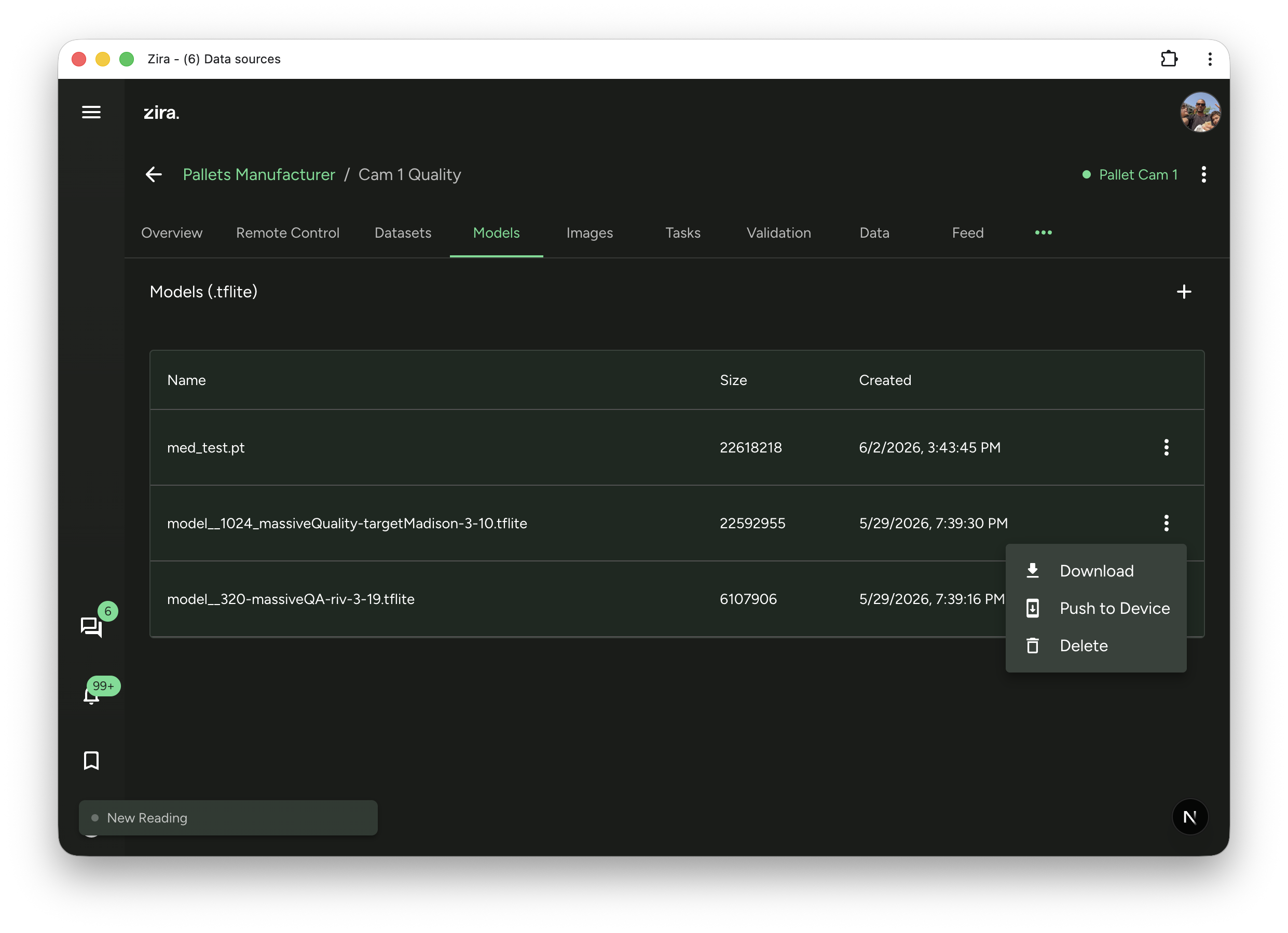
Open a data source, then click Models.
How a model gets here
- Create and label a dataset — see Datasets.
- Save the dataset as a version.
- Run training on that version — see Training.
- The finished model appears in this list.
- Use Push to Device to send it to the camera.
You can also use Add model (the + button) to upload a model you already have, or copy one from another data source.
What you see in the list
| Column | What it tells you |
|---|---|
| Name | The model's name. |
| Version | Which version of that model this is — 2 means the second one training produced. |
| Format | PyTorch is the trained model, TFLite and LiteRT are the converted copies a camera runs. |
| Looks for | What the model detects. Use the filter icon above the table to narrow the list. |
| Training run | The run that produced it. Click it to open that run in a panel over this tab, so you keep your place in the list. |
| Size | How big the file is. |
| Created | When it was made. |
A dash under Looks for just means nobody has set a type yet. You can set one from the row menu.
Two kinds of file
- A
.ptfile is the trained model itself. It is what you fine-tune from, and what a camera file is built from — but a camera cannot run it directly. - A
.tflitefile is the converted copy a camera runs. This is what Push to Device sends.
Training normally produces both at once.
Running on this camera
If a camera is selected in the device picker, a short list above the table shows what is actually installed on it right now — one line per slot, with a green tick when the model is there and matches a model you have in Zira.
Click a model's name to see the full detail: the file on the camera, where it came from, and when it was installed.
This is reported by the camera itself, so it is the truth about that device rather than a record of what somebody meant to send.
What you can do with a model
Open the ⋮ menu at the end of a row.
| Action | What it does |
|---|---|
| Download | Saves the file to your computer. Available to administrators. |
| View training analysis | Opens the run that produced this model. |
| Push to Device | Sends the model to the selected camera, into a slot you choose. .tflite only. |
| Fine-tune from this model | Starts a new training run that carries on from this model instead of starting fresh. .pt only. |
| Build a file for the camera | Converts a .pt into the smaller file a camera can run. |
| Change what it looks for | Sets the model's type, which is how this list groups and filters it. Safe to correct at any time — it does not change the model. |
| Delete | Removes the model from this data source. |
Push to Device
Use this when you want a camera to start using a model.
- Select the camera in the device picker at the top of the page.
- Open the ⋮ menu on the model and choose Push to Device.
- Choose the slot it should go into.
- Send it, and watch the progress in the dialog.
If the camera is asleep or briefly offline the model still reaches it — the instruction waits for up to five minutes. The dialog confirms the install from the camera's own record, so a success here means the camera really has the file.
If nothing is selected in the device picker, Push to Device is unavailable: there is no camera to send to.
Build a file for the camera
Cameras cannot run a trained .pt model directly, so it has to be converted first. Training usually
does this for you; use this action when you need to redo it, or want a different size-and-accuracy
trade-off.
- Size and accuracy — smaller files run faster on the camera; larger ones are slightly more accurate.
- Calibration — the smaller options measure themselves against a sample of your real images so that shrinking the model costs as little accuracy as possible. The defaults are fine.
If a warning tells you the format does not run on the camera app yet, the file will still be built and stored — you just will not be able to push it to a device until the app supports it.