
Browse Guides
5 guides
3 guides
2 guides
13 guides
1 guide
9 guides
12 guides
2 guides
18 guides
1 guide
1 guide
1 guide
2 guides
1 guide
1 guide
1 guide
1 guide
1 guide
1 guide
1 guide
2 guides
2 guides
1 guide
Validation
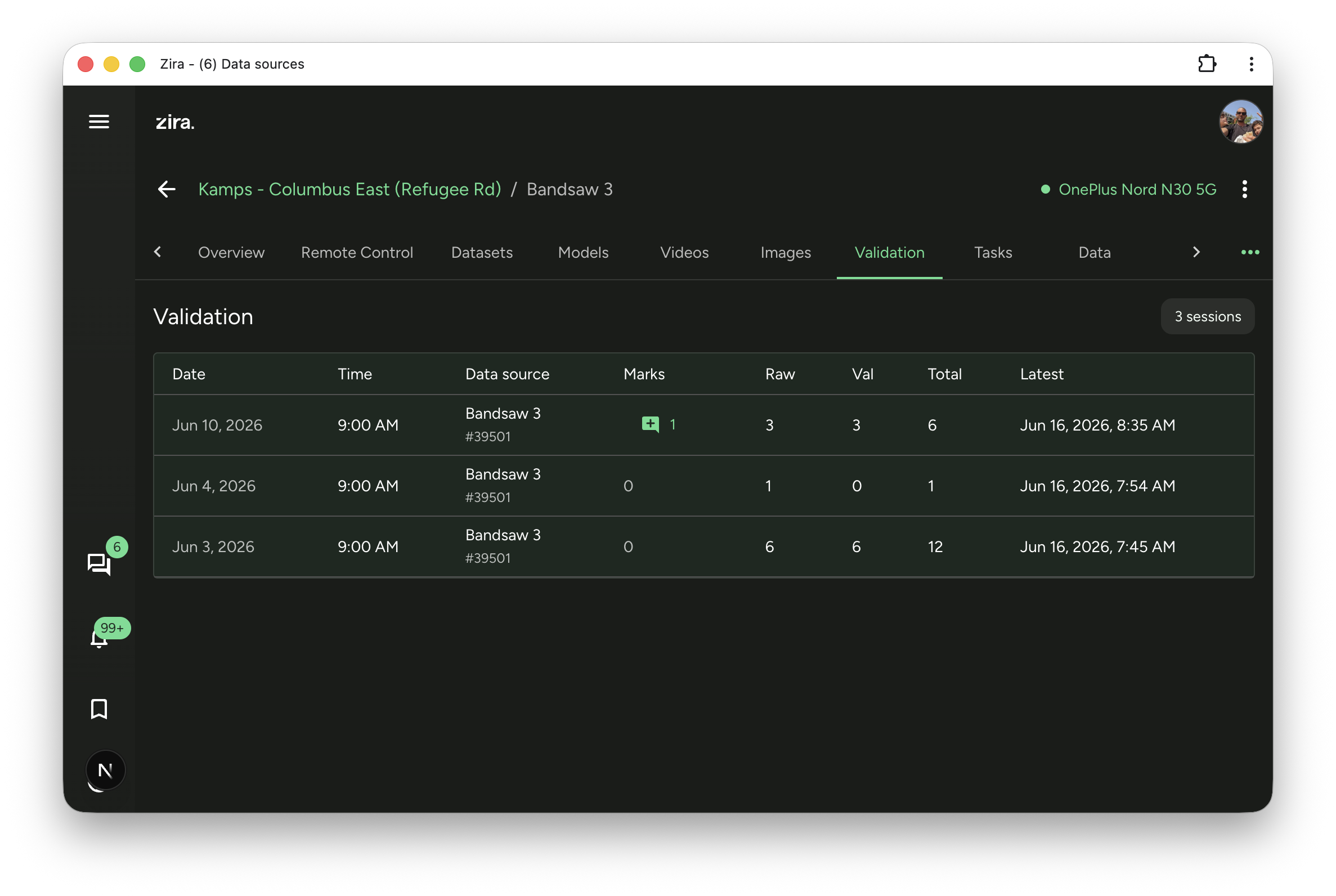
Use the Validation tab to review validation sessions, open the matching review page, and capture feedback that helps improve future model results.
Use the Validation tab when you want to review recorded validation sessions for a vision data source.
This tab is the main entry point for review work after the device has already captured validation videos or QA snapshots. From here, you can open the session, add review marks, and send useful examples into dataset work for model improvement.
Before you start
Open the data source in Vision view, then click the Validation tab.
How to use it
- Open the data source.
- Click the Validation tab.
- Review the session list.
- Click a session row to open its review page.
- Use the review page to add marks, inspect the session, and move useful examples into dataset work.
What you can do here
- Review validation sessions by date and time.
- Check how many marks already exist for a session.
- Open the marks count when you want to read existing review notes first.
- Use the session totals to understand how much review material is available before you open it.
The exact columns change by data source type:
- Vision video review shows Raw, Val, and Total counts for recorded clips.
- Pallet QA review shows Images, Size, and Latest so you can open snapshot-based sessions.
Review Vision video sessions
Use this flow for video-based vision data sources.
- Click a session row to open Video Review.
- Use Mark to save feedback at the exact time in the clip.
- Use the marks list to jump back to saved moments.
- Use Sample Images when you want to create still images from the raw video around the saved marks.
- Choose the destination dataset and split when you sample images so the new frames are ready for model improvement work.
Review pallet QA snapshot sessions
Use this flow for pallet-focused QA data sources.
- Click a session row to open the image-based review page.
- Review the image, the inspection summary, and the rest of the session in one place.
- Use Mark to flag issues such as missed defects or false defects.
- Save marked images so they can be reused in follow-up dataset work.
- Open Gap analysis from the session actions menu when you want to investigate unusual timing gaps between captured snapshots.
Tips
- Open the marks count before you start if another teammate may already have reviewed the session.
- Use validation sessions to decide which examples are helpful enough to keep for future training.
- For video review, sample images only after your marks are in place so the extracted frames are centered around the right moments.
- For pallet QA, review the inspection details before marking an issue so you can compare the image with the device result.
Read next
- Image Review - Review pallet QA validation images with inspection details and session image controls.
- Video Review - Review validation clips, add marks, and sample images around marked moments.
- Datasets - Continue with dataset preparation and organization after review.
- Remote Control - Collect new recordings or sample images from the live device.