
Browse Guides
5 guides
3 guides
2 guides
13 guides
1 guide
9 guides
12 guides
2 guides
18 guides
1 guide
1 guide
1 guide
2 guides
1 guide
1 guide
1 guide
1 guide
1 guide
1 guide
1 guide
2 guides
2 guides
1 guide
Remote Control
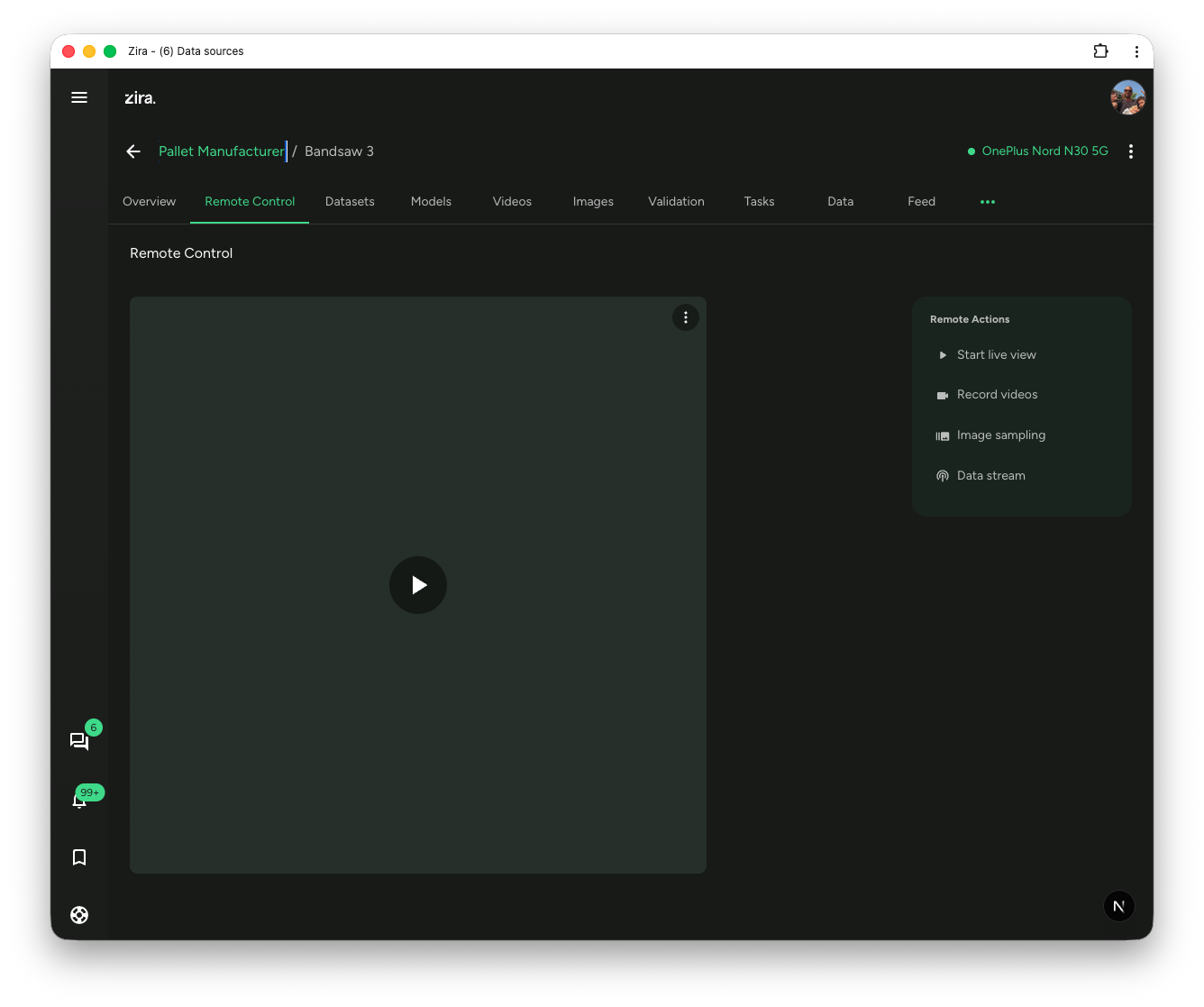
Use the Remote Control tab to open live view and use simple actions like recording videos, image sampling, and data stream.
Use the Remote Control tab when you want to work with the camera live.
Before you start
Open a data source, then select Remote Control.
How to use it
- Open Remote Control.
- Click Start live view on the right.
- Wait for the live image to open.
- Use the actions on the right when you need them.
What you can do here
- Start live view opens the live camera view.
- Stop live view closes the live camera view.
- Record videos opens the video recording window.
- Image sampling lets you collect images automatically.
- Data stream opens the live data panel.
- Device settings opens the device's settings, kept in sync with the device.
- Trim saw stops calibrates a trim saw's cut positions — see Trim Saw Stops.
Record videos
Use Record videos when you want to save new videos from the device.
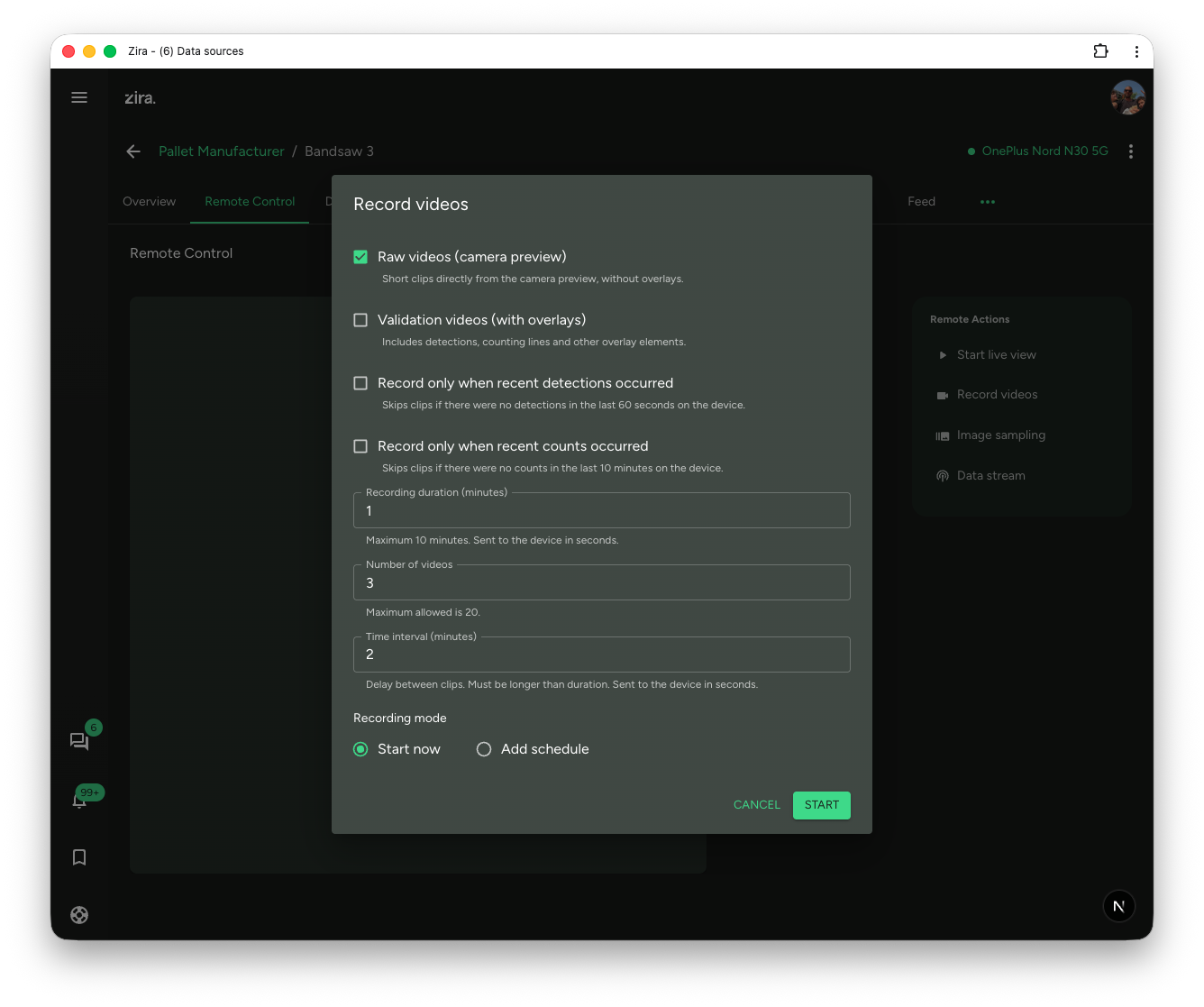
You can choose:
- what kind of video to record
- how long each video should be
- how many videos to save
- how much time to wait between videos
Image sampling
Use Image sampling when you want to save still images automatically.
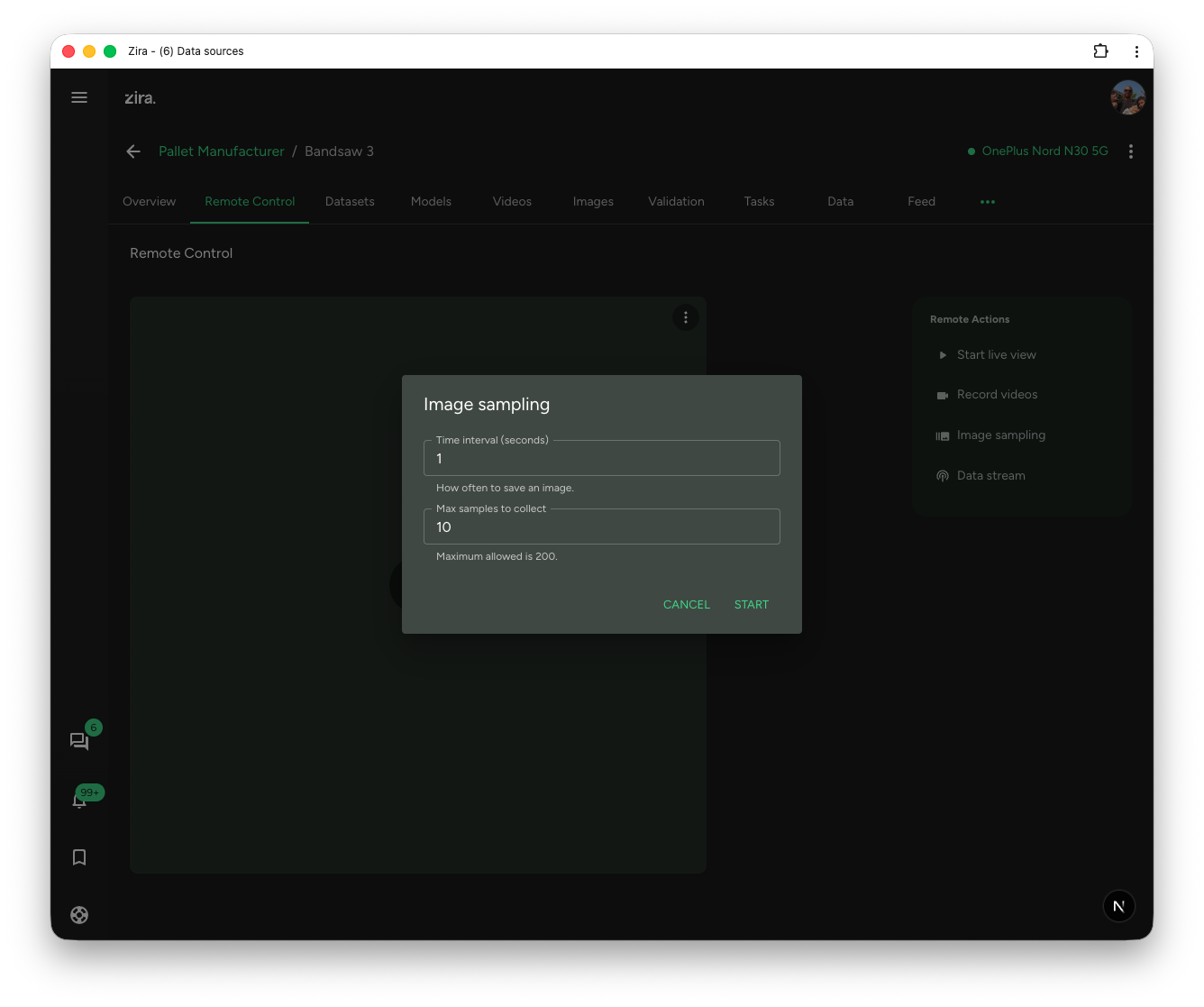
You can choose:
- how often to save an image
- how many images to collect
Data stream
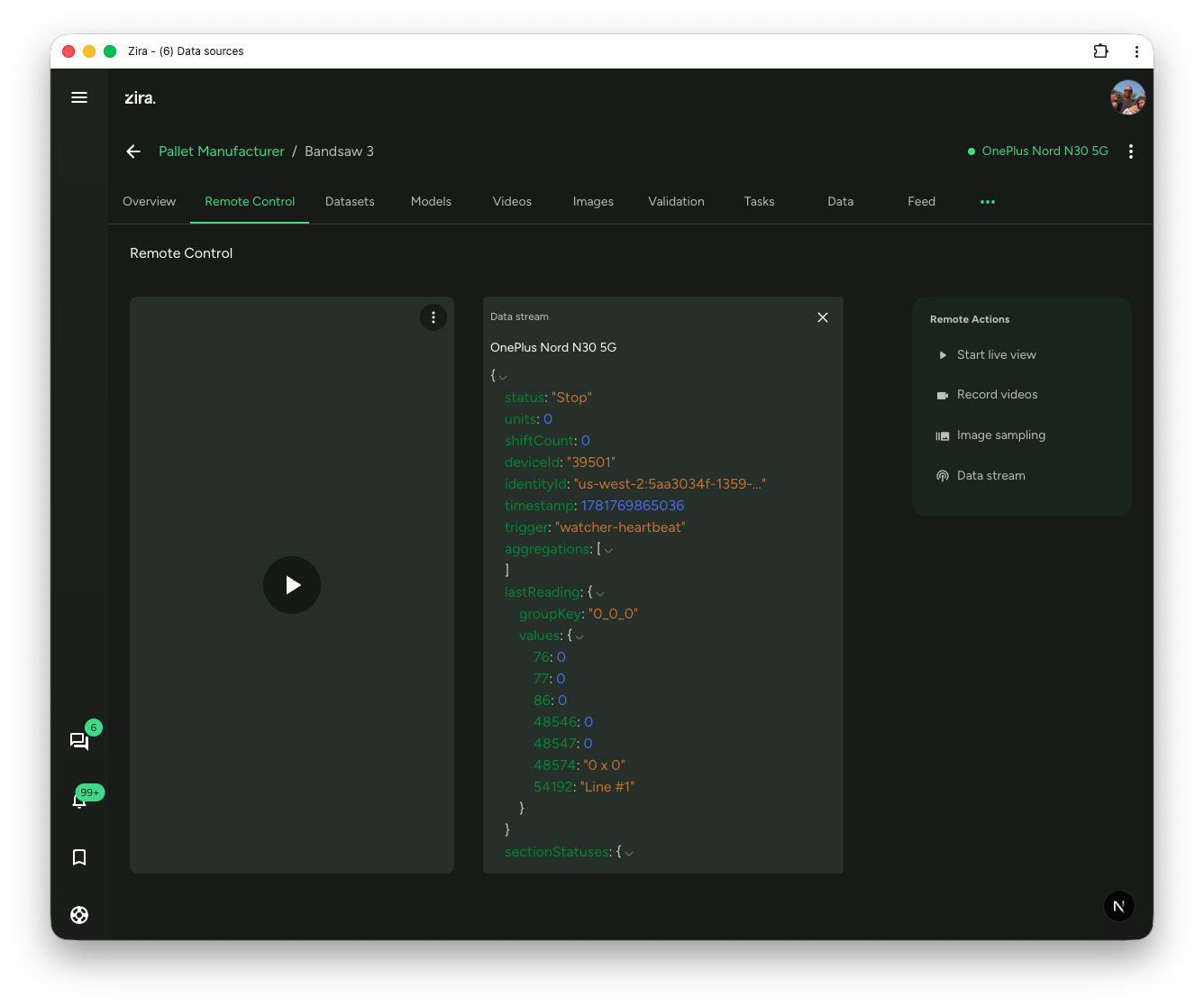
Use Data stream when you want to see live device data next to the camera view.
Device settings
Use Device settings when you want to adjust how the device runs. The settings stay synced with the device, so you always see what's actually in use.
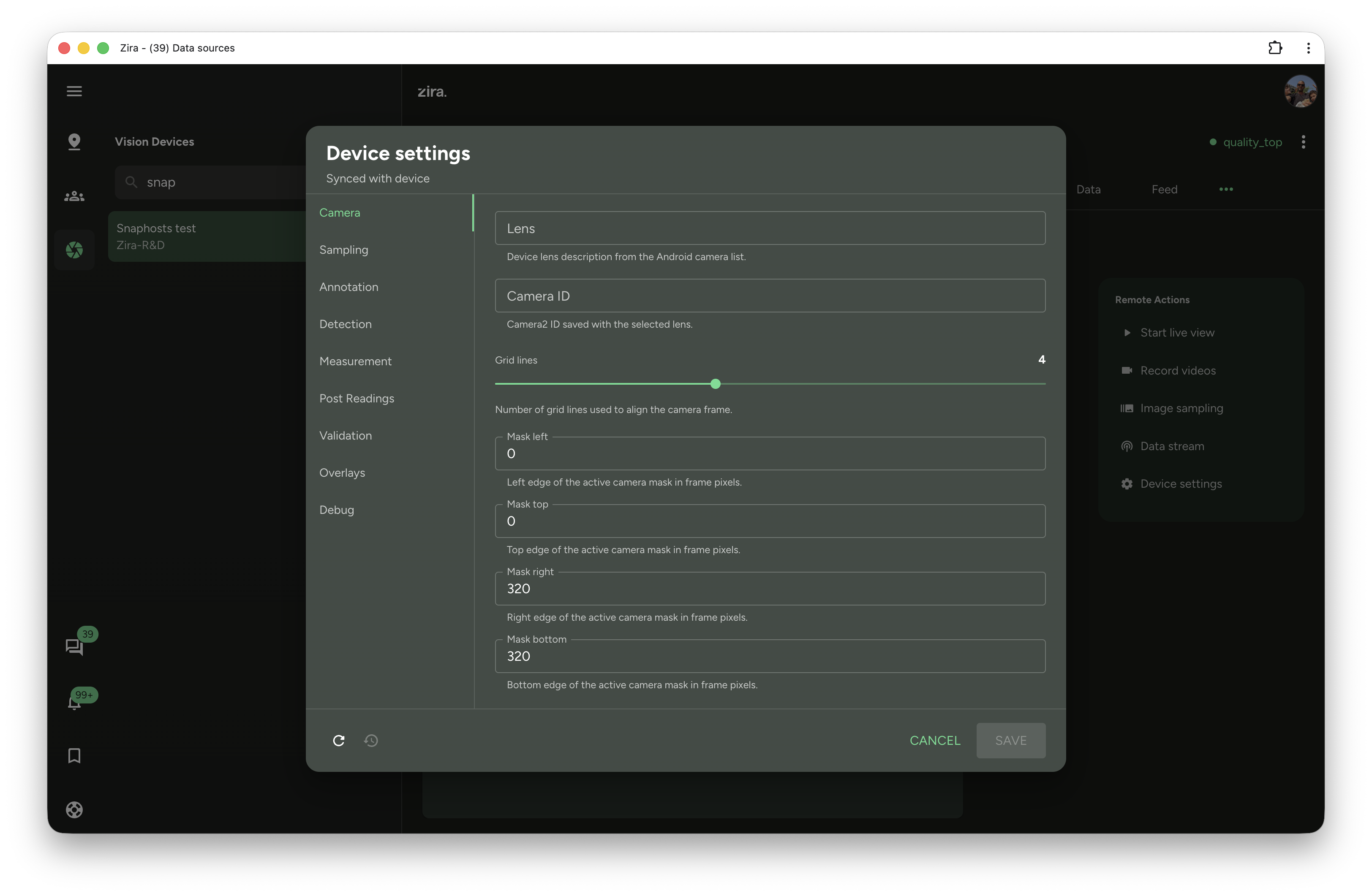
Settings are grouped into tabs down the side — such as Camera, Sampling, Detection, Measurement, Validation, and Overlays — so you can jump straight to the area you need. Use Cancel to close without saving, or Save to send your changes to the device.
Overlays
Use the Overlays tab when you want to line up the guides that sit on top of the picture — the detection mask, ruler lines, and the zero point.
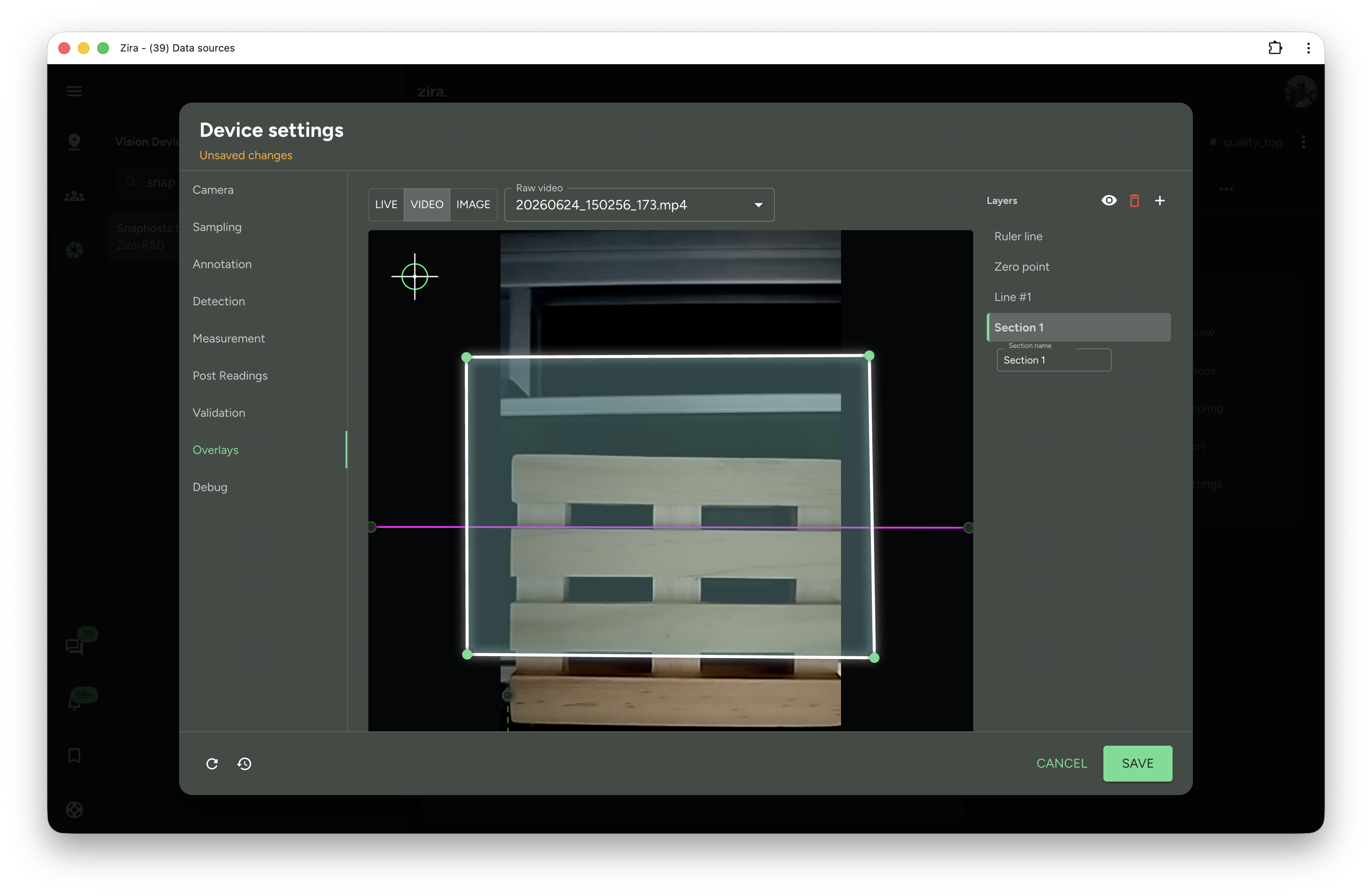
- Choose whether to place the overlays over a live view, a recorded video, or a still image.
- Drag the handles to move or resize each overlay directly on the picture.
- Use the Layers list on the right to add, hide, or remove individual overlays.
- Click Save to send the updated overlays to the device.
Trim saw stops
On a trim saw camera, Trim saw stops calibrates the saw from here: the camera measures where the stops are while you watch the live view, and you tell it what size each one cuts.
See Trim Saw Stops for the whole process.