
Browse Guides
5 guides
3 guides
2 guides
13 guides
1 guide
9 guides
12 guides
2 guides
18 guides
1 guide
1 guide
1 guide
2 guides
1 guide
1 guide
1 guide
1 guide
1 guide
1 guide
1 guide
2 guides
2 guides
1 guide
Overview
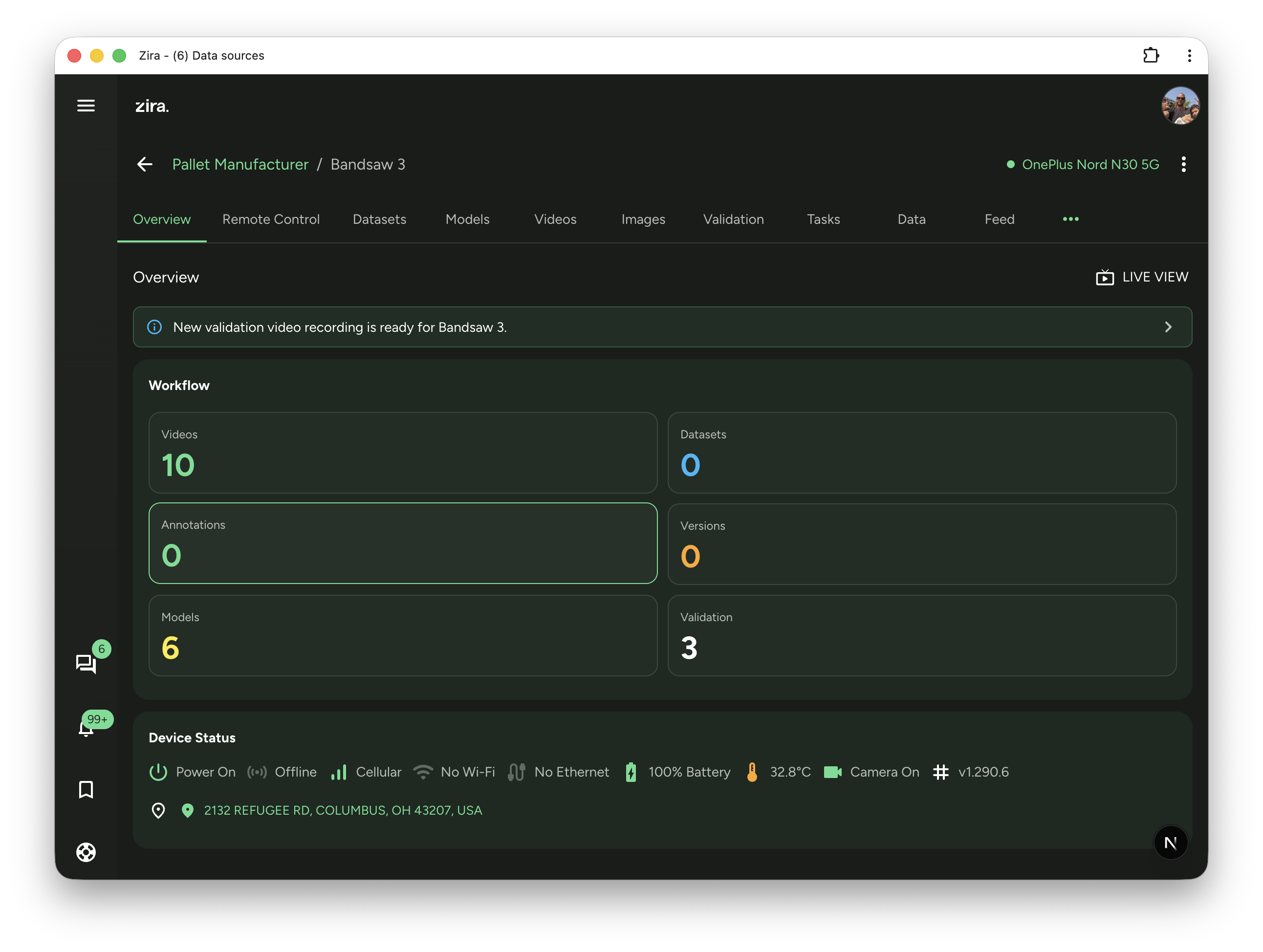
Use the Overview tab to quickly check progress, open live view, and see device status.
The Overview tab gives you a simple summary of what is happening on this data source.
Use it when you first open a data source or when you want a quick check before opening other tabs.
Before you start
Open a data source, then select the Overview tab.
How to use it
- Open the data source and go to Overview.
- Review any setup alerts at the top.
- Use Live View when you want to open the camera stream.
- Use the message at the top if you want to open the newest review item.
- Check the Workflow card to see the current counts.
- Click any count to open that area.
- Check Device Status to see connection and device health.
Key settings or fields
Toolbar actions
- Live View opens the live view window for the current device.
Setup alerts
For new Vision and Pallet Vision data sources, the Overview tab may show setup alerts.
These alerts help the workflow know whether the device is ready:
- Device is not marked as paired.
- Use QR or OTC to pair the device.
- Use Paired if the device is already paired.
- Use Skip if you want to continue without marking pairing.
- Device is not marked as mounted.
- Open Live View and verify the camera view first.
- Use Mounted when the device is installed and the view looks right.
- Use Skip if you want to continue without marking mounting.
These alerts disappear after you mark or skip each setup item.
The Home AI Assistant uses the same setup status when it guides the Vision workflow from chat.
Workflow counters
The workflow card shows the main work areas:
- Videos or Images
- Datasets
- Annotations
- Versions
- Models
- Validation
Click any card to open it.
Device status
The device status section shows important device details in one place:
- Power state
- Online or offline state
- Cellular, Wi-Fi, and Ethernet connectivity
- Battery level and temperature
- Camera state
- App version
- Last known location, when available
Update or edit existing items
- To keep working, open the related tab from the workflow card or the top tab bar.