
Browse Guides
5 guides
3 guides
2 guides
13 guides
1 guide
9 guides
12 guides
2 guides
18 guides
1 guide
1 guide
1 guide
2 guides
1 guide
1 guide
1 guide
1 guide
1 guide
1 guide
1 guide
2 guides
2 guides
1 guide
Video Review
Review validation videos, move through recorded sessions, and add review marks while you watch the clip.
Use Video Review when you want to inspect a recorded validation clip, watch it with overlays and playback controls, and add review marks at the exact moment you notice an issue.
This page is designed for quick customer-facing review work, especially when a team needs to confirm what happened in a recorded session.
Open Video Review
- Open the data source.
- Click the Videos tab.
- Open Validation Videos.
- Click the video you want to review.
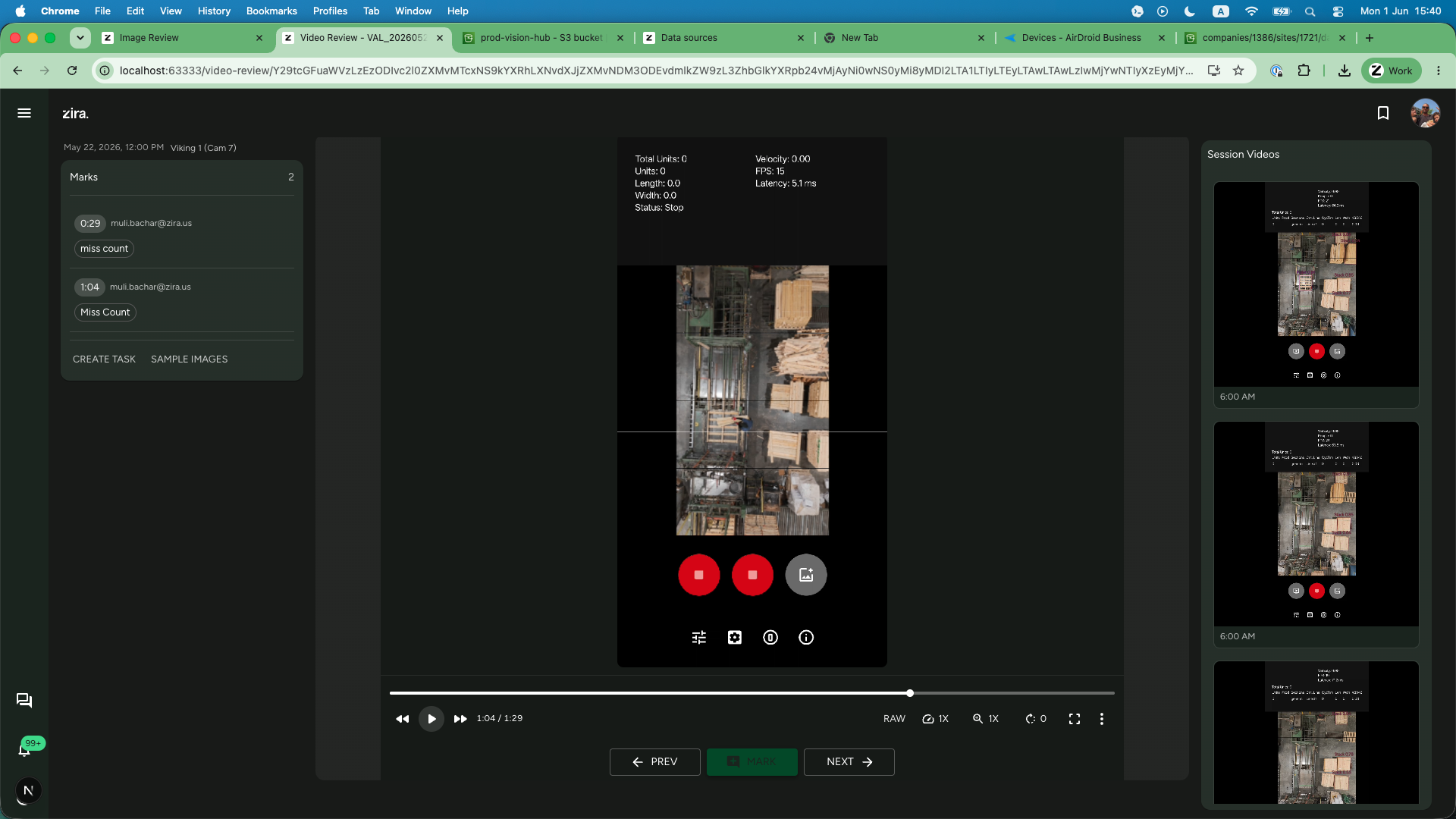
The page opens with the selected clip in the center, review marks on the left, and the rest of the session videos on the right.
What you can do here
- play, pause, and scrub through the current clip
- switch between previous and next videos in the session
- review existing marks on the left
- add a mark at the current time in the clip
- keep nearby session videos visible while you work
Review the clip
Use the center player when you want to inspect the current video closely.
- scrub through the timeline to jump to a moment
- pause on a frame before you add a mark
- use the toolbar controls for zoom or playback views that are available for that session
- use fullscreen when you need a larger view
Use the session gallery
The Session Videos panel on the right keeps the current recording session within reach.
- click a thumbnail to open another video from the same session
- use the time label below each thumbnail to move quickly to the right clip
- keep the session visible while you compare nearby recordings
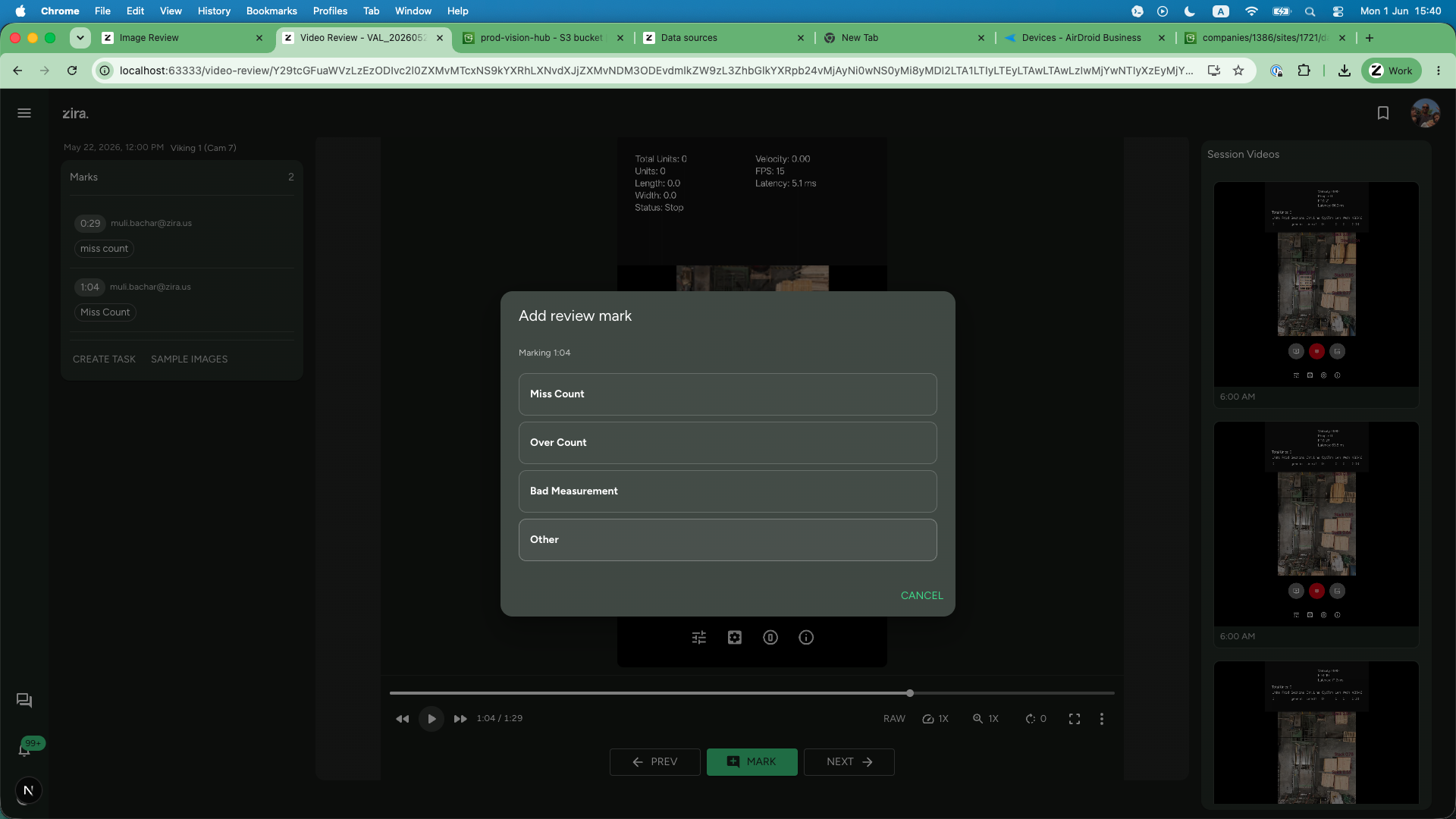
Add a review mark
- Pause the clip at the moment you want to mark.
- Click Mark.
- Choose the review reason that fits what you saw.
- If you choose Other, add a short note before saving.
Saved marks appear in the Marks section with their timestamp, so anyone reviewing the clip later can jump back to the same moment.
Tips
- Pause before you add a mark so the saved timestamp matches the exact moment you want to highlight.
- Use the session gallery to compare nearby validation clips without returning to the main Videos tab.
- Review the existing marks first when you are checking work another teammate already started.
Read next
- Validation - Return to the validation session list for this data source.
- Image Review - Review still QA session images when you need frame-by-frame image validation.
- Remote Control - Collect new recordings from the live device.