
Browse Guides
5 guides
3 guides
2 guides
13 guides
1 guide
9 guides
12 guides
2 guides
18 guides
1 guide
1 guide
1 guide
2 guides
1 guide
1 guide
1 guide
1 guide
1 guide
1 guide
1 guide
2 guides
2 guides
1 guide
Choose Your Work Mode
Set how Zira opens when you sign in — the AI Assistant, a dashboard, or your feed.
Use Work mode to choose how Zira opens every time you sign in. It is your personal starting point, so you land straight in the way you like to work.
You can pick from three focused modes:
- AI Assistant — start in an assistant that can chat, navigate, and build from one place.
- Dashboard — open straight into the numbers you watch.
- Feed — stay on top of activity and updates.
You can set your Work mode in two simple ways:
- from Preferences when you want to browse and choose
- from a dashboard menu when you are already on the dashboard you want to use
Set your Work mode from Preferences
- Click your profile picture.
- Click Preferences.
- Find Work mode and click Choose work mode.
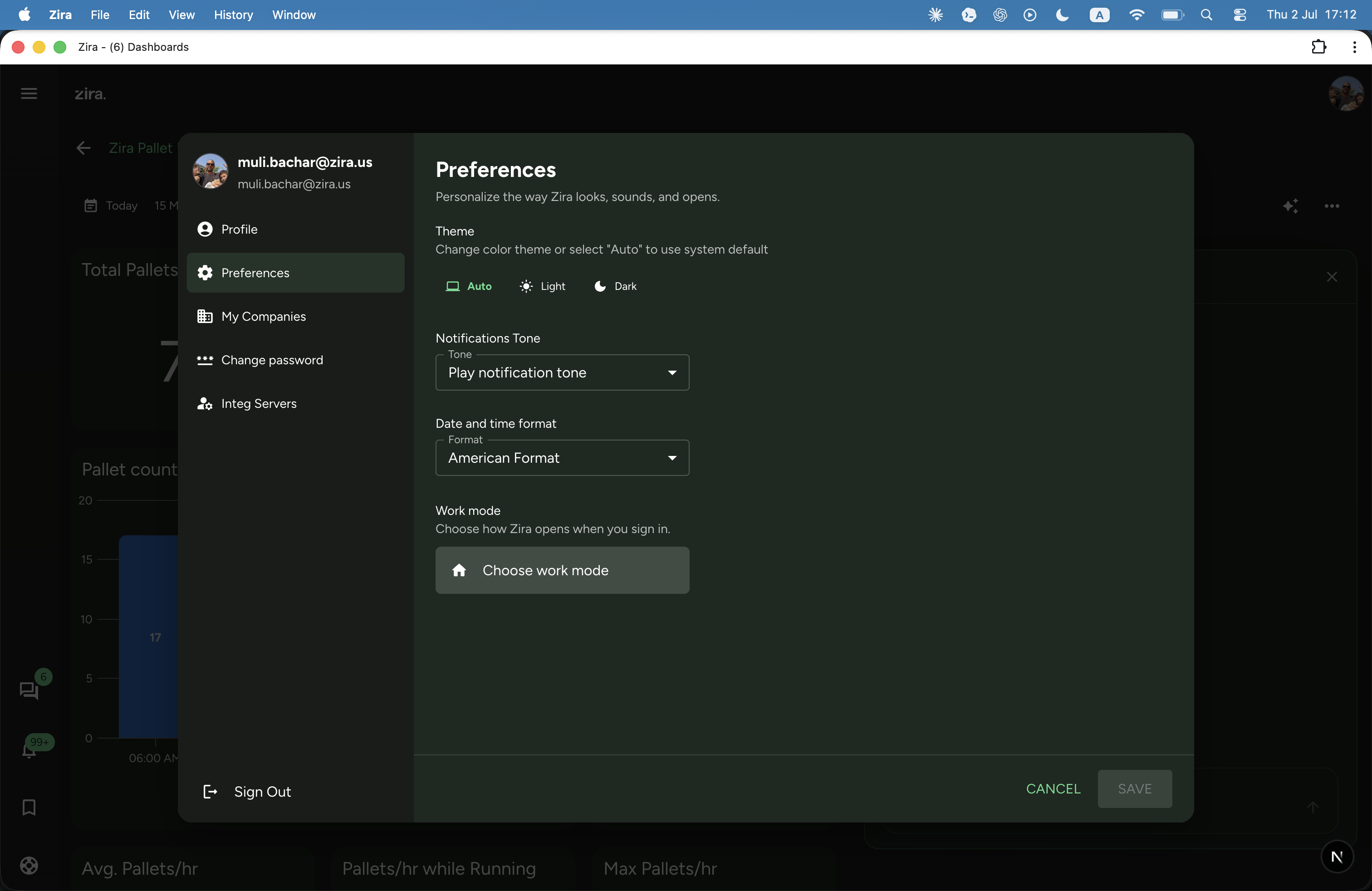
- In the Work mode dialog, choose the mode you want:
- Select AI Assistant or Feed to use it directly.
- Select Dashboard, then search and pick the dashboard you want to open.
The card you are using shows a Current badge, and the one you are picking shows a check, so your choice is easy to see.
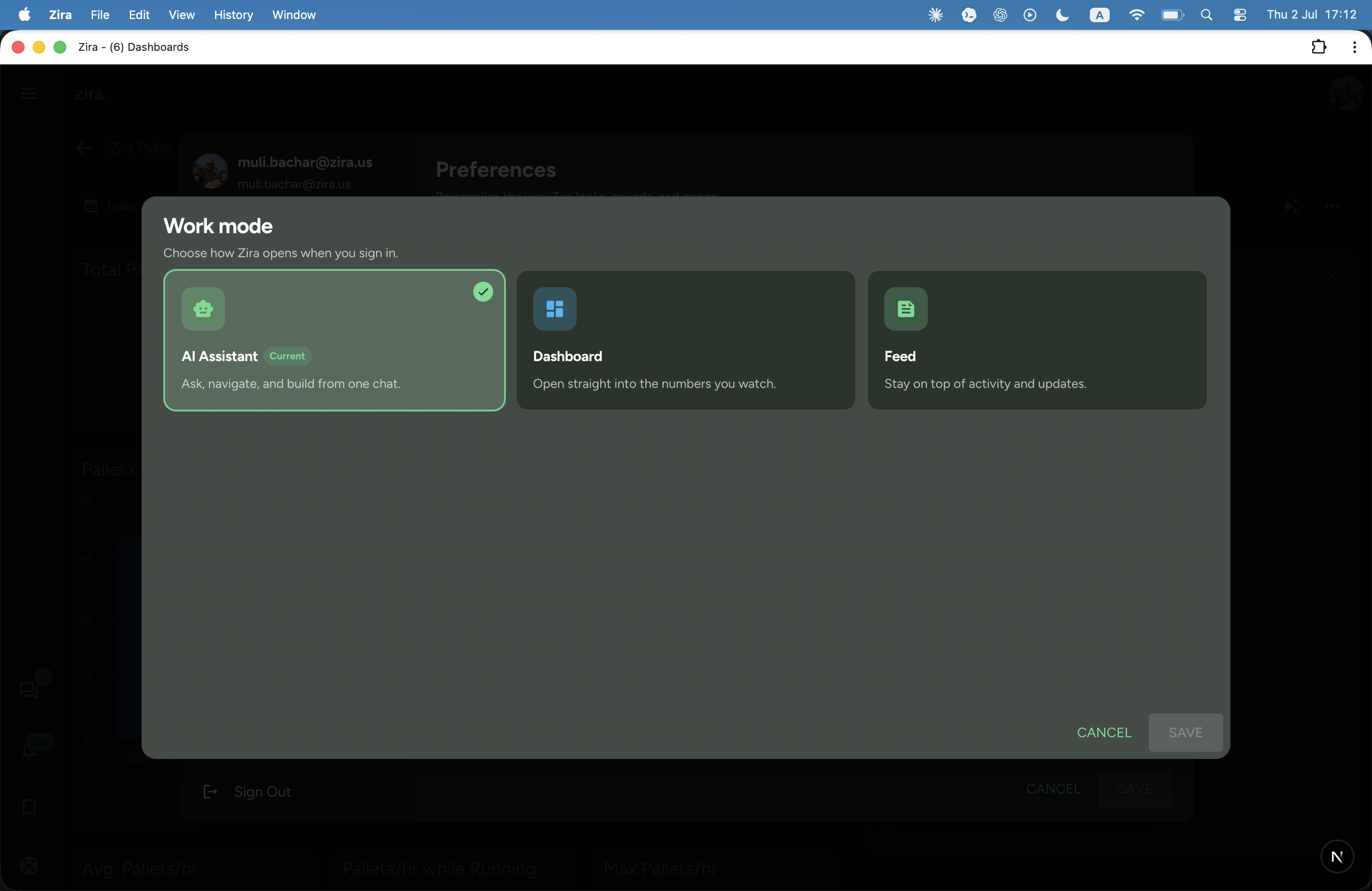
- Click Save to keep the change.
After that, Zira opens your chosen mode first when you sign in.
Set the current dashboard as your Work mode from the dashboard menu
Use this path when you are already looking at the dashboard you want.
- Open the dashboard you want to start from.
- Open the dashboard menu from the top-right actions area.
- Under Actions, click Set as work mode.
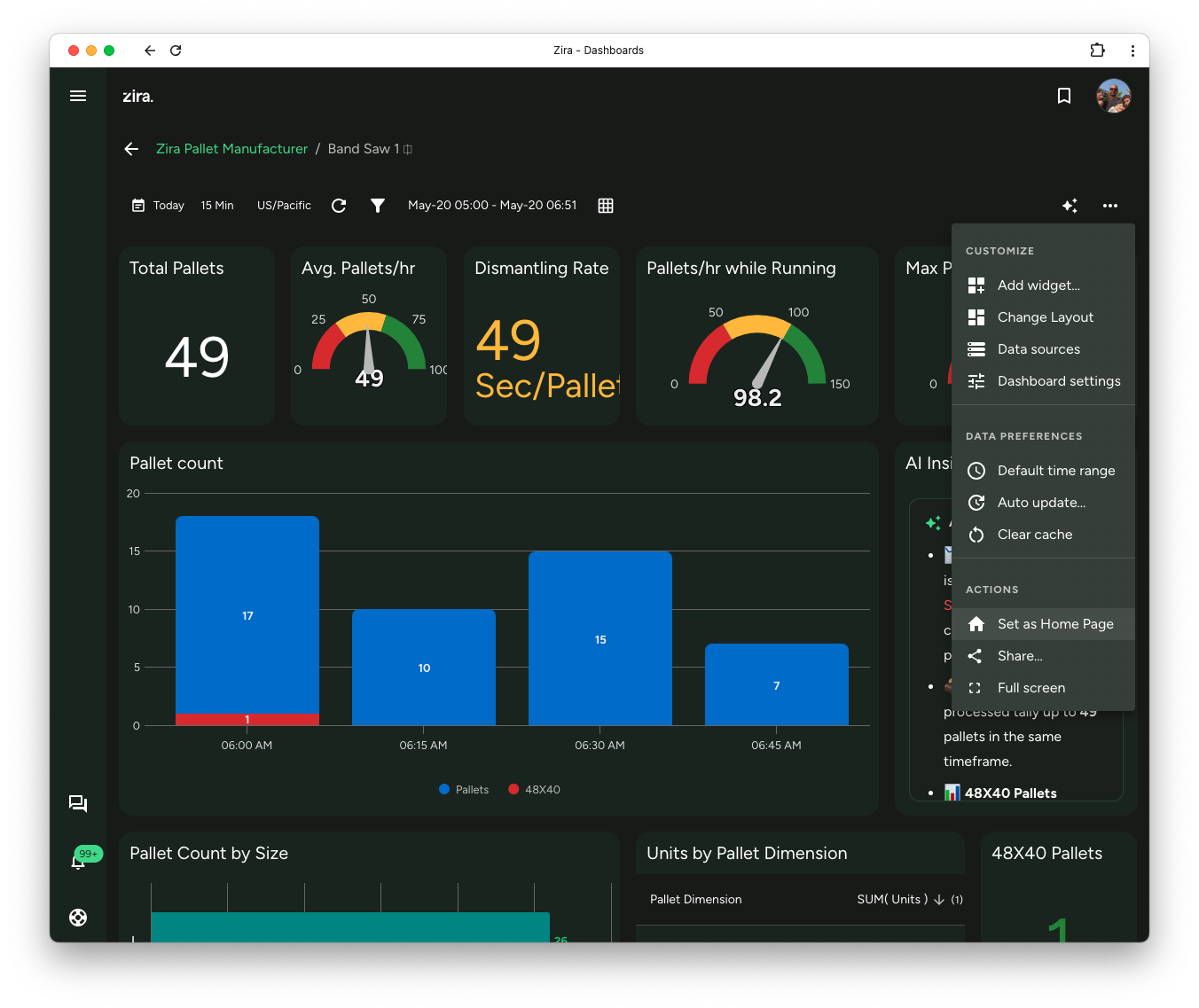
You should see a confirmation that the dashboard is now your work mode.
This is the fastest option when you already know which dashboard you want to start from each day.
How it works
Your Work mode is your personal starting page after sign in.
That means:
- it affects your own account
- it helps you open Zira directly into the way you work most
- you can change it again anytime
If you like to work from a conversation, choose AI Assistant. If you prefer a dashboard for daily work, set that dashboard. If your work changes later, you can choose a different mode.
Choosing Feed or Dashboard does not lock you out of the assistant. Open it any time from the AI Assistant icon — the sparkles — in the left menu, just above Chats.
When to update your Work mode
Update your Work mode when:
- your role changes
- your team starts using a new dashboard or channel
- you want a faster starting point for daily work
- you want to start your day in the AI Assistant instead of a fixed page
Related guides
- Change Your Preferences - Review personal settings such as theme, notifications, and Work mode.
- Home AI Assistant - Chat, navigate, and build from one place.
- Create a Dashboard - Set up a dashboard before using it as your starting page.
- Using Dashboards - Learn how dashboards work in daily use.