
Browse Guides
5 guides
3 guides
2 guides
13 guides
1 guide
9 guides
12 guides
2 guides
18 guides
1 guide
1 guide
1 guide
2 guides
1 guide
1 guide
1 guide
1 guide
1 guide
1 guide
1 guide
2 guides
2 guides
1 guide
Change Your Preferences
Choose how Zira looks, sounds, and opens for your personal account.
Use Preferences to choose how Zira works for you.
For example, you can change the color theme, notification sound, date format, and the page that opens first after you sign in.
Open Preferences
- Look for your profile picture in the top-right app area.
- Click your profile picture.
- Select Preferences.
Change the options you want
Inside Preferences, you can update options such as:
- Theme
- Notifications Tone
- Date and time format
- Home Page
Take your time and change only the options you want.
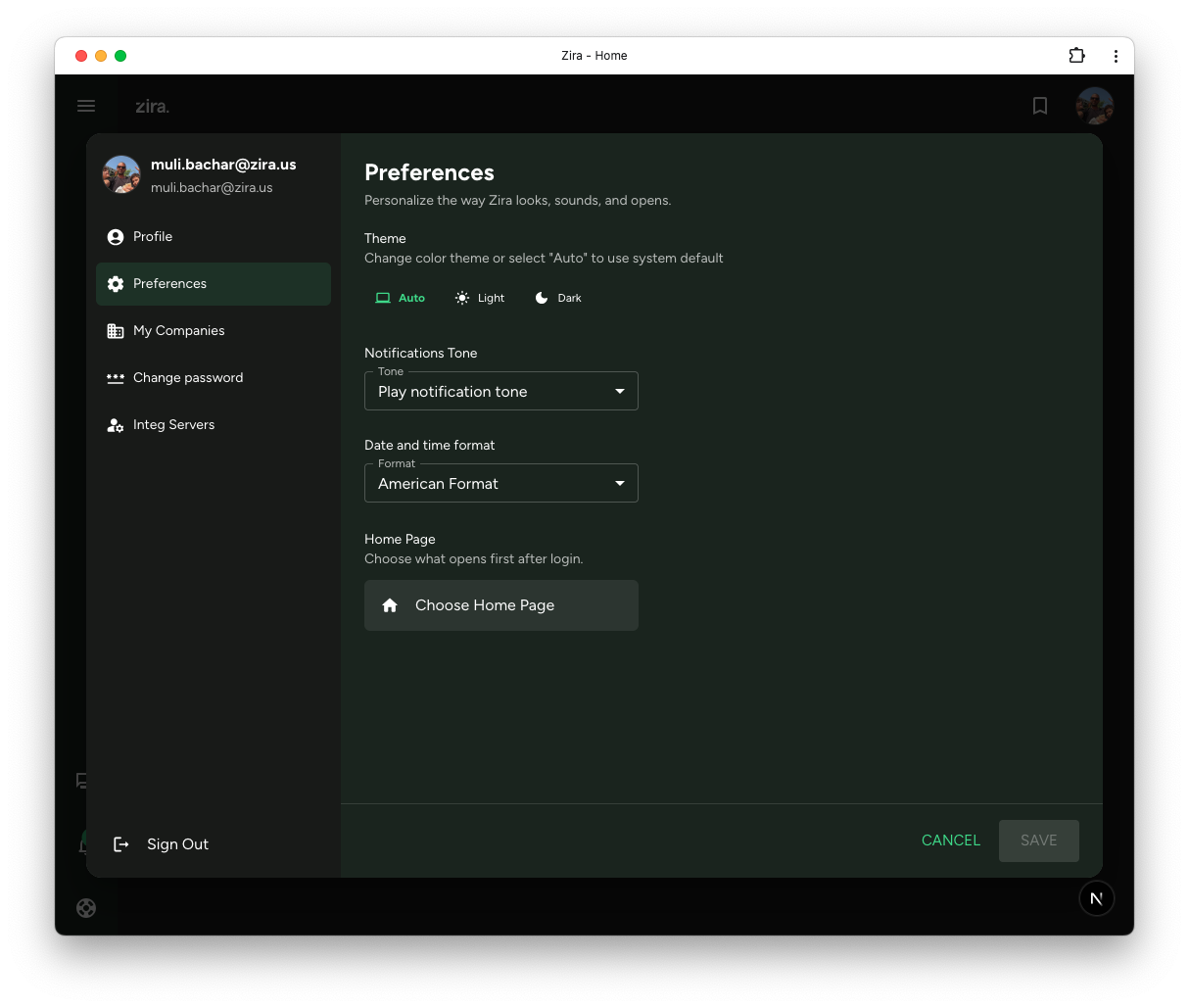
Save your changes
- Review the updated options.
- Click Save.
If you change your mind before saving, click Cancel.
Home Page tip
The Home Page setting chooses what opens first after you sign in.
For step-by-step help, see Choose Your Home Page.
If your team uses it, you may also see Open AI Home Builder, which helps you create a more personalized home page.
Related guides
- Choose Your Home Page - Set a dashboard or another page to open first.
- Update Your Profile - Change your photo, personal details, and signature.
- Change Your Password - Update your password when needed.