
Browse Guides
What Is Zira
Account Access
5 guides
Profile Preferences
3 guides
Navigation
2 guides
AI Vision
13 guides
AI Agents
1 guide
AI Assistance
9 guides
Data Sources
12 guides
Forms
2 guides
Dashboards
18 guides
Install the Zira App
Chat
1 guide
Feed
1 guide
Tasks
1 guide
People
2 guides
Documents
1 guide
Applications
1 guide
Support
1 guide
Scheduler
1 guide
Triggers
1 guide
Inventory
1 guide
TVs
1 guide
Operations App
2 guides
TV App
2 guides
Channels
1 guide
1 min read
Updated April 21, 2026
Update Your Profile
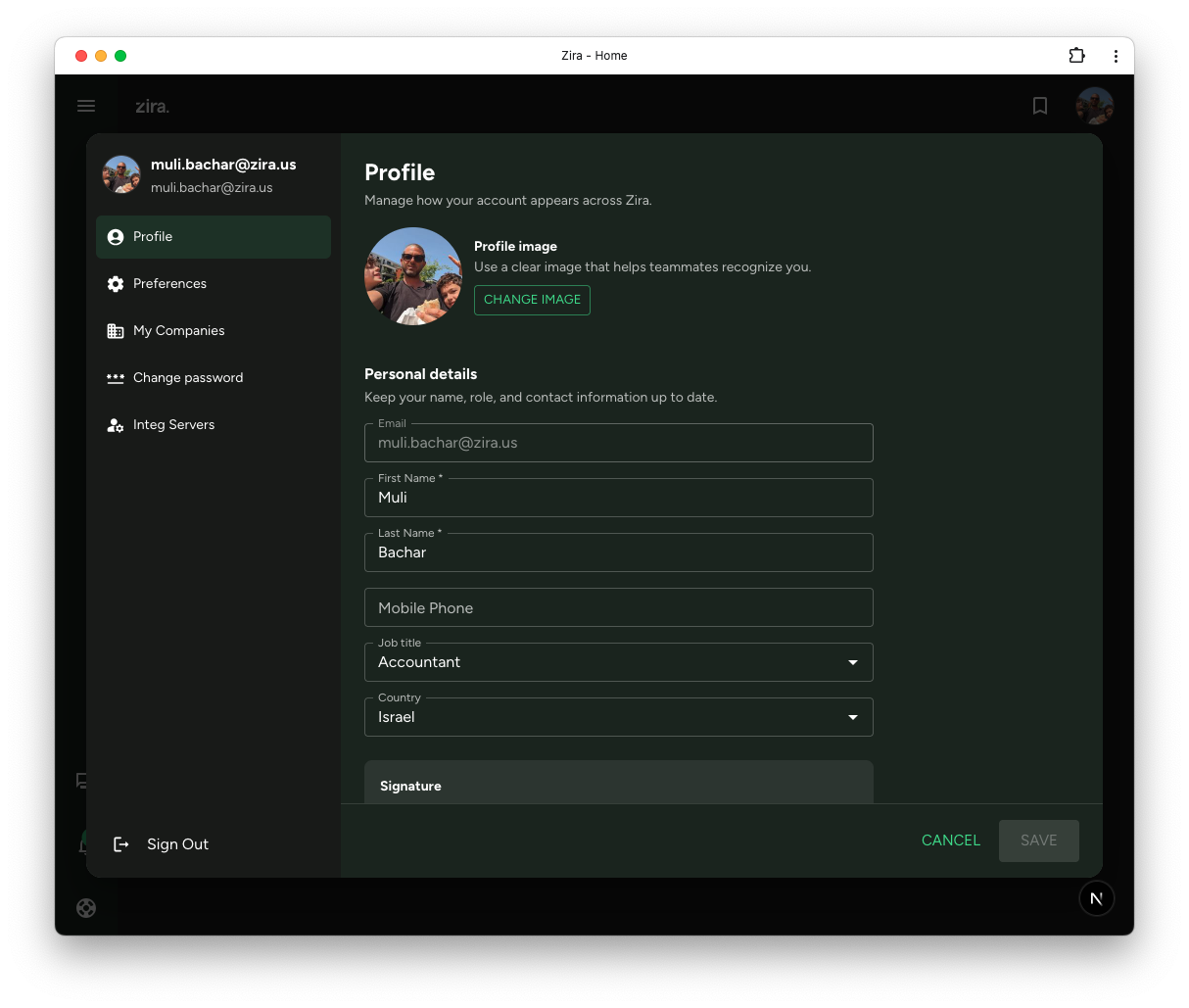
Update your photo, personal details, and signature from the Profile tab.
Use Profile when you want to keep your account details up to date.
Open your profile
- Look for your profile picture in the top-right app area.
- Click your profile picture.
- Select Profile.
Update your profile image and details
Use the Profile image area when you want to replace your photo.
Use the Personal details area when you want to review or update fields such as:
- First Name
- Last Name
- Mobile Phone
- Job title
- Country
If your team uses signatures for forms or approvals, use Change Signature to update it.
Save your changes
- Review the information you changed.
- Click Save.
- Wait for the updated details to be saved.
Your updated profile helps teammates recognize you and keeps your account details current.
Related guides
- Change Your Preferences - Update theme, notification tone, date format, and home page.
- Choose Your Home Page - Pick what opens first after sign in.
- Change Your Password - Update your password for account security.