
Browse Guides
What Is Zira
Account Access
5 guides
Profile Preferences
3 guides
Navigation
2 guides
AI Vision
13 guides
AI Agents
1 guide
AI Assistance
9 guides
Data Sources
12 guides
Forms
2 guides
Dashboards
18 guides
Install the Zira App
Chat
1 guide
Feed
1 guide
Tasks
1 guide
People
2 guides
Documents
1 guide
Applications
1 guide
Support
1 guide
Scheduler
1 guide
Triggers
1 guide
Inventory
1 guide
TVs
1 guide
Operations App
2 guides
TV App
2 guides
Channels
1 guide
1 min read
Updated May 20, 2026
Forgot Your Password
Send yourself a password reset email from the Forgot Password page.
Use this guide when you cannot sign in because you forgot your password.
Zira can send a verification email so you can continue with the password reset process.
Open the Forgot Password page
- Open the Zira sign-in page.
- Click Forgot password?
- Wait for the Reset your password page to open.
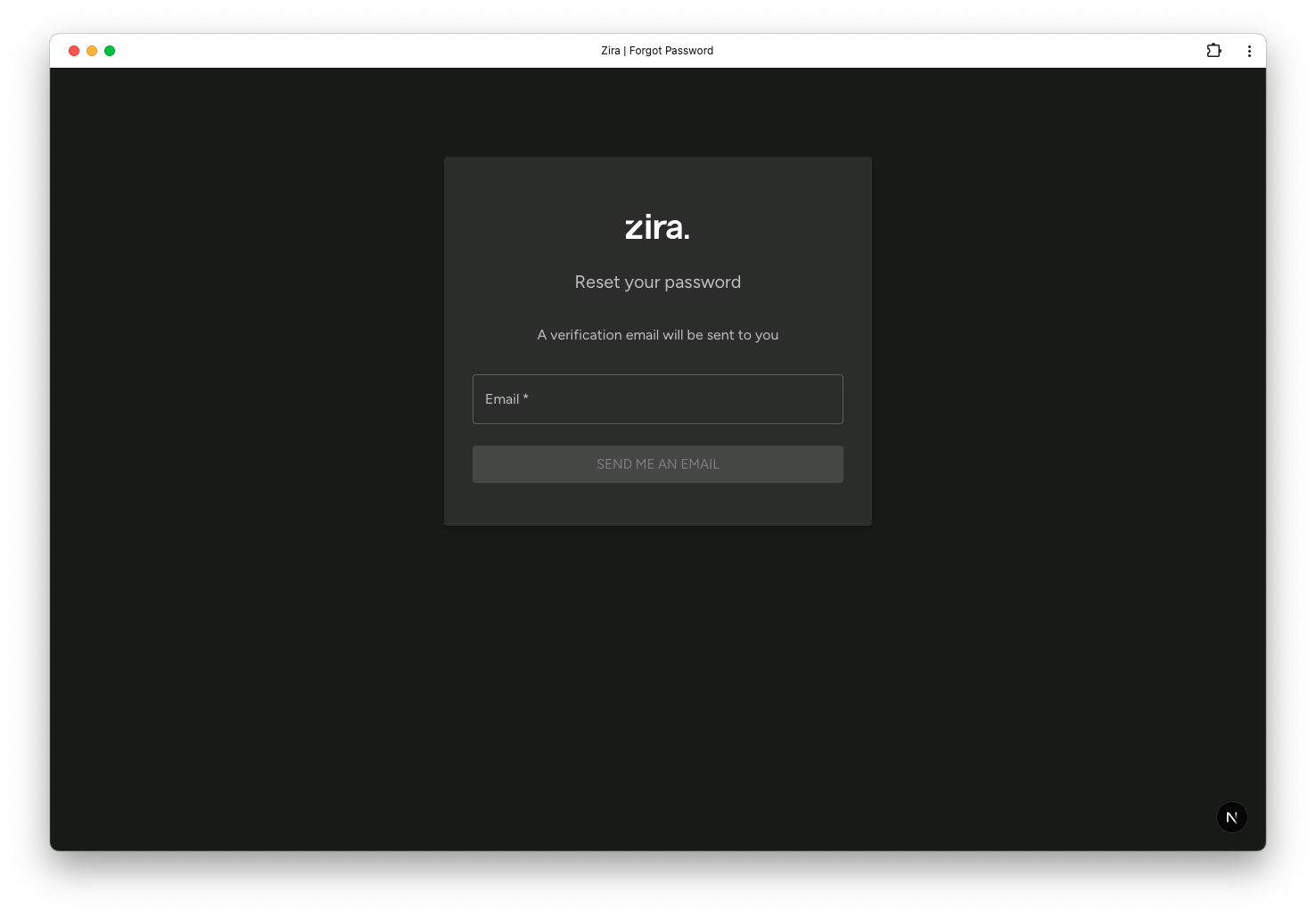
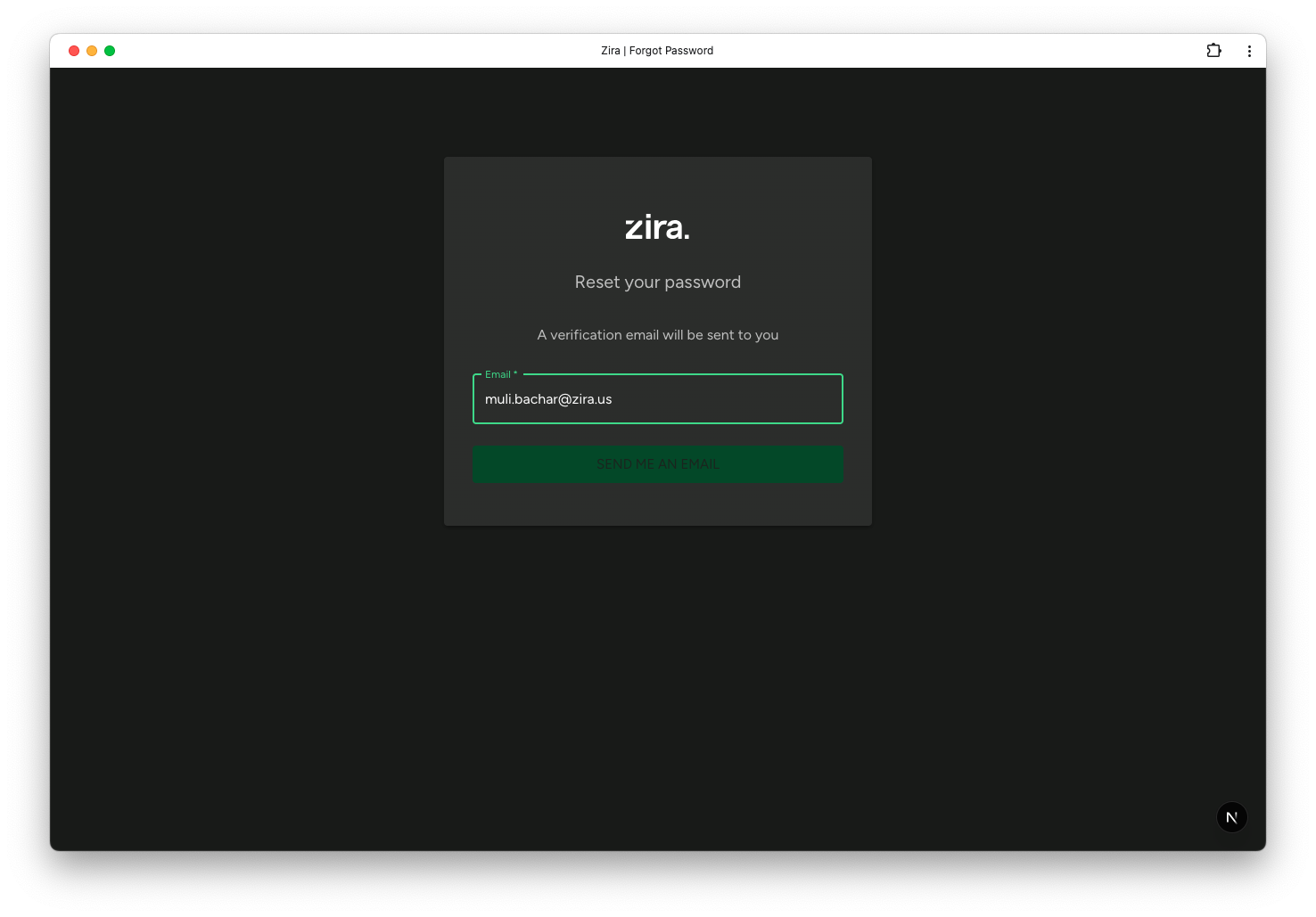
Enter your email
- Type your account email address in Email.
- Review the address carefully.
- Click Send me an email.
What happens next
After you submit the form:
- check your inbox for the reset email
- open the email and follow the reset steps
- return to the sign-in page after your password is updated
If the email does not arrive, check the address you entered and look in your spam or junk folder.
Related guides
- Sign In to Zira - Return to your account after resetting your password.
- Change Your Password - Update your password after you are already signed in.
- Create Your Account - Finish setup if you have not created your account yet.