
Browse Guides
What Is Zira
Account Access
5 guides
Profile Preferences
3 guides
Navigation
2 guides
AI Vision
13 guides
AI Agents
1 guide
AI Assistance
9 guides
Data Sources
12 guides
Forms
2 guides
Dashboards
18 guides
Install the Zira App
Chat
1 guide
Feed
1 guide
Tasks
1 guide
People
2 guides
Documents
1 guide
Applications
1 guide
Support
1 guide
Scheduler
1 guide
Triggers
1 guide
Inventory
1 guide
TVs
1 guide
Operations App
2 guides
TV App
2 guides
Channels
1 guide
1 min read
Updated April 3, 2026
Sign In to Zira
Use your email and password to sign in and open your Zira home page.
Use this guide when you are ready to sign in to Zira.
You will need your Email and Password.
Open the sign-in page
- Open the Zira sign-in page your team uses.
- Wait for the sign-in form to appear.
- Make sure you can see the Email and Password fields.
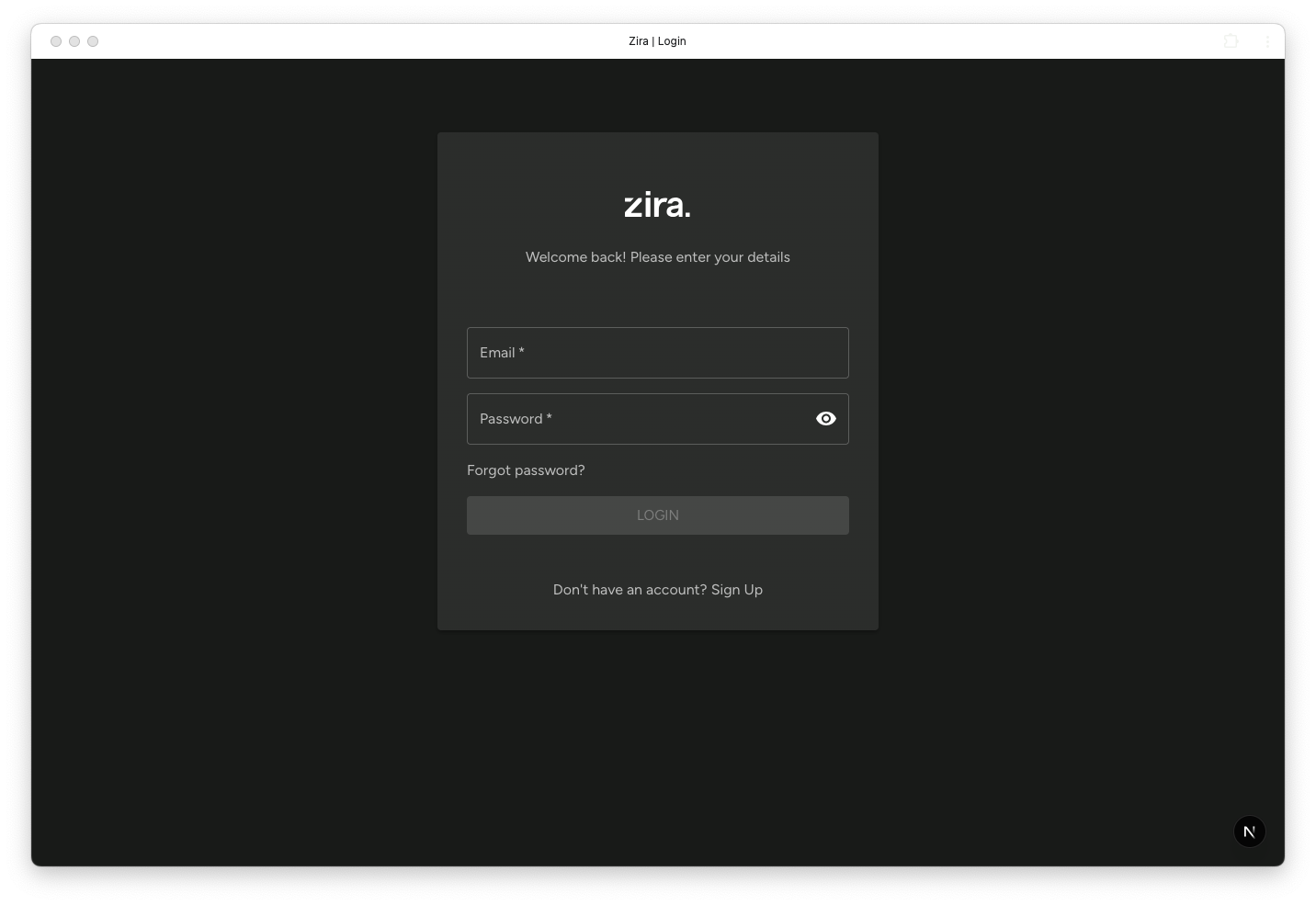
Sign in
- Enter your email address in Email.
- Enter your password in Password.
- Click Login.
- Wait for your Zira home page to open.
If you want to check your password before signing in, click the eye icon in the password field.
If you cannot sign in
- Click Forgot password? if you need to reset your password.
- Click Sign Up if you were invited to create a new account and have not finished that step yet.
- Contact your team lead or support contact if your email or password still does not work.
What happens next
After you sign in, Zira opens your home page.
From there, you can open the left sidebar to move to places like Chats, Channels, Sites, and Vision.
Related guides
- Create Your Account - Finish account setup before signing in.
- Forgot Your Password - Send yourself a password reset email.
- Choose Your Home Page - Decide what opens first after sign in.