
Browse Guides
5 guides
3 guides
2 guides
13 guides
1 guide
9 guides
12 guides
2 guides
18 guides
1 guide
1 guide
1 guide
2 guides
1 guide
1 guide
1 guide
1 guide
1 guide
1 guide
1 guide
2 guides
2 guides
1 guide
App Bar and Sidebar
Use the sidebar and top app bar to move between sections, search lists, open channel pages, and reach account shortcuts while you work.
Use the sidebar and top app bar to move around Zira without losing your place.
These areas stay available while you work, so you can switch sections, search for the item you need, and open account actions quickly.
Use the left sidebar to move between main sections
The left side of the app is the main navigation area.
From here, you can move between large sections such as:
- sites
- channels
- vision devices
- the AI Assistant
- notifications
- help
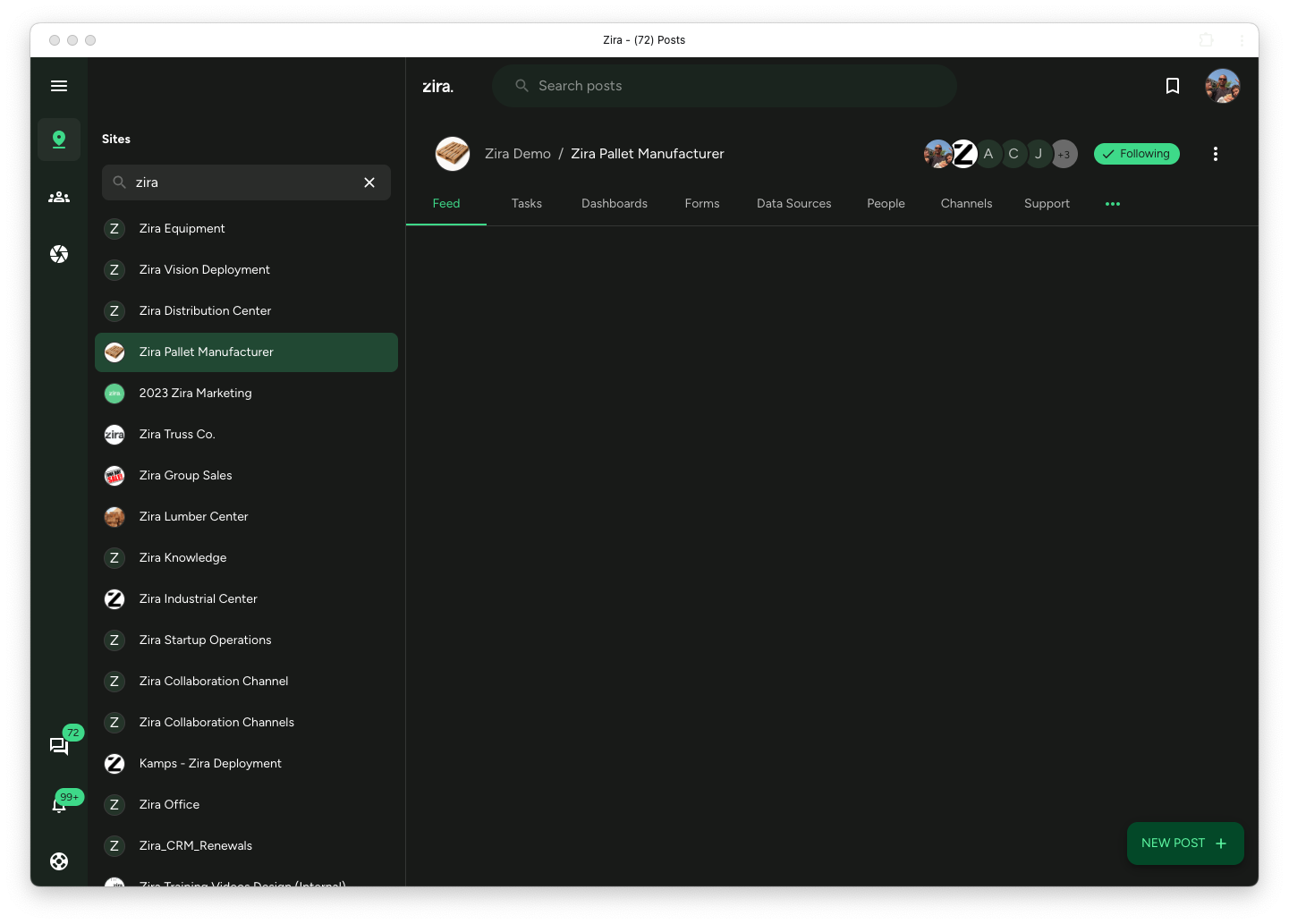
Click one of the icons in the left rail to open that section. When the section opens, the matching list appears beside it so you can choose the exact item you want.
Open the AI Assistant from the sidebar
If your Work mode is the feed or a dashboard, the left rail also shows an AI Assistant icon — the sparkles — just above Chats. On a phone, open the menu to find it.
Click it to open the Home AI Assistant on its own page, where you can ask a question, find something, or build — without changing your Work mode. The icon fills in while you are there. To leave, open the menu and click the Zira logo to go home, or pick any site or channel.
If your Work mode is already AI Assistant, the icon does not appear — the assistant is your home page.
Search inside the sidebar list
When you open a section such as Channels, Sites, or Vision Devices, you can use the search box in that sidebar to filter the list.
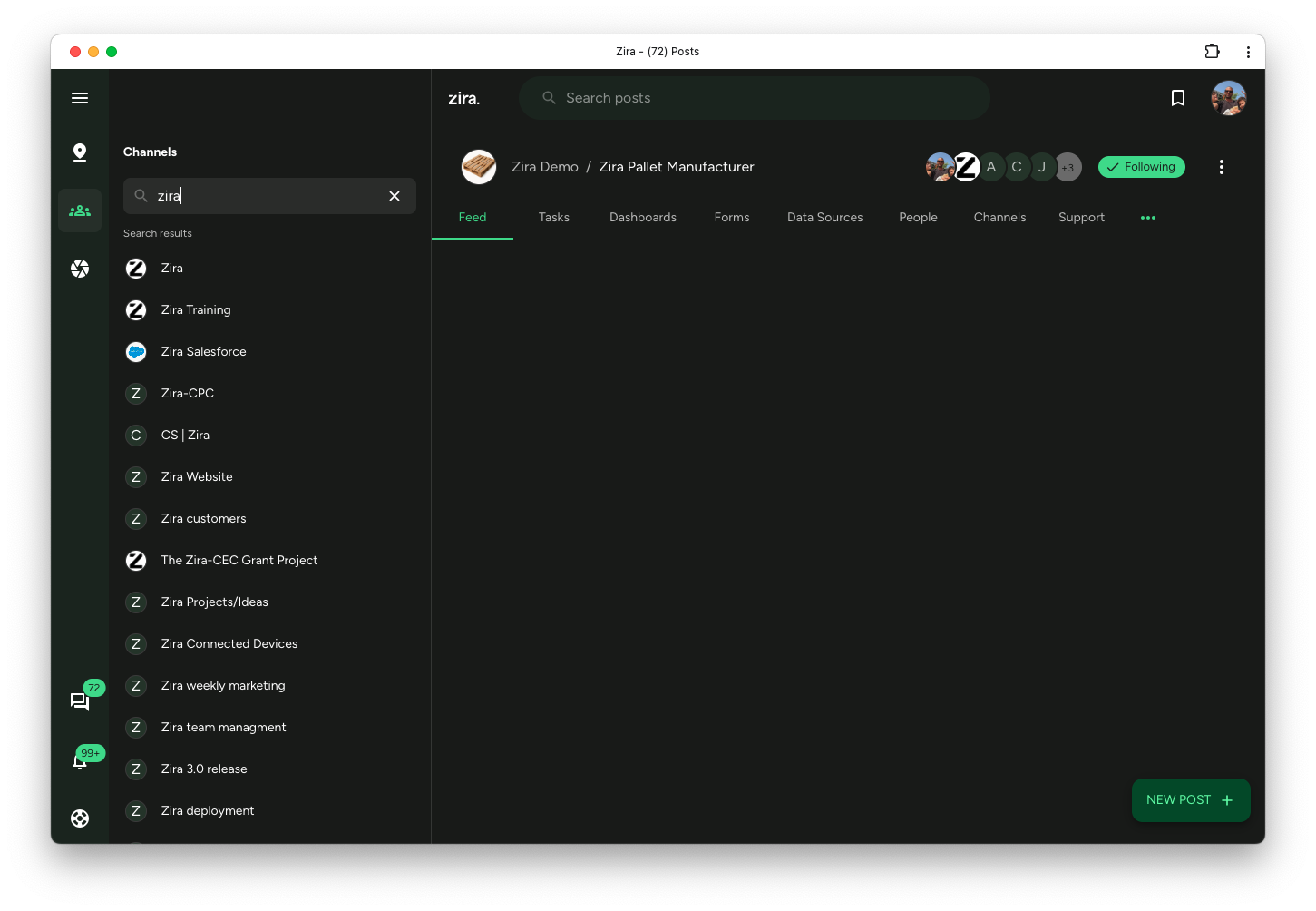
This is the fastest way to find:
- one specific channel
- one site
- one device
- or another item inside the section you already opened
Use the top app bar for page search and account actions
Across the top of the page, Zira shows the app bar.
This area usually includes:
- the current page search
- your profile picture
- page-level actions tied to the screen you are viewing
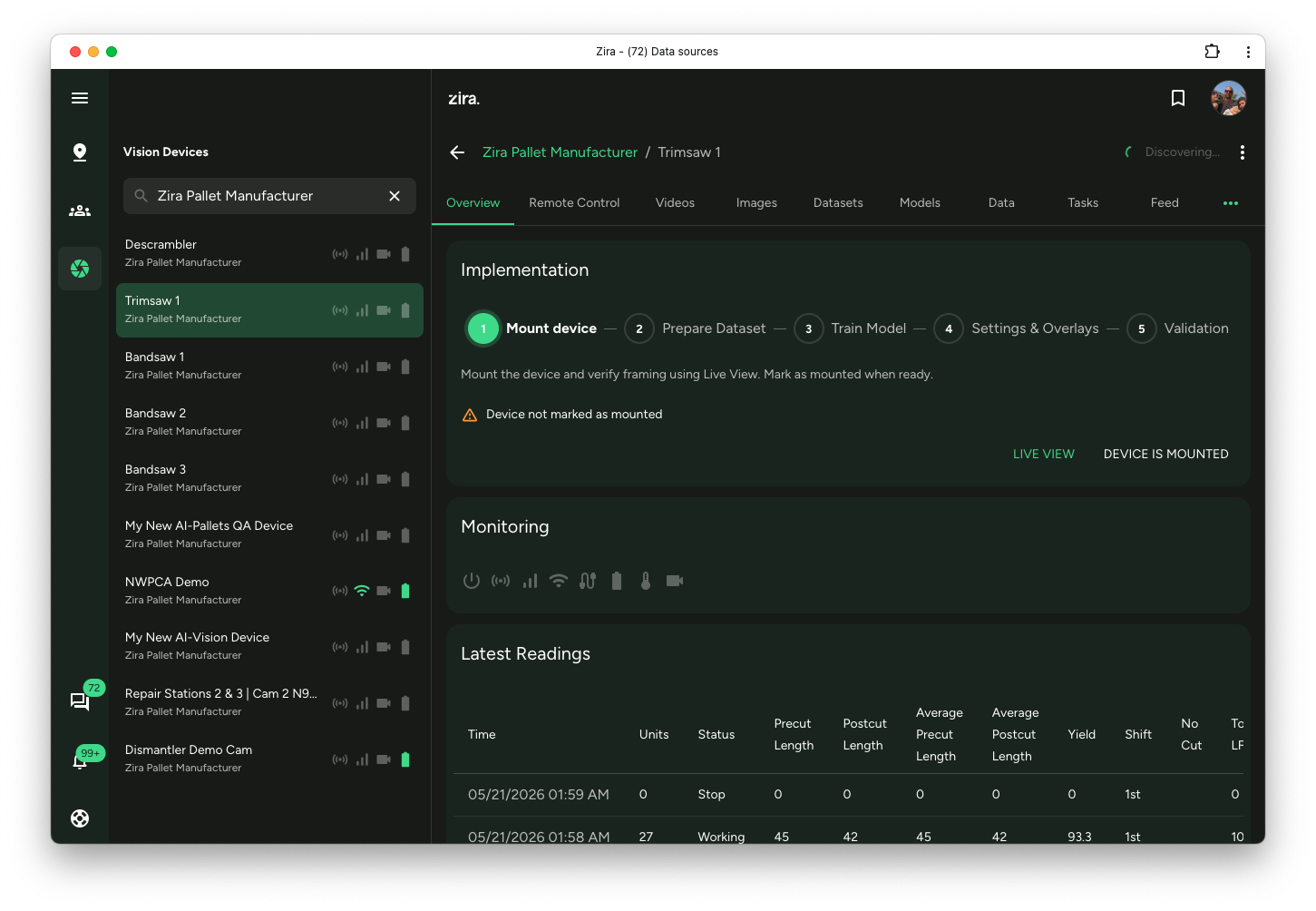
Use the top search when you want to search the page you are already on, such as posts, dashboards, or another list view.
Use your profile picture in the top-right corner when you want account-related actions such as profile, preferences, password, help, or sign out.
A simple way to think about navigation
Use the sidebar when you want to go to a different place in Zira.
Use the top app bar when you want to work inside the page you already opened.
That usually means:
- sidebar for section switching and item lists
- top app bar for page search and account shortcuts
Read next
- Update Your Profile - Change your profile details and image.
- Change Your Preferences - Update theme, date format, and home page behavior.
- Home AI Assistant - Ask, find, and build from one chat.
- AI Help Assistant - Ask product questions in plain language.