
A Smarter Home Assistant, Cross-Site QA Review, and Hands-On Device Control
The home AI assistant now helps before you even pick a site, adds a "/" command menu, and lets you switch sites right from chat — while the Vision Hub brings validation sessions from every site into one place with powerful filters, live recording, and bulk testing, a cleaner Feed table, and smoother image-by-image review that now shows every captured side of a pallet. This release also adds hands-on device control — tune a device's settings and drag its overlays right over the live view, plus richer dataset tools for merging, generating, and building pallet training data.
This release makes Zira quicker to drive from the first click. The home AI assistant now helps you before you've even chosen a site, adds a "/" command menu for getting anywhere fast, and lets you change sites mid-conversation. On the QA side, the Vision Hub pulls validation sessions from every site into a single review surface with always-on filters, shows what's recording as it happens, lets you record or test devices in bulk, turns the activity feed into a scannable table, and adds new ways to merge and generate training data — and image-by-image review is smoother — keeping your view settings as you page through a session, and now showing every captured side of a pallet in one place. It also puts hands-on device control in the hub: open a device's settings in one dialog and drag its masks, zones, and rulers right over the live view — plus new stringer controls when you build pallet training data.
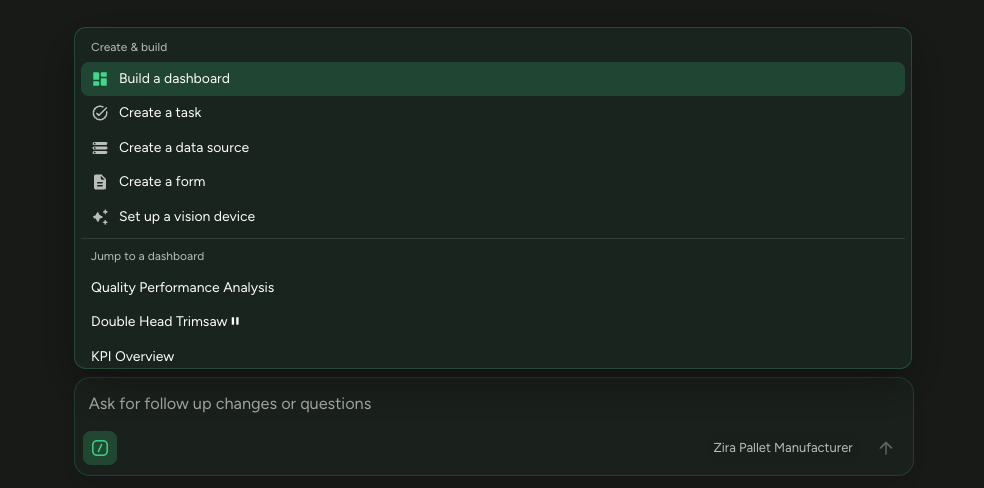
⌨️ A new "/" command menu in the assistant
- Type / in the assistant composer — or tap the / button — to open a command menu.
- Jump straight to a recent dashboard or data source, or start a common action: build a dashboard, create a task, form, or data source, or browse your dashboards, sites, tasks, and companies.
- Ask what the assistant can do, and switch your AI provider (OpenAI or Claude) right from the menu — the provider choice now lives here instead of the toolbar.
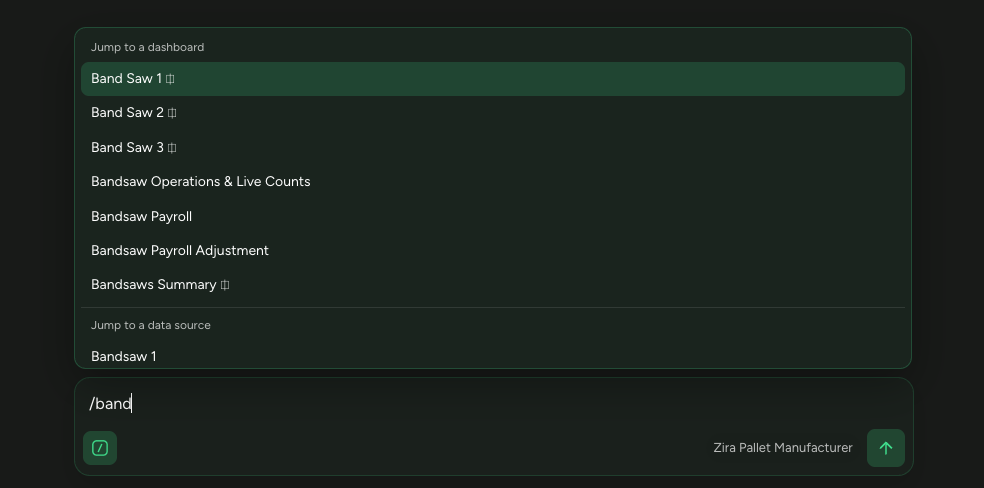
Keep typing after the / to filter instantly — type part of a name and the menu narrows to the matching dashboards and data sources, so you can open a specific item in a couple of keystrokes.
🧭 Help before you pick a site — and switch sites from chat
- The assistant is now useful before you select a site: it's aware of your companies and your open tasks across every site, so you can ask basic questions right away.
- When something needs a specific site, the assistant offers a one-tap "Select a site" — and once you choose, it automatically continues the request you started.
- Just say "switch to <site>" to change your working site without leaving the conversation.
- Questions like "how many tasks do I have?" now return accurate totals across your sites, with a gentle nudge to focus on a single site when that helps.
🗂️ Review validation sessions across every site
- A new Validation tab in the Vision Hub gathers the latest validation session for each device, grouped by site, so you no longer have to open each site on its own.
- Every row shows status, val/raw/marks counts, and the session date — click the date to open the full review in a new tab.
- Always-on filters sit in a toolbar right below the tabs — narrow by session window and by whether a device has a recent session, has marks found, is not yet reviewed, or has no activity — so you can jump straight to what needs attention.
- Select or clear all in-view rows with one checkbox, and expand or collapse every site in a single tap.
- Expand any site to load its most recent sessions on demand, so the page stays fast even with many sites.
🔴 See what's recording — and record or test from the hub
- Devices that are recording right now show a clear live indicator on their row, no matter who started the recording.
- Need footage from a device that's missing a recent session? Start a recording — for one device or several at once — without leaving the page.
- Run a test on selected devices in bulk and watch progress right there, so you can confirm coverage across many devices at once.
- This makes it quick to spot gaps and fill them in, so every device stays covered.
🎛️ Tune a device — and place its overlays — right from the hub
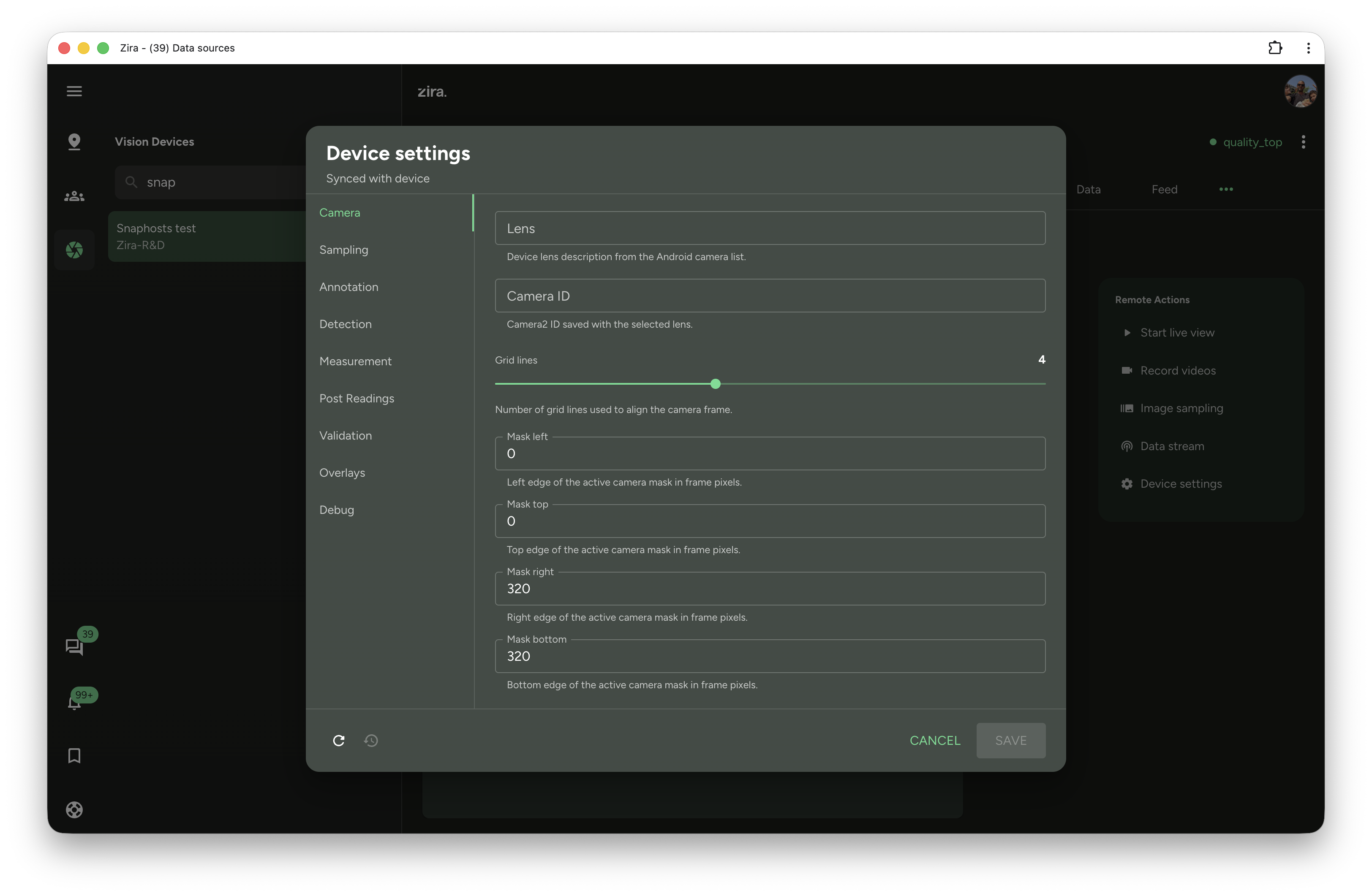
- Open a Device settings dialog for a device and adjust its configuration in one place, organized into clear tabs instead of a long wall of options.
- Settings are grouped into tabs — Camera, Sampling, Detection, Measurement, Validation, Overlays and more — and stay synced with the device, so you always see what's actually running.
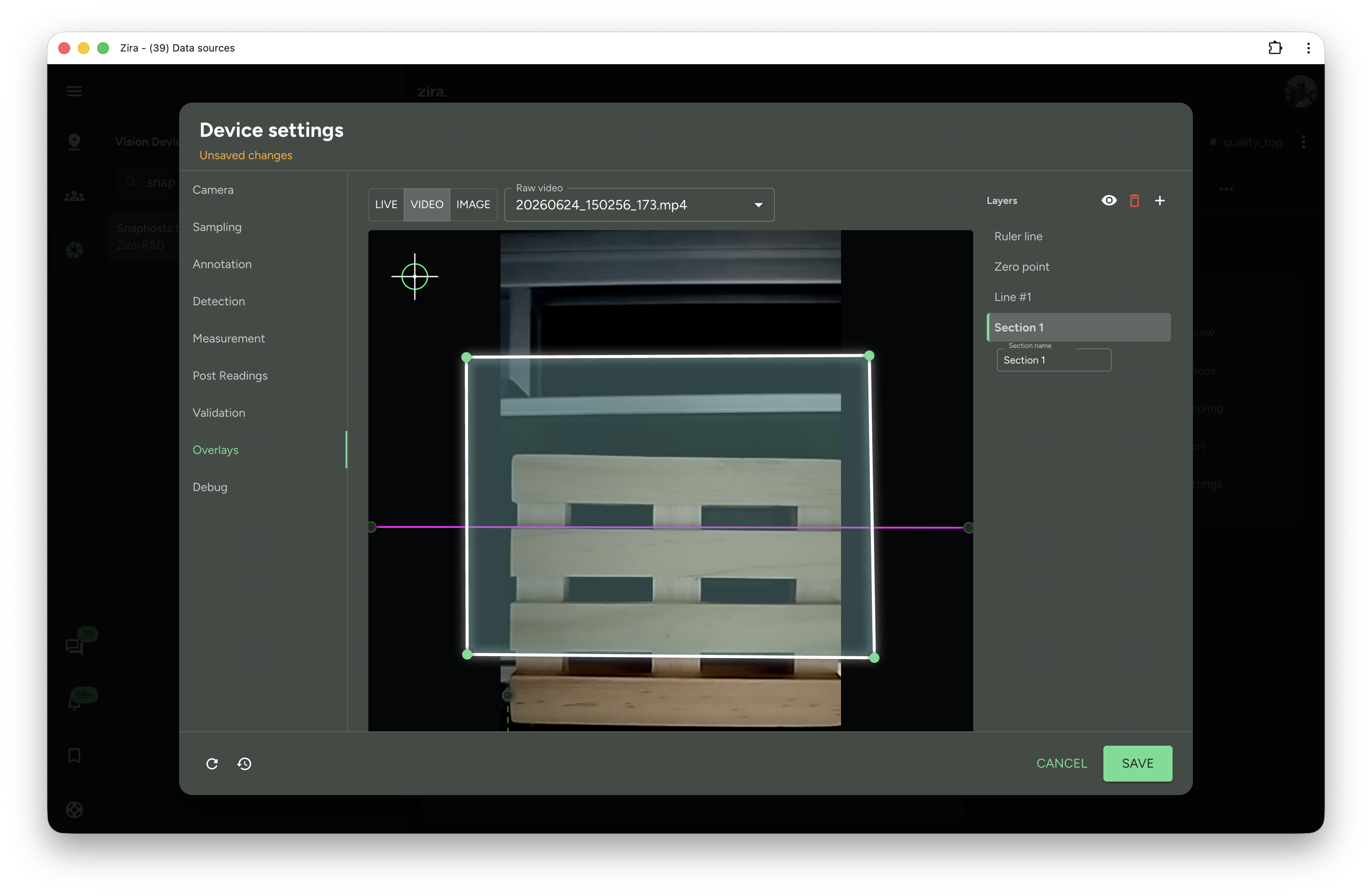
- A new Overlays tab lets you drag the pieces that matter directly over the picture — the detection mask, ruler lines, and the zero point — and line them up against a live view, a recorded video, or a still image.
- Changes are sent to the device for you, so setup that used to mean typing raw pixel values becomes a hands-on, visual adjustment.
- Works for both vision and pallet devices, each with the settings that apply to it.
📋 A cleaner Vision Hub Feed
- The Feed tab now renders as a compact table instead of social-style cards, so a wall of device alerts becomes easy to scan.
- Each row lines up site, device, message, and time, with actions right where you expect them.
- When you handle many sites at once, you can tell rows apart at a glance.
🧩 New dataset merge, generation, and pallet-building tools
- Merge datasets into a single set — combine sources into one dataset (or a new version), with options to skip empty labels and clean up duplicate boxes as you go.
- Generate focused training datasets from a labeled set, with more control over cropping, image sizing, and output quality.
- Build pallet training data with new stringer controls: when you create a pallet from an image, you can now set its stringer configuration, so the generated boxes match how the pallet is actually built.
- Together, these tools make it faster to shape your raw images into training-ready data.
🖼️ Smoother image-by-image review
- Step through a session faster: prev and next are now floating buttons right over the image, so you can page through snapshots without moving your eyes off the picture.
- Your view stays put: zoom, pan, the RAW/VAL toggle, and the measurement overlay now carry over from one image to the next, so you don't have to re-set them on every snapshot.
- The view controls stay together on a single, tidy row, keeping the review surface clean while you focus on the details.
🪵 Review every side of a pallet
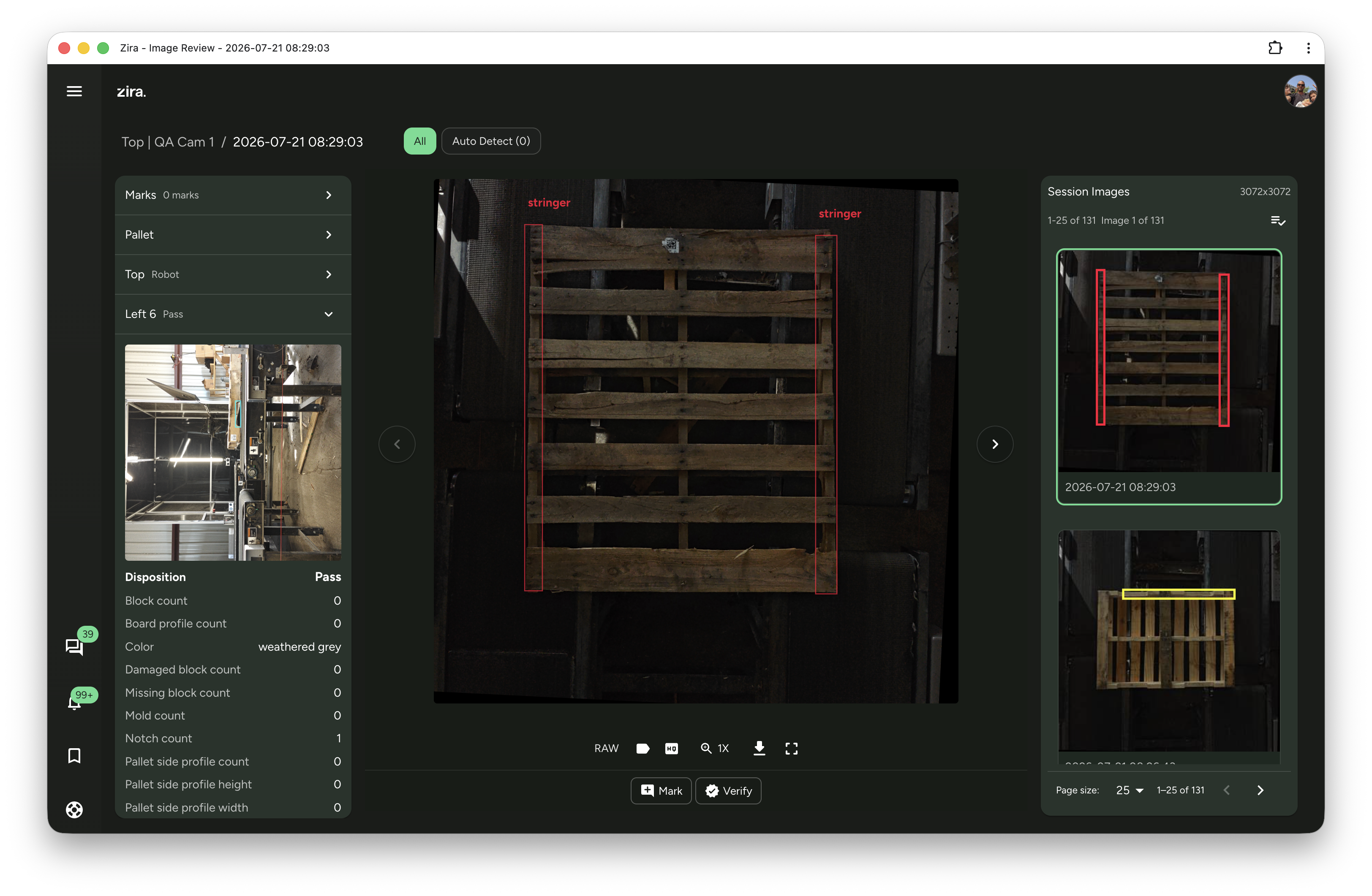
- Some lines capture a pallet from more than one side at the same time — top, left, and right. Image Review now brings all of the captured sides together, instead of showing only the top.
- The details panel is now a clean set of collapsible sections — a Pallet summary plus one section per side — each showing its result right in the header so you can scan at a glance and open just the side you care about.
- Open a side to see its own snapshot alongside its inspection results. If a side wasn't captured, the section simply says so instead of showing a broken image.
- AI inspection and your saved Marks sit in the same panel, so everything about the current pallet is in one scrollable place.
✨ Why this matters
- The assistant gets you moving from the first screen — answers before a site is chosen, and everything a keystroke away with "/".
- QA review moves from site-by-site to a single cross-site surface with filters that surface exactly what needs attention, so nothing slips through the cracks.
- Live recording status, one-click recording, and bulk testing keep your coverage complete without hunting for the right device.
- Tuning a device and placing its overlays visually, right over the live view, turns setup into a quick, hands-on adjustment.
- Image review flows image to image with your settings intact, so long sessions go faster.
- Every captured side of a pallet is in one place, so a defect on any face is easy to confirm.
- Better dataset tooling — now including stringer-aware pallet building — shortens the path from raw images to a model you can trust.
📚 Related guides
- ⌨️ Home AI Assistant
- 🗂️ Validation
- 🎛️ Remote Control
- 🖼️ Image Review
- 📋 Feed
- 🧩 Datasets and Dataset page
- 🧰 Vision overview