
A New Work Mode, a Smarter Assistant, and Big Vision Upgrades
Choose how Zira opens with the new Work mode — including an AI Assistant home that can chat, navigate, and build for you — now with an assistant beside your dashboards, more natural conversations, and your choice of AI provider, plus the biggest set of Vision workflow upgrades yet.
This release puts you in charge of how Zira opens and makes the AI Assistant a first-class way to work — beside your dashboards, in more natural conversations, and on the AI provider you prefer. It also brings the biggest set of Vision improvements yet, so the whole path from data to results keeps getting faster and clearer.
🧭 Set your Work mode
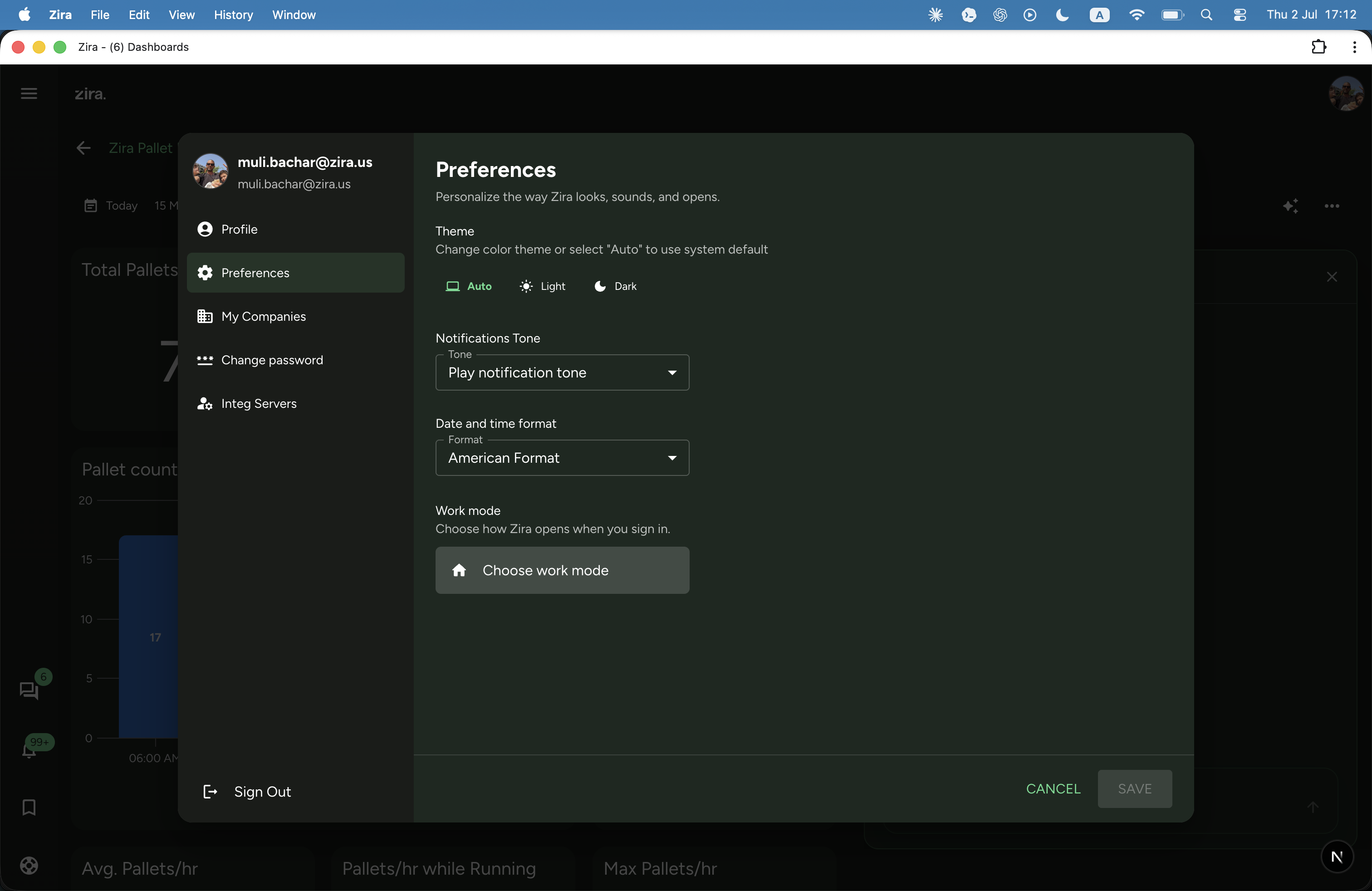
- The Home Page preference is now Work mode — a clearer way to choose how Zira opens when you sign in.
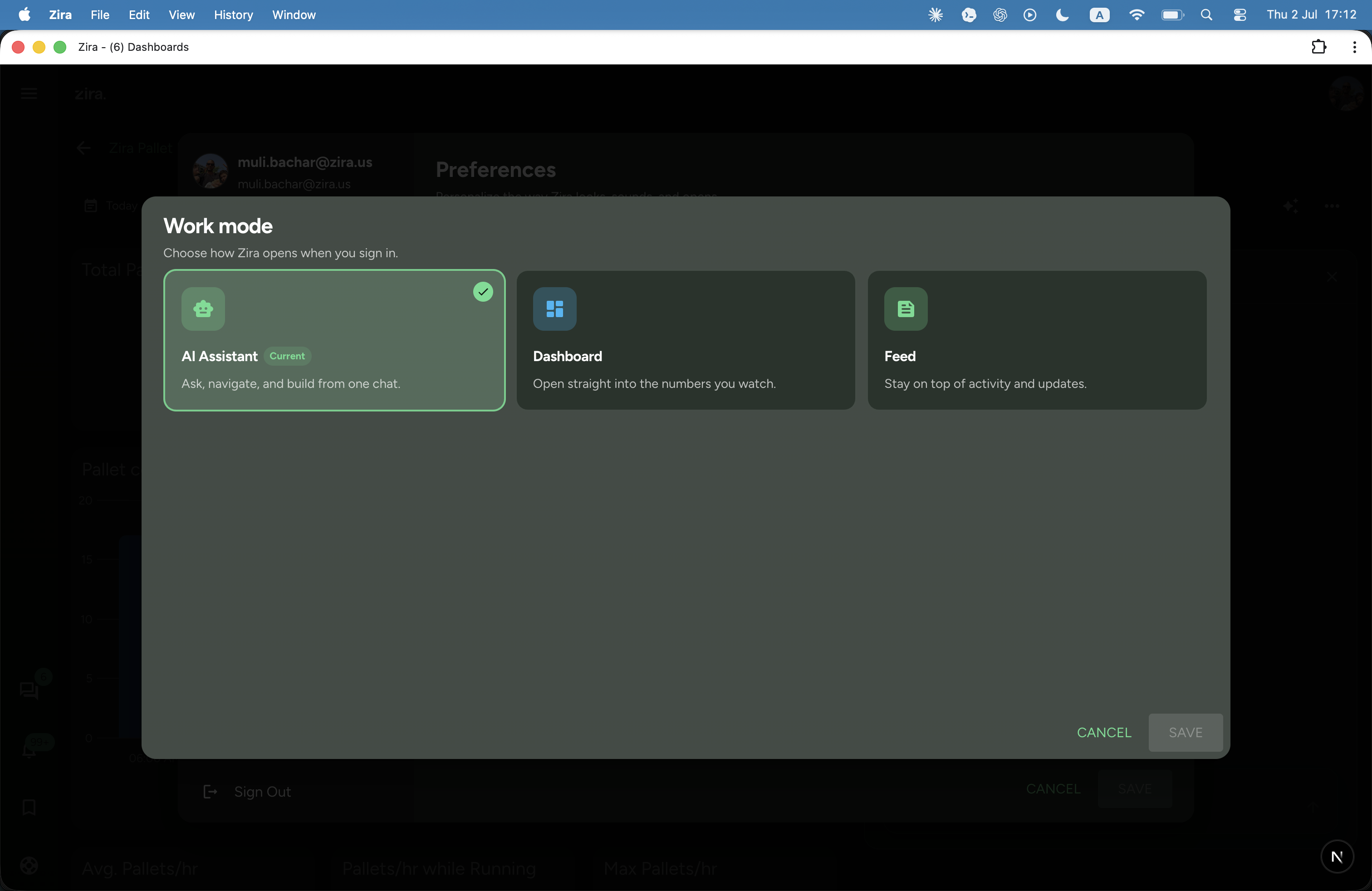
- Pick from three focused cards in Preferences → Work mode:
- AI Assistant — start every day in an assistant that can chat, navigate, and build from one place.
- Dashboard — open straight into the numbers you watch.
- Feed — stay on top of activity and updates.
- The redesigned selector shows a Current badge on your active mode and a clear check on the one you're picking, so the choice is easy to see at a glance.
🤝 An assistant beside your dashboards
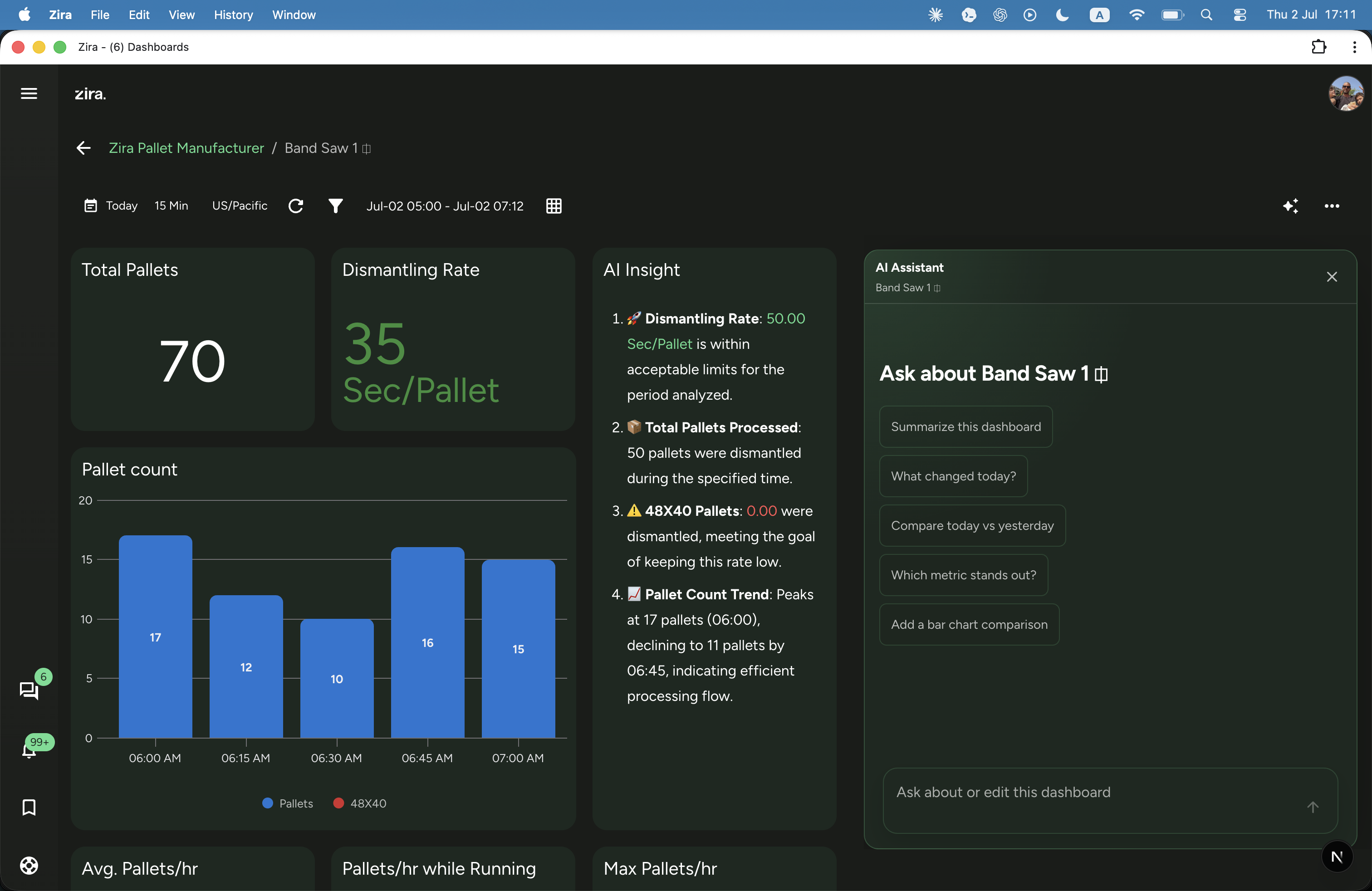
- Your dashboard now has a companion panel powered by the same Home AI Assistant, right next to the live view.
- Ask questions about the dashboard you're looking at — the assistant reads its loaded data to answer.
- Make changes in place — the assistant's edits flow into the dashboard you're already working on, keeping you focused on one screen.
💬 More natural conversations
- Ask follow-up questions like counts or details and get a direct answer from what's already on screen, instead of the assistant re-listing everything.
- Change direction mid-chat — say "create a form" partway through and the assistant switches to the new task smoothly.
- Answers now share one clean, compact layout, so lists, choices, and suggestions all look consistent and are quicker to scan.
- If you step away from a multi-step flow, it collapses into a tidy "paused / Resume" summary you can pick back up anytime.
🔀 Choose your AI provider
- Pick the AI provider that powers your assistant — OpenAI or Claude — right from the composer.
- Gentle brand icons make the current choice clear without cluttering the chat.
👁️ Big upgrades across the Vision workflow
From building datasets to annotating images, training models, detecting defects, and reviewing results, each step of the Vision workflow is now faster, clearer, and better connected.
🗂️ Stronger dataset tools
- Datasets now support versions, so you can keep a clear history as your data grows.
- Generate derived datasets from existing ones to spin up focused training sets quickly.
- Shuffle images between folders to balance and organize your data.
- Add tags and notes to keep datasets easy to find and understand later.
- Export a dataset to a ZIP with a progress indicator, so large exports never leave you guessing.
- Galleries are now paginated and easier to browse, even with large datasets.
✏️ Faster annotation
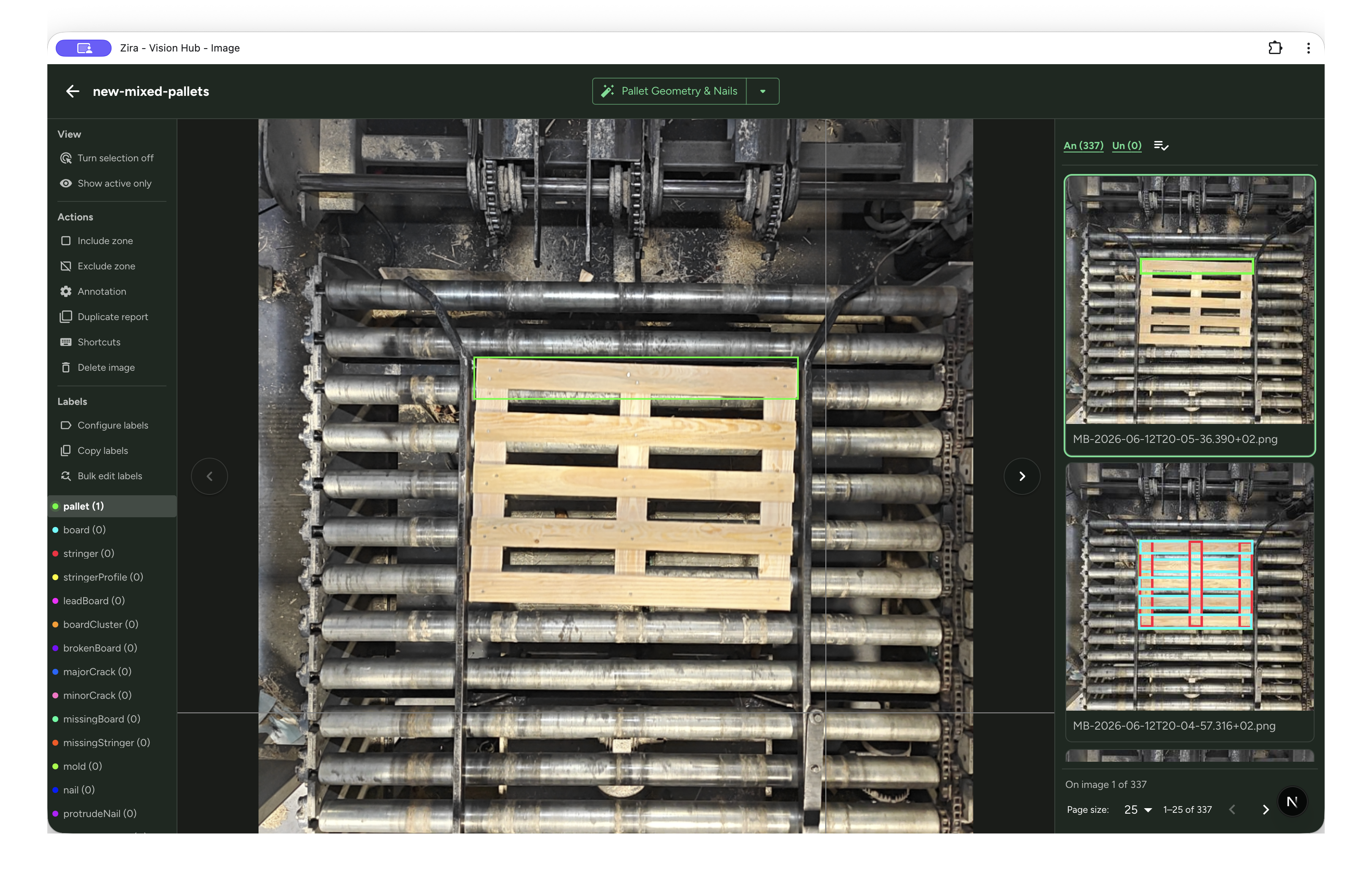
- Bulk label editing lets you add, replace, or remove labels across multiple images at once.
- New keyboard shortcuts make moving through images and marking them much faster.
- The new Describe to Annotate action runs auto-annotation from a plain-language description of what you want boxed — with a clearer, simpler setup — giving you a strong starting point to refine.
- Duplicate-box tooling speeds up repetitive marking when objects repeat across a frame.
🧠 Train and export models
- Model training now offers more setup options, so you can tune a run to your needs.
- Export a trained model, including TFLite, to run detection directly on a device.
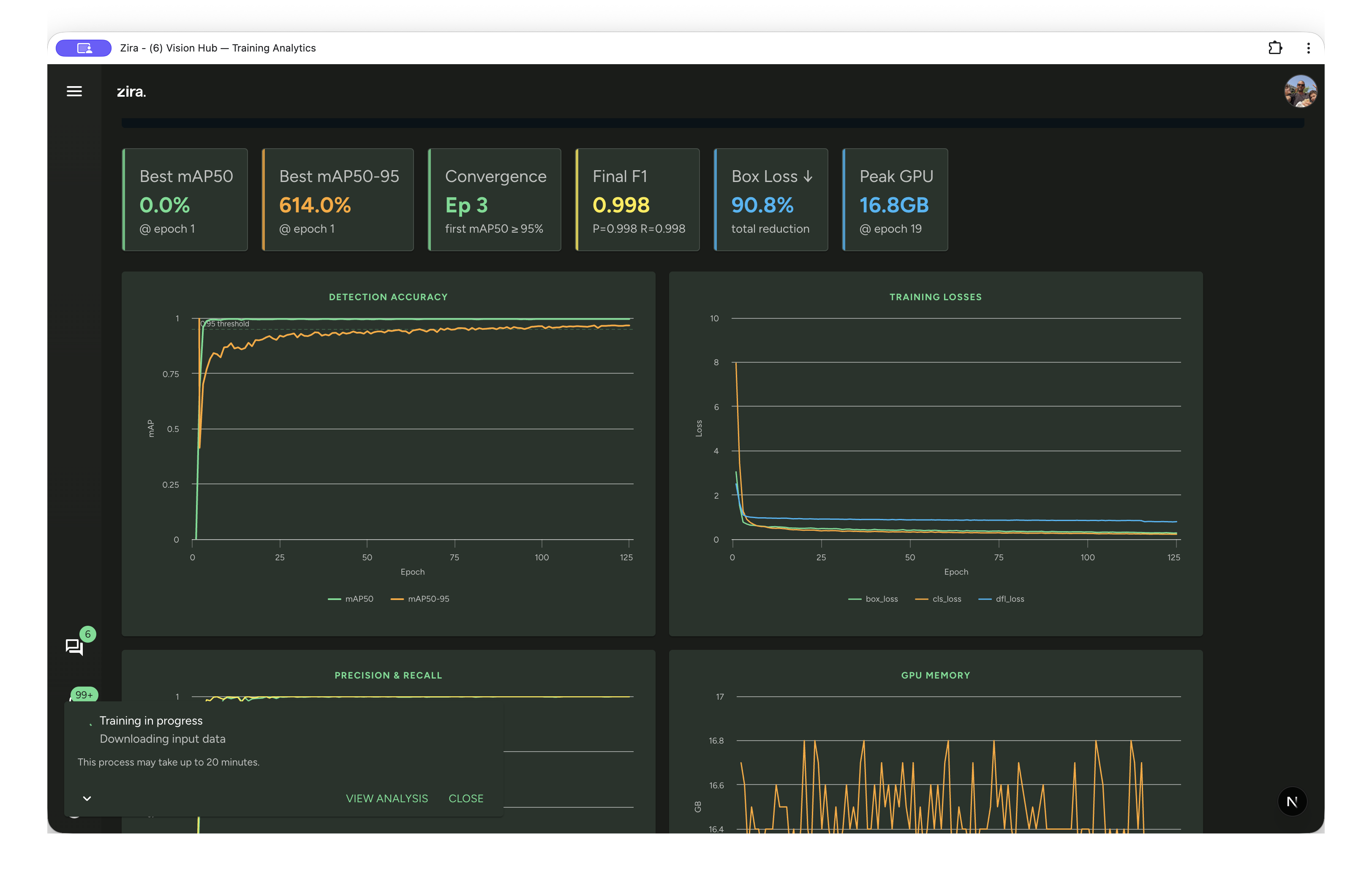
🔍 Automatic defect detection
- Run auto-detect on a session to surface defects without marking everything by hand.
- Detect structural defects on boards and pallets as part of the validation flow.
- See results come to life with live detection overlays and segmentation masks, plus overhang dimension lines in review.
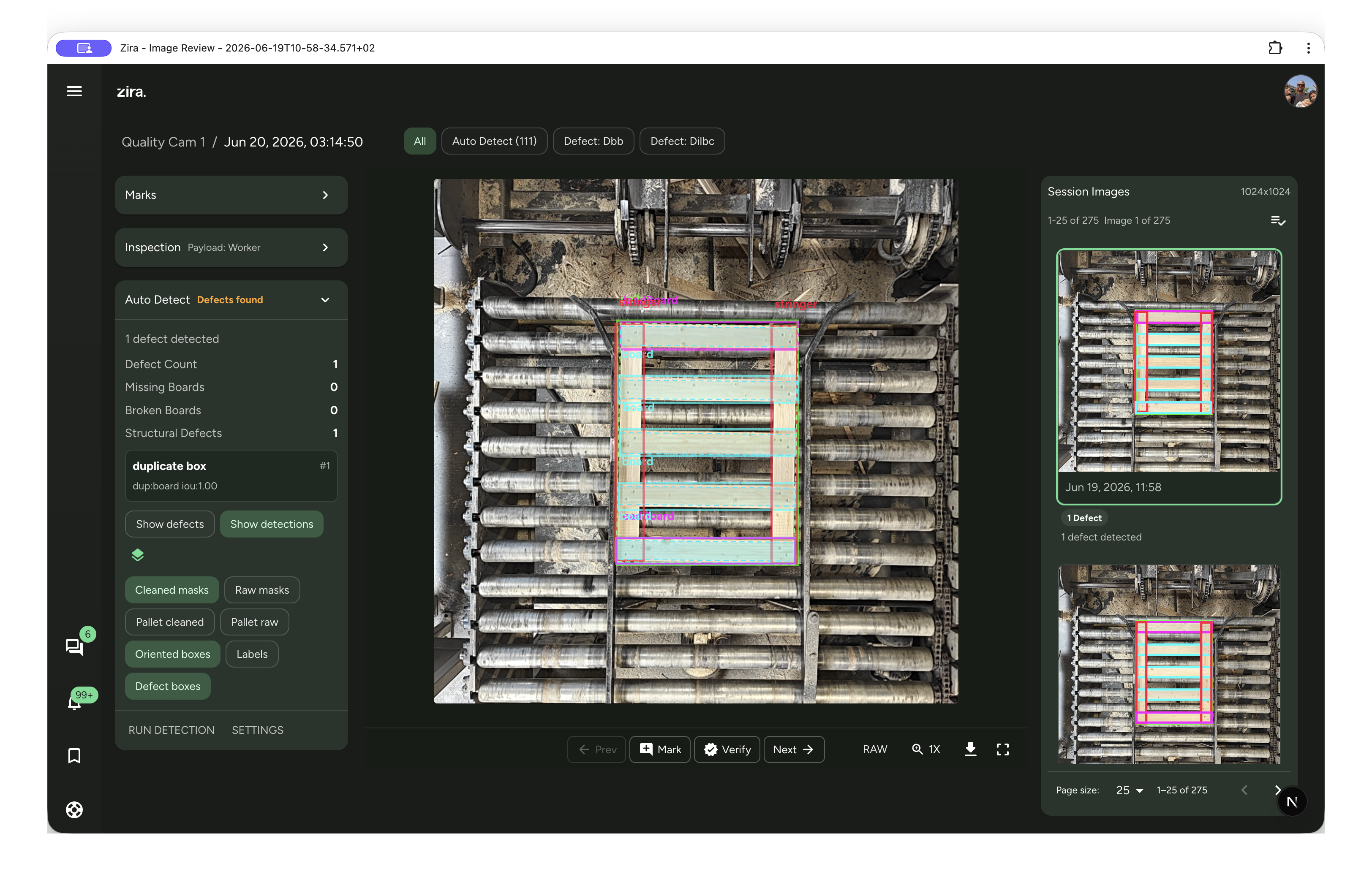
🖼️ Clearer image and video review
- Image review can now show the full inspection result in a collapsible view when you want the details.
- Switch between raw and validation views to compare exactly what the device saw.
- Sessions now follow the actual recording time, so the order matches what happened on the line.
- Video review keeps the current moment in view with auto-scroll, and you can create a task straight from a video mark.
- The review sidebar is now cleaner and more consistent — Marks, Inspection, and Auto Detect share one tidy card design.
- Collapse any card to focus on what matters, and the sidebar now scrolls as a single column instead of each card scrolling on its own.
- Common actions like Run Detection sit right where you need them at the bottom of the Auto Detect card.
🎥 Bulk video recording
- Capture several validation videos in one sequential flow, so collecting evidence across a session takes far fewer steps.
- Recording defaults were refined to get you to a usable clip faster.
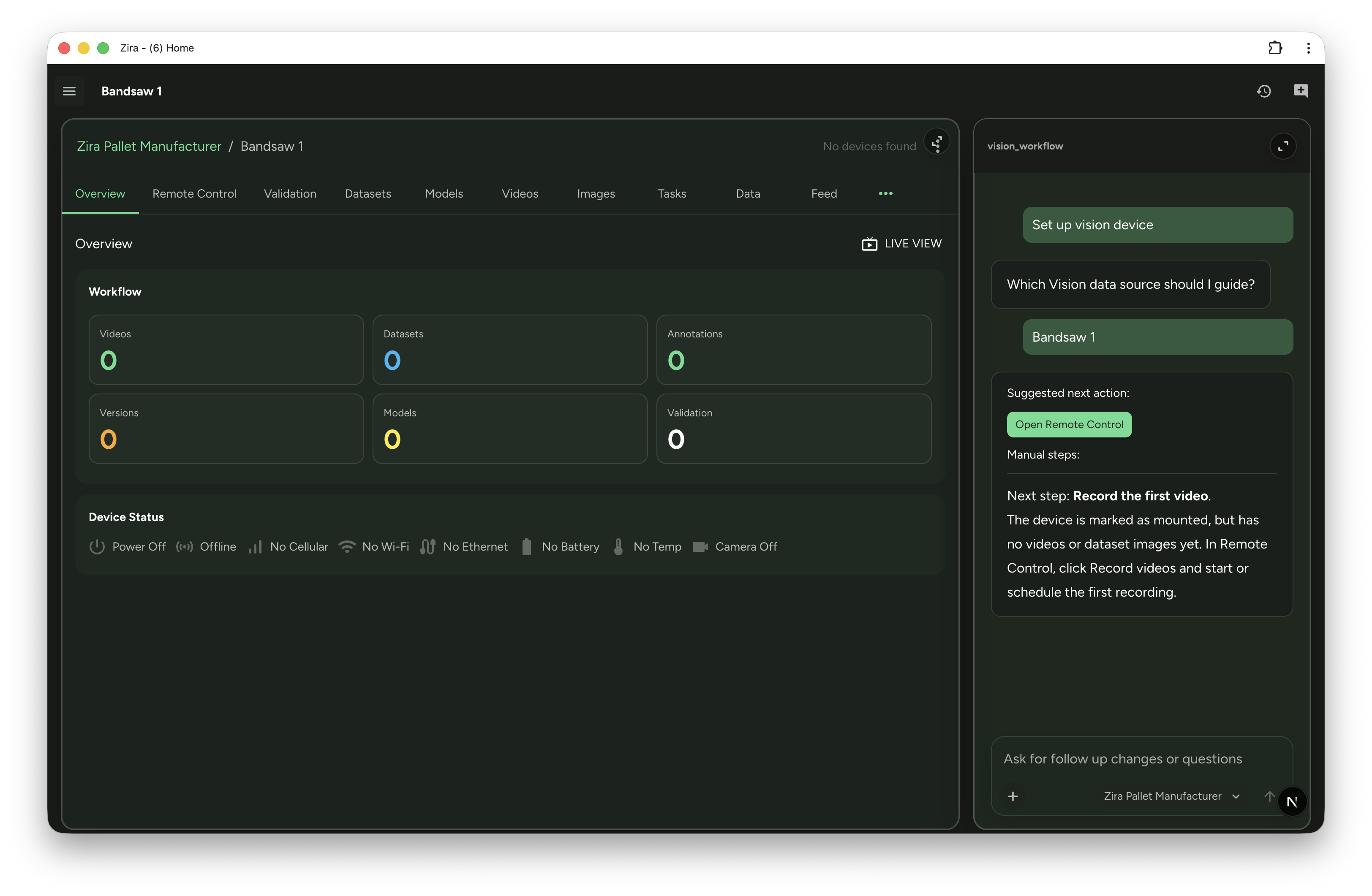
🧭 Guided Vision in the Home Assistant
- The Home Assistant can now guide you through the full Vision workflow, from setting things up to reviewing results.
- Your assistant session is kept in the page address, so you can refresh or share a link and pick up right where you left off.
✨ Why this matters
- The whole Vision journey — data, annotation, training, detection, and review — now feels like one connected flow.
- Common tasks take fewer clicks, and AI can do more of the heavy lifting along the way.
- Teams can move from raw images to trustworthy QA results with far less manual effort.
📚 Related guides
- 🧭 Choose your Work mode
- 🤖 Home AI Assistant and Dashboard AI Assistant
- 🗂️ Datasets and Dataset page
- ✏️ Image annotation
- 🧠 Models
- 🔍 Validation
- 🖼️ Image review and Video review
- 🎥 Remote control
- 🧰 Vision overview